

Backups automáticos y restauraciones
Actualizado hace 3 semanas
Todos los planes de hosting con cPanel incluyen backups automáticos diarios de tus archivos, correos y bases de datos, encriptados y almacenados fuera del servidor. Podés restaurarlos vos mismo desde el cPanel con JetBackup 5 o Acronis Backup. En los servidores Cloud y VPS los backups son opcionales y vienen desactivados por defecto.
Antes de restaurar, definí qué querés recuperar: toda la cuenta, solo archivos, una base de datos o casillas de correo. Después elegí la fecha de la copia y, si el sitio fue hackeado, seguí los pasos de limpieza posteriores para que el problema no vuelva.
Cuánto tiempo se conservan las copias
Mantenemos hasta 21 días de retención para restaurar en los planes de hosting con cPanel. Los planes reseller también incluyen backups automáticos diarios. En Cloud y VPS, al activar los backups, las copias se ejecutan a diario y se conservan hasta 21 días de retención, según la configuración acordada.
Si preferís hacerte cargo del backup de tus contenidos, escribinos y desactivamos los respaldos de tu cuenta.
Elegí qué restaurar
Cada tipo de restauración alcanza a una parte distinta de la cuenta. Elegí según lo que querés recuperar:
Qué restaurar | Cuándo usarlo |
|---|---|
Copias de seguridad completas | Solo cuando querés restaurar la totalidad de la cuenta: archivos, bases de datos, logs, correos y cualquier otro contenido. Demora un tiempo considerable según el tamaño y la cantidad de archivos. |
Directorio de Inicio | Cuando necesitás restaurar archivos o directorios específicos. Podés seleccionar la fecha de la copia y los contenidos que querés restaurar. |
Bases de datos | Cuando el problema está en una base, por ejemplo un WordPress que no abre. La base vuelve al estado de la fecha elegida. |
Casillas de mail | Cuando necesitás recuperar mensajes o casillas eliminadas. |
La fecha que elegís define el estado al que vuelve el sitio: todo lo que ocurrió después de esa copia queda fuera de la restauración.
Restaurar la base de datos de una tienda a una fecha anterior puede quitar pedidos, usuarios o cambios registrados después de esa copia. Si tu sitio sigue recibiendo operaciones, coordiná la recuperación con nosotros antes de restaurarlo completo.
Si querés mantener los contenidos actuales y solo sumar los que faltan, activá la opción Merge backup data with live account data después de elegir el tipo de respaldo y la fecha: mantiene los contenidos actuales, sumando los eliminados.
JetBackup
Para restaurar desde JetBackup 5:
Ingresá a tu cPanel. Reemplazá «misitio.com» por la URL real de tu web.

Buscá la herramienta JetBackup 5 dentro de tu panel de control.
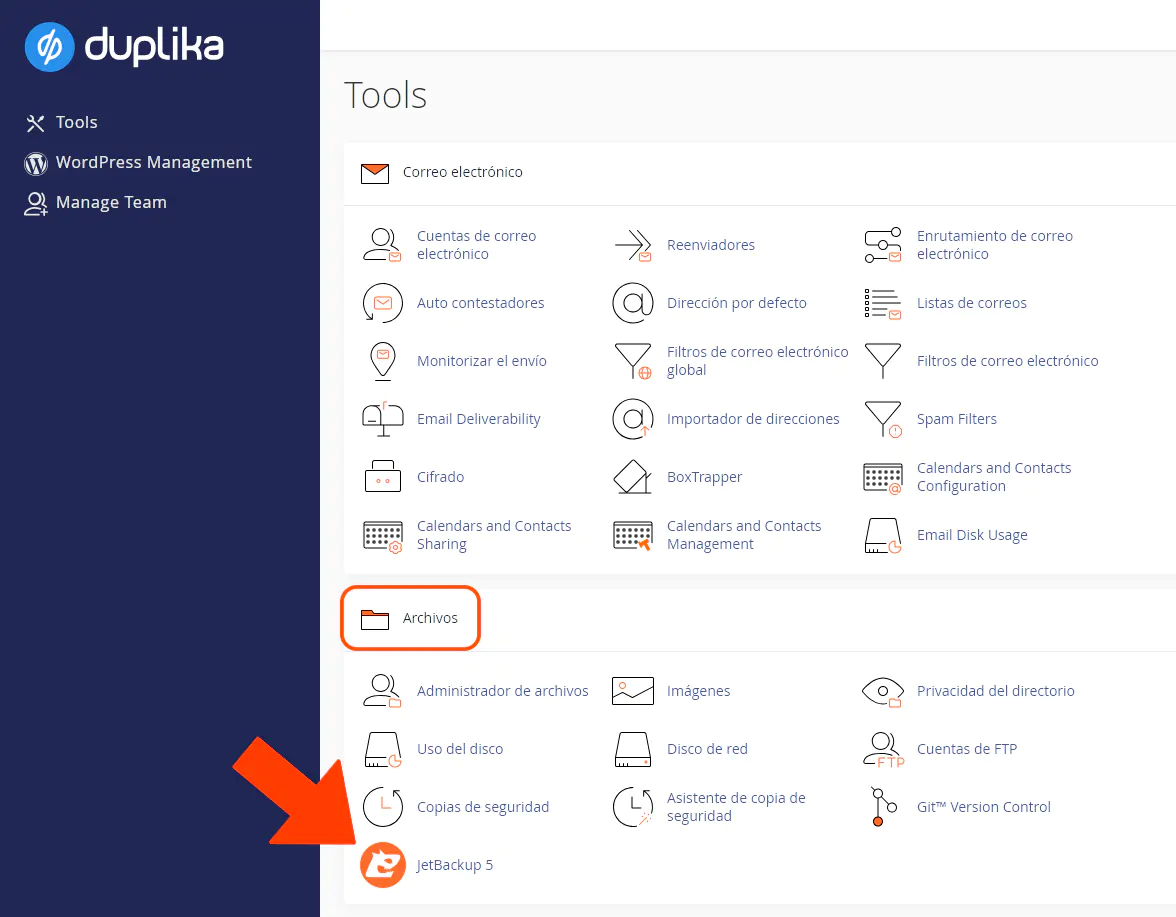
Elegí el tipo de respaldo según la sección anterior: copias de seguridad completas, Directorio de Inicio, bases de datos o casillas de mail.
Seleccioná la fecha de la copia que querés recuperar.
Si querés conservar los contenidos actuales, activá Merge backup data with live account data.
Iniciá la restauración. La restauración completa puede demorar un tiempo considerable según el tamaño y la cantidad de archivos.
Acronis Backup
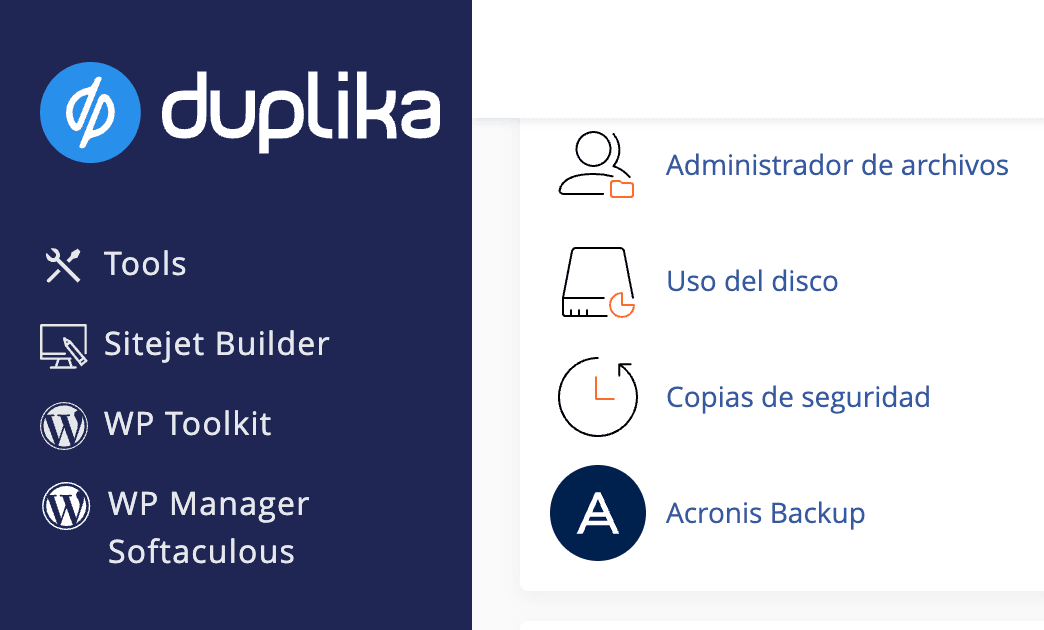
Cuando Acronis Backup está instalado en tu servidor, lo encontrás en la sección Archivos del panel de control. Allí verás un listado de las fechas de los respaldos disponibles para restaurar: elegí la fecha que necesitás y ejecutá la restauración desde esa pantalla.
Descargar una copia
Además de restaurar, podés guardar copias en tu computadora:
Copia completa de la cuenta: desde Copias de Seguridad en cPanel, opción Download a Full Account Backup. Incluye todos los contenidos, bases de datos, cuentas de correo y configuraciones, y sirve para restaurar la cuenta en Duplika o en cualquier otro proveedor con cPanel. El detalle completo está en cómo descargar el respaldo completo de mi cuenta.
Bases de datos: desde Copias de Seguridad en cPanel también podés descargar las bases de datos de la cuenta, por ejemplo para exportar productos, clientes y pedidos.
Archivos y bases de las copias automáticas: desde JetBackup podés descargar los archivos o bases de datos de las copias disponibles, para importarlos o restaurarlos donde necesites.
Para una copia manual de una instalación de WordPress, consultá cómo crear y descargar un backup de WordPress a tu PC.
Recuperar un WordPress hackeado o dañado
Una restauración devuelve los archivos y la base al estado de la fecha elegida, pero no elimina por sí sola la causa del hackeo. Después de restaurar:
Cambiá la contraseña de tu cPanel y de la mesa de clientes, y activá la verificación en 2 pasos.
Desde WordPress Management, usá Comprobar la integridad de WordPress y, si hace falta, Reinstalar núcleo de WordPress.
Actualizá WordPress, plugins y temas, y eliminá cualquier plugin o plantilla sin licencia.
Revisá el listado de usuarios administradores y reiniciá sus datos de acceso.
Instalá y configurá Wordfence, ejecutá un análisis completo del sitio y eliminá todos los archivos ajenos a WordPress.
La guía completa de limpieza está en sugerencias en caso de hackeo, incluida la revisión en Google Search Console si Google indexó una versión distinta de tu sitio.
Si el problema apareció después de actualizar WordPress o un plugin, restaurar puede devolver el mismo problema. Consultanos antes de restaurar para coordinar la recuperación.
Si después de restaurar el sitio sigue dañado o infectado, contactanos desde el área de soporte: podemos restaurar bases de datos o casillas de correo desde nuestro lado y ayudarte a coordinar la limpieza de la infección. Indicanos el dominio, la fecha de la copia que necesitás y qué datos deban preservarse.