

Change PHP Version and Configuration
Updated 3 weeks ago
In this quick guide, we’ll show you step by step how to change the PHP version for your hosting service and adjust its settings.
Are you asking about the PHP vulnerabilities known as PHP2Shell? The security patches have already been applied to all our servers, so you don’t need to install anything or change your PHP configuration. You can see the details in the notice PHP2Shell security patches applied to all servers, which also explains why the version number shown in cPanel may remain the same.
Adjusting PHP settings on hosting plans
Log in to cPanel
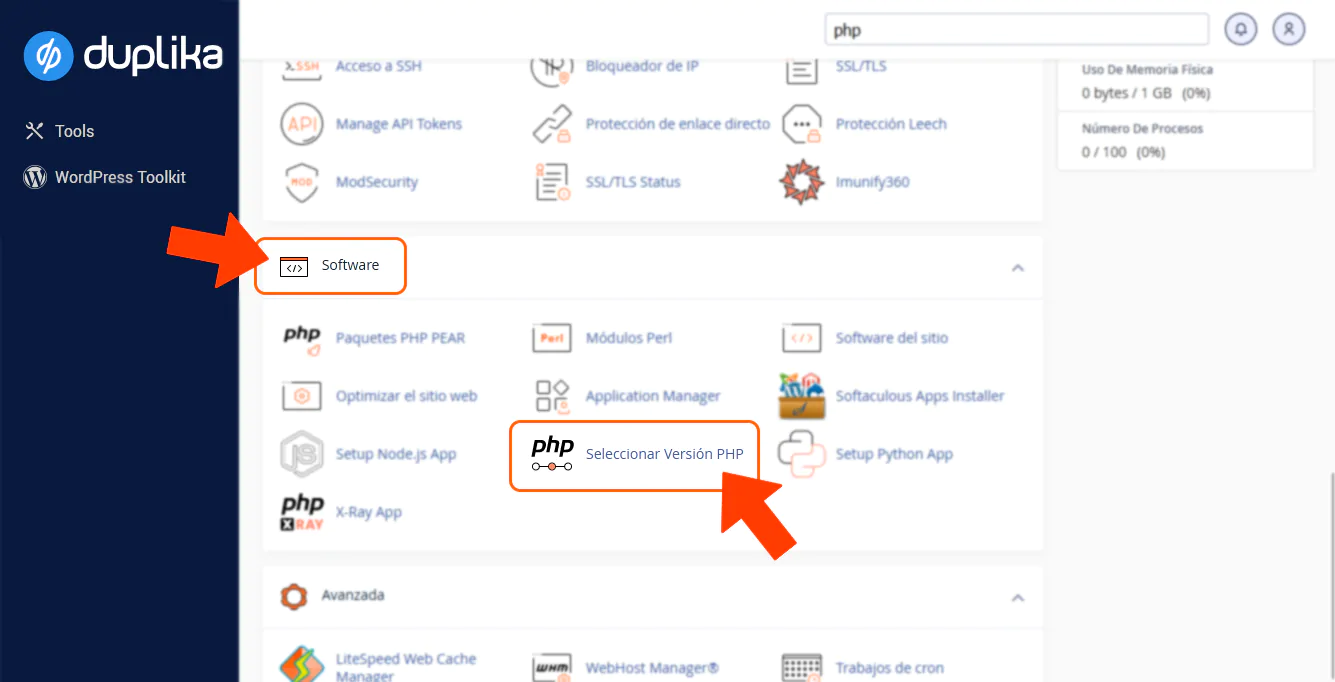
Select PHP Version
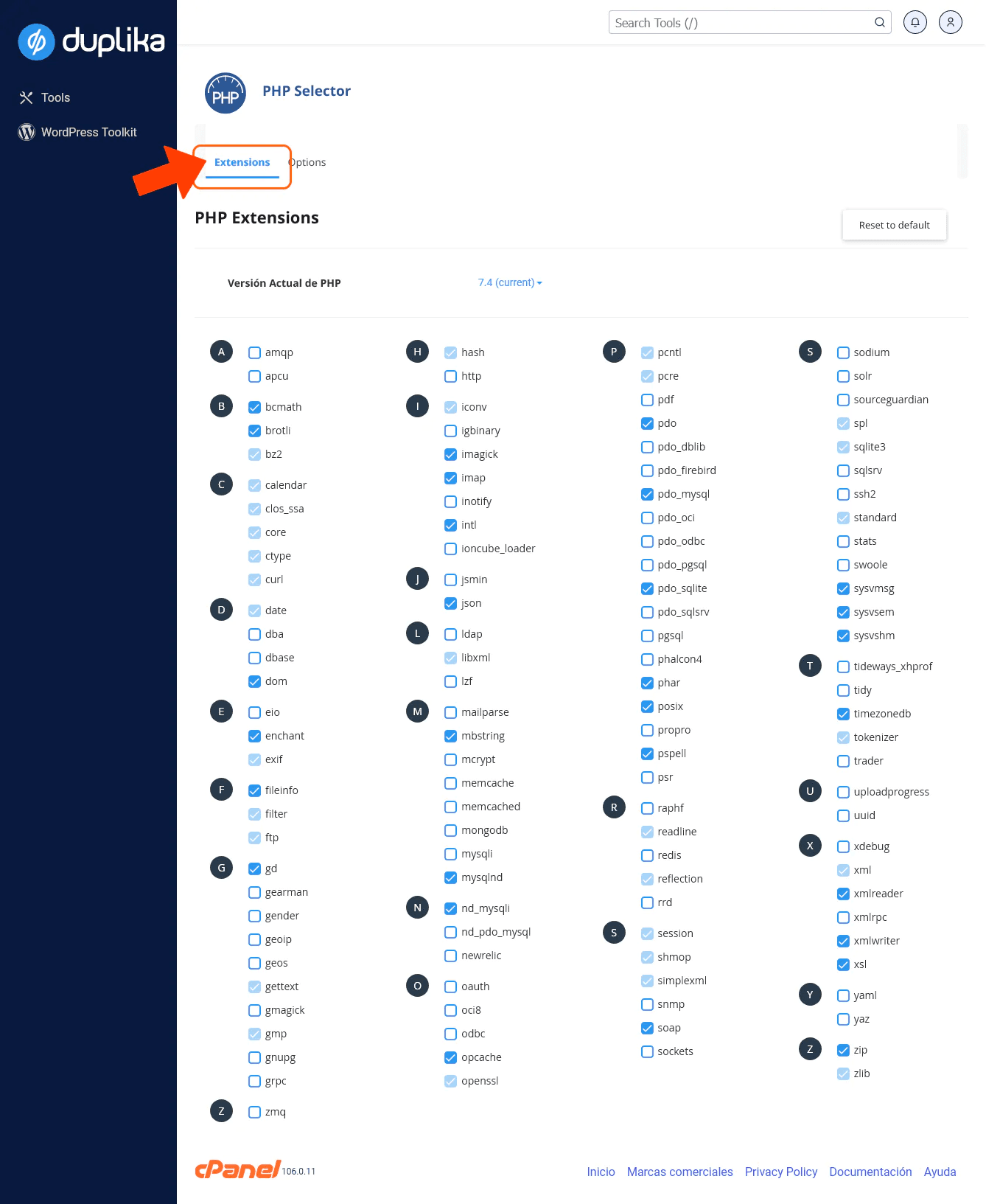
Extensions: You can enable opcache or any other extension your CMS application needs. We recommend selecting Reset to default to enable the recommended extensions.
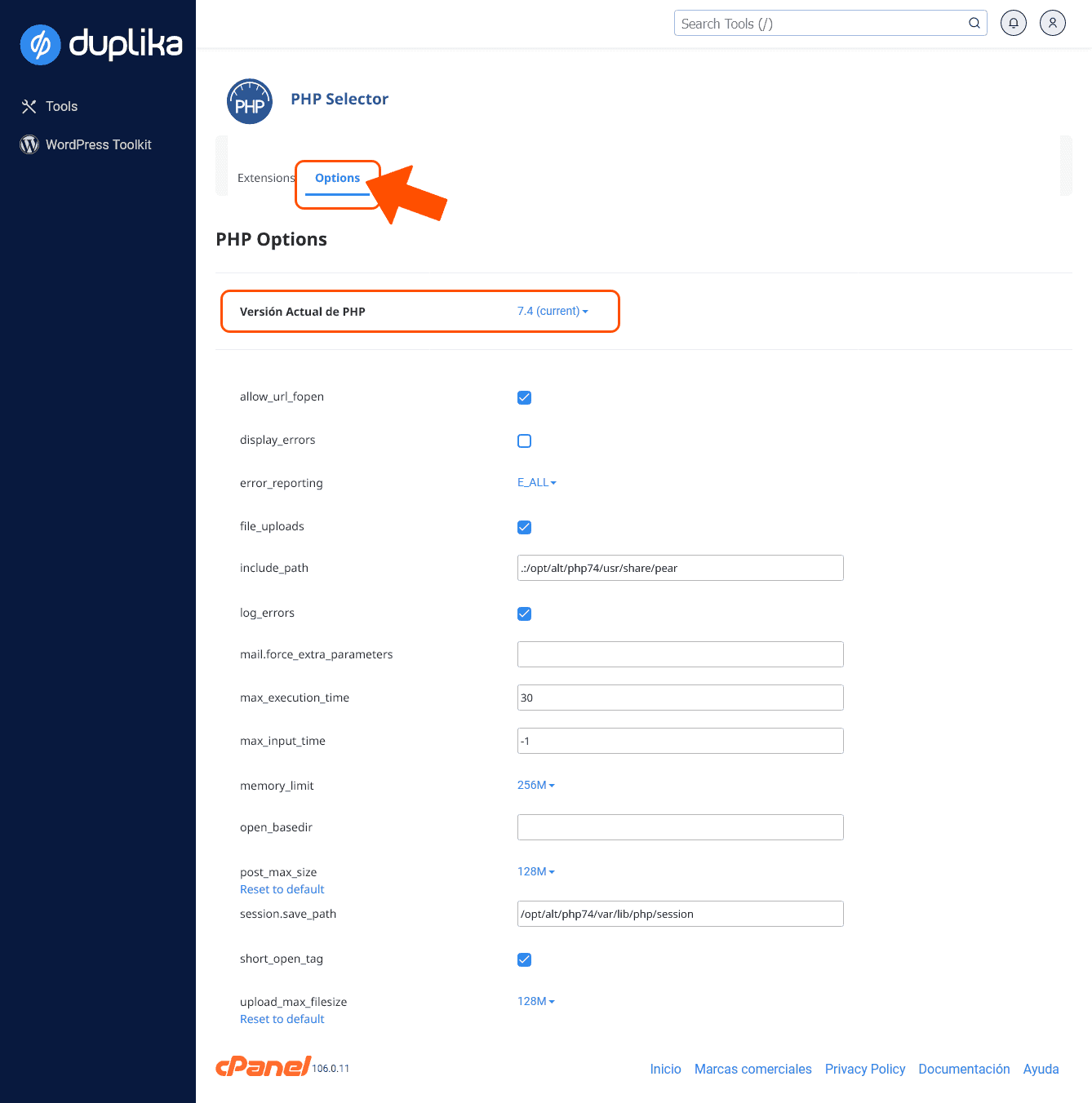
Options: You can adjust the settings for the selected PHP version:
Cloud or Dedicated Servers Without CloudLinux
If you use a cloud or dedicated server without CloudLinux, you’ll have access to cPanel’s native PHP selector, MultiPHP Manager.
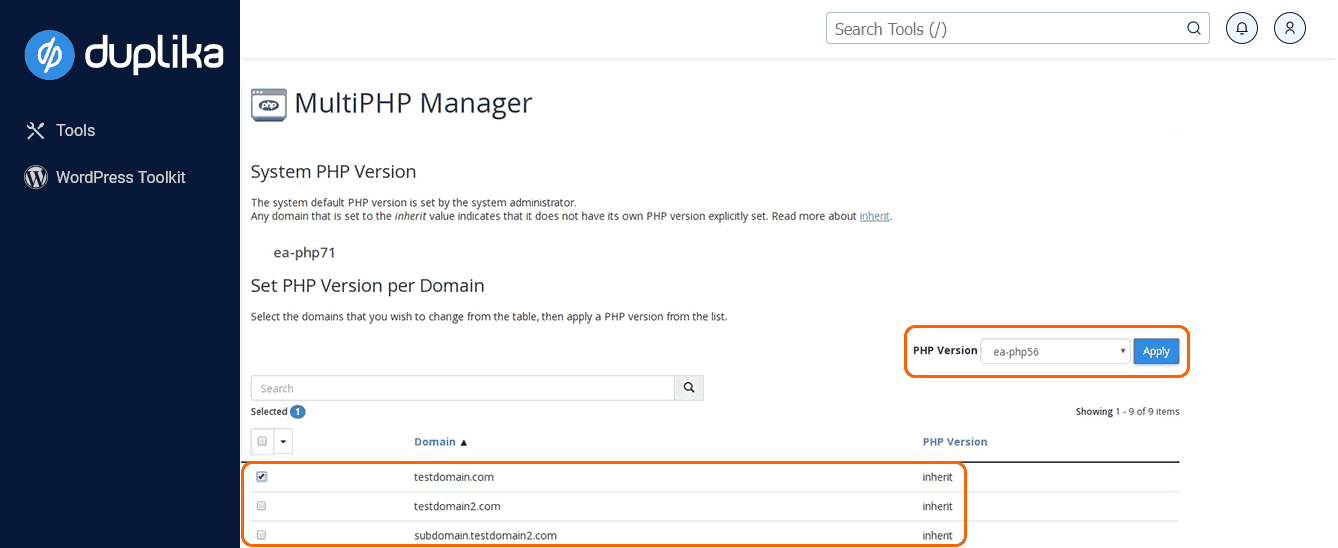
MultiPHP lets us configure the PHP version by domain or virtual host.
Note: The settings selected in this cPanel area will override the version selected in the 'Select PHP Version' area.