

Liberar espacio en el hosting
Actualizado hace 2 meses
Si tu web ha dejado de funcionar o de recibir correos, es posible que no te quede más espacio físico disponible en tu plan de hosting. Recuerda que los emails guardados en tu server, los archivos de backup, los plugins y demás archivos de themes, aunque estén en desuso, ocupan espacio en el sitio.
Lo primero que te recomendamos es ubicar en dónde se utiliza este espacio. Puedes revisar esto en tu cPanel ingresando la siguiente URL en la barra de direcciones.

Nota: recuerda cambiar "misitio.com" por la URL correcta de tu dominio.
Para monitorear el espacio en uso, emplea la herramienta Uso del Disco.
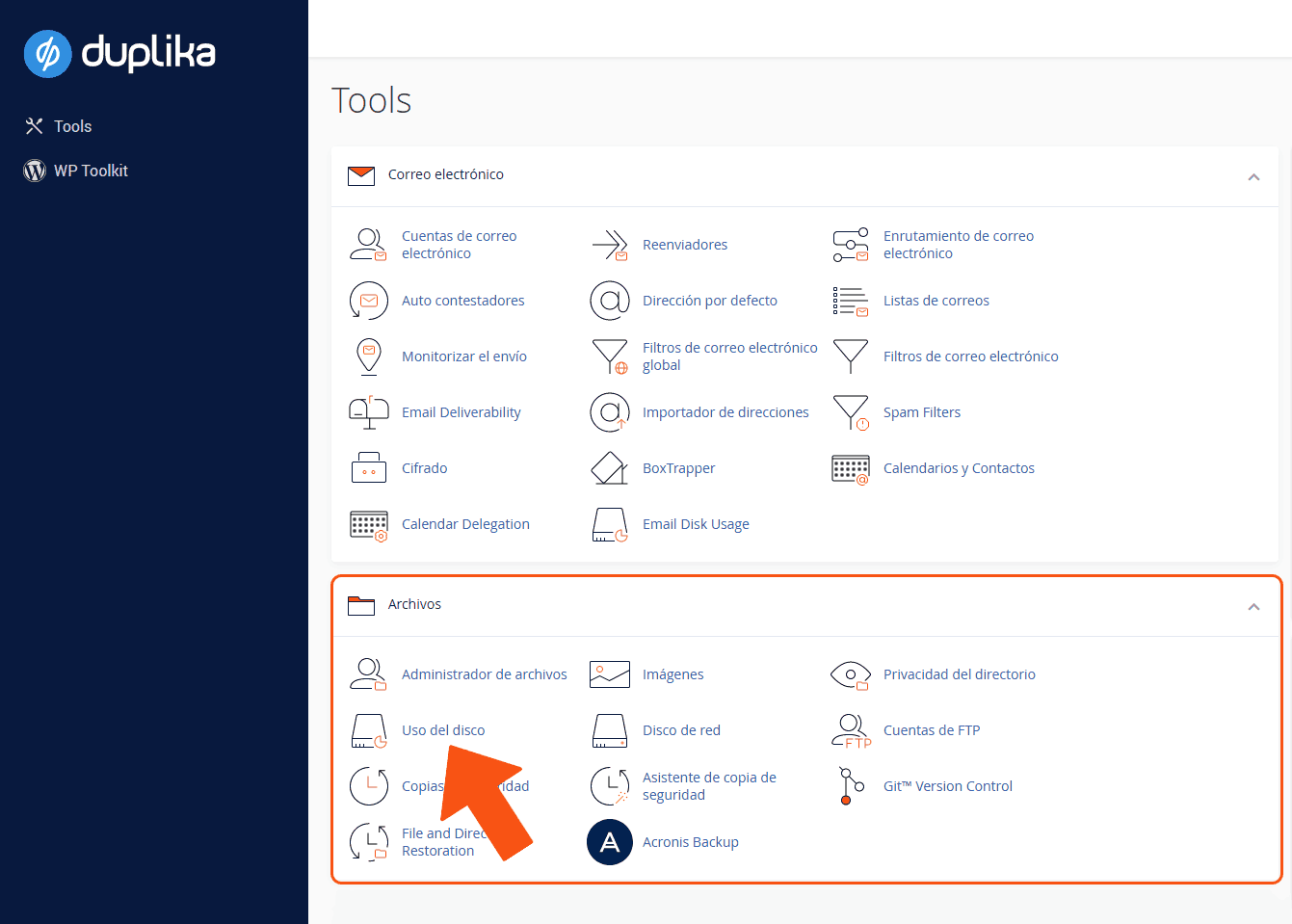
Una vez que le hayas dado clic, notarás que en la ventana nueva un proceso comienza en donde se determina qué recursos están ocupando espacio y cuánto. Llevará unos minutos. Finalmente, la información se desplegará muy similar a la siguiente captura:
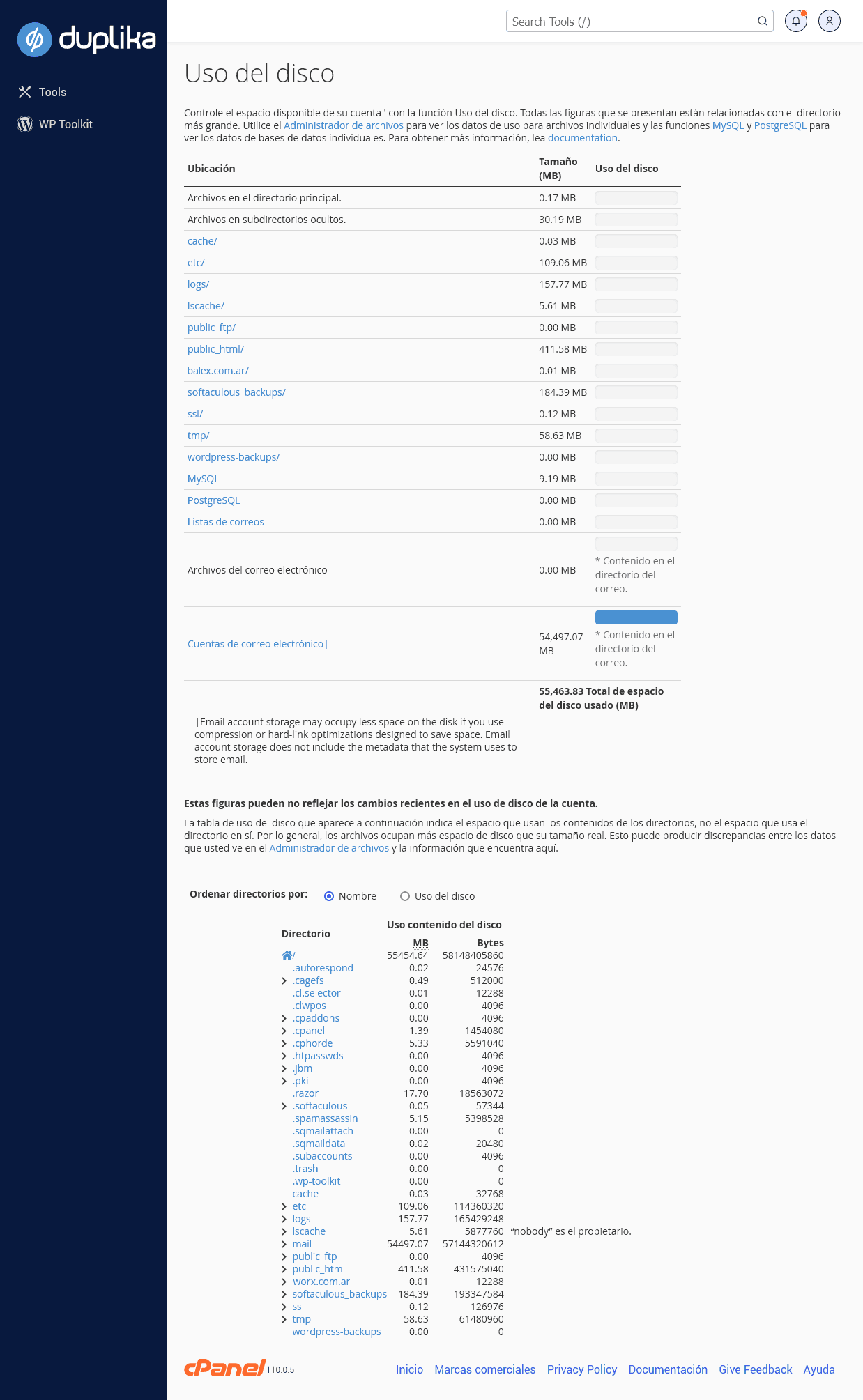
Aquí puedes encontrar la información desglosada de todo lo que se encuentra ocupando espacio en el disco, y eventualmente podrás borrar los archivos que no utilices (clickeando en las ubicaciones, se abre la herramienta Administrador de archivos).
Soluciones típicas al problema de falta de espacio:
Dominios: Conviene eliminar del cPanel los dominios que no estés usando, o que hayan caducado. De esa forma podrás ahorrar espacio y administrar mejor tus dominios funcionales.
Correos electrónicos: Puedes eliminar correos viejos (o sin importancia) y vaciar regularmente las carpetas no deseados, enviados, eliminados, etc. Asimismo, puedes emplear un cliente como Outlook; el mismo descargará los correos a tu computadora permitiéndote ahorrar mucho espacio en el servidor (siempre y cuando emplees la configuración POP3).
Archivos: Si en tu hosting se almacen archivos que no uses, lo mejor también será eliminarlos. Cualquier archivo .zip o cuentas FTP, así como también archivos de caché y temporales que generan algunos CMS instalados como WordPress o PrestaShop.
Imágenes y videos: Edita el peso de las imágenes y de los videos que vayas a subir a tu página web (por ejemplo, imágenes que excedan un tamaño normal de pantalla, o que carezcan de compresión, como el formato BMP). Si encuentras imágenes de más de 200kb, probablemente esas imágenes, aunque sean JPG, tengan poca o ninguna compresión. También recuerda que puedes linkear imágenes a un cliente externo, como Google Drive o YouTube.
Copias de seguridad: Al realizar backups, te recomendamos descargarlos y guárdalos en tu propio ordenador o en un disco duro externo para economizar tu espacio online. Tras la descarga, borra las copias del hosting. Adicionalmente, puedes programar tus copias de respaldo que los archivos se envíen automáticamente a la nube en lugar de quedar alojadas en tu plan.
Más espacio: En caso de que aún tras estas posibles soluciones no se haya solucionado tu problema de falta de espacio, la opción restante es ampliar tu plan de hosting desde mi.duplika.com para disponer de mayor espacio y trabajar con mayor libertad. Podés cambiar de plan en cualquier momento, de forma instantánea y sin migración.
Si necesitás ayuda, escribinos a [email protected]. Estamos para ayudarte.