

How to Use Bitwarden for Free to Save Your Passwords
Updated last week
Save all your passwords in Bitwarden, a free password manager that stores unlimited passwords and lets you access them from all your devices. In this guide, you’ll create your account, install the official browser extension, save your first login, and generate a unique password. Finally, you’ll protect your Bitwarden account with two-step verification.
It’s a good idea to save your Duplika logins there: Mi Duplika, cPanel, Webmail, and WordPress. Each one uses its own credentials; if you’re not sure where to sign in to each one, see where to sign in and which password to use.
Create your free account
Bitwarden’s free plan includes unlimited passwords, access from unlimited devices, a password generator, autofill, and two-step verification. It doesn’t expire.
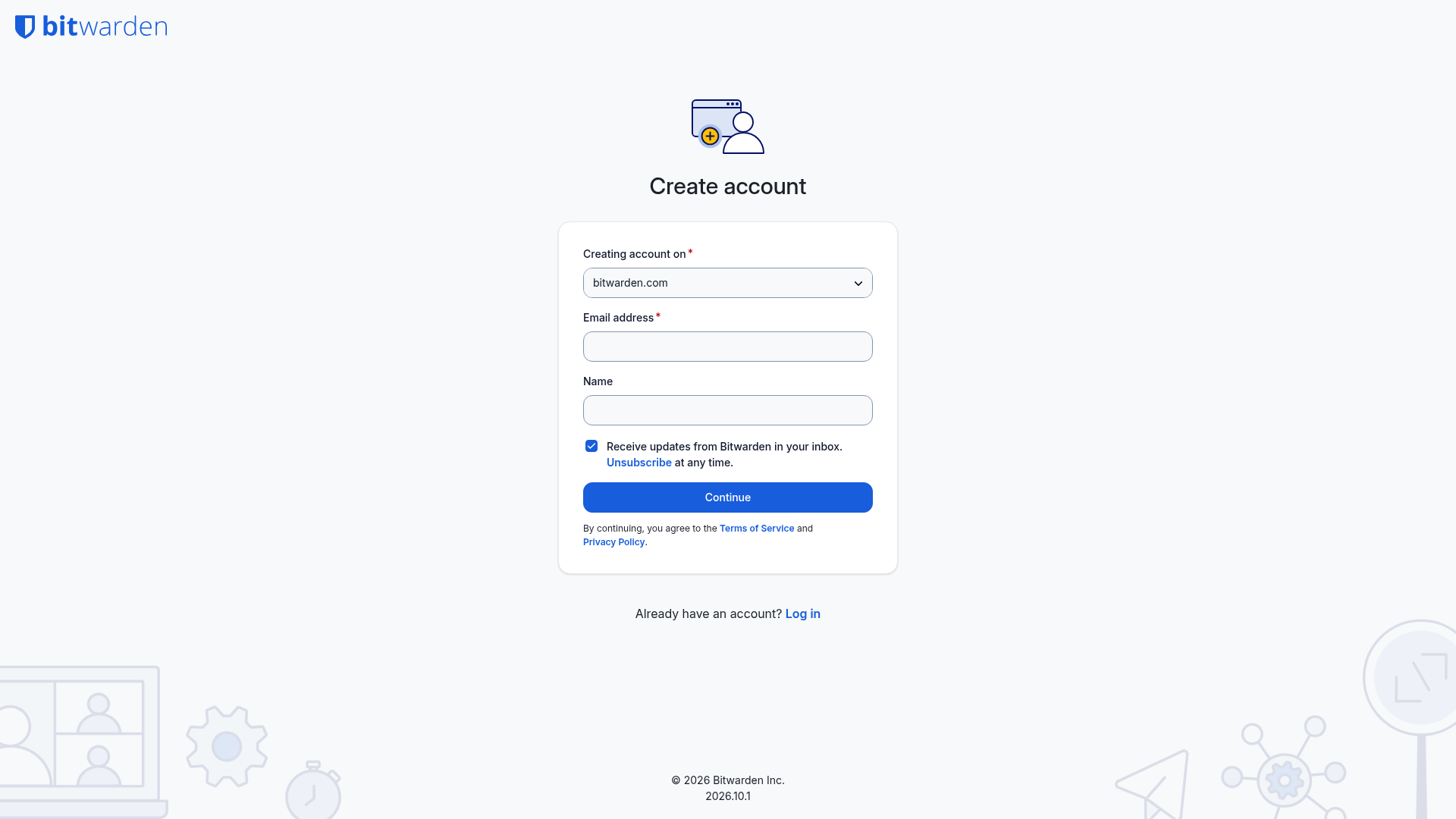
Go to bitwarden.com and select Start Free (create a free account).
Enter your email address.
Create your master password, the key that unlocks all your other passwords.
Your master password can’t be reset or recovered: because of Bitwarden’s encryption, not even Bitwarden can access it. Choose a strong password you can remember, and write it down and store it somewhere safe before continuing.
Install the official extension in your browser
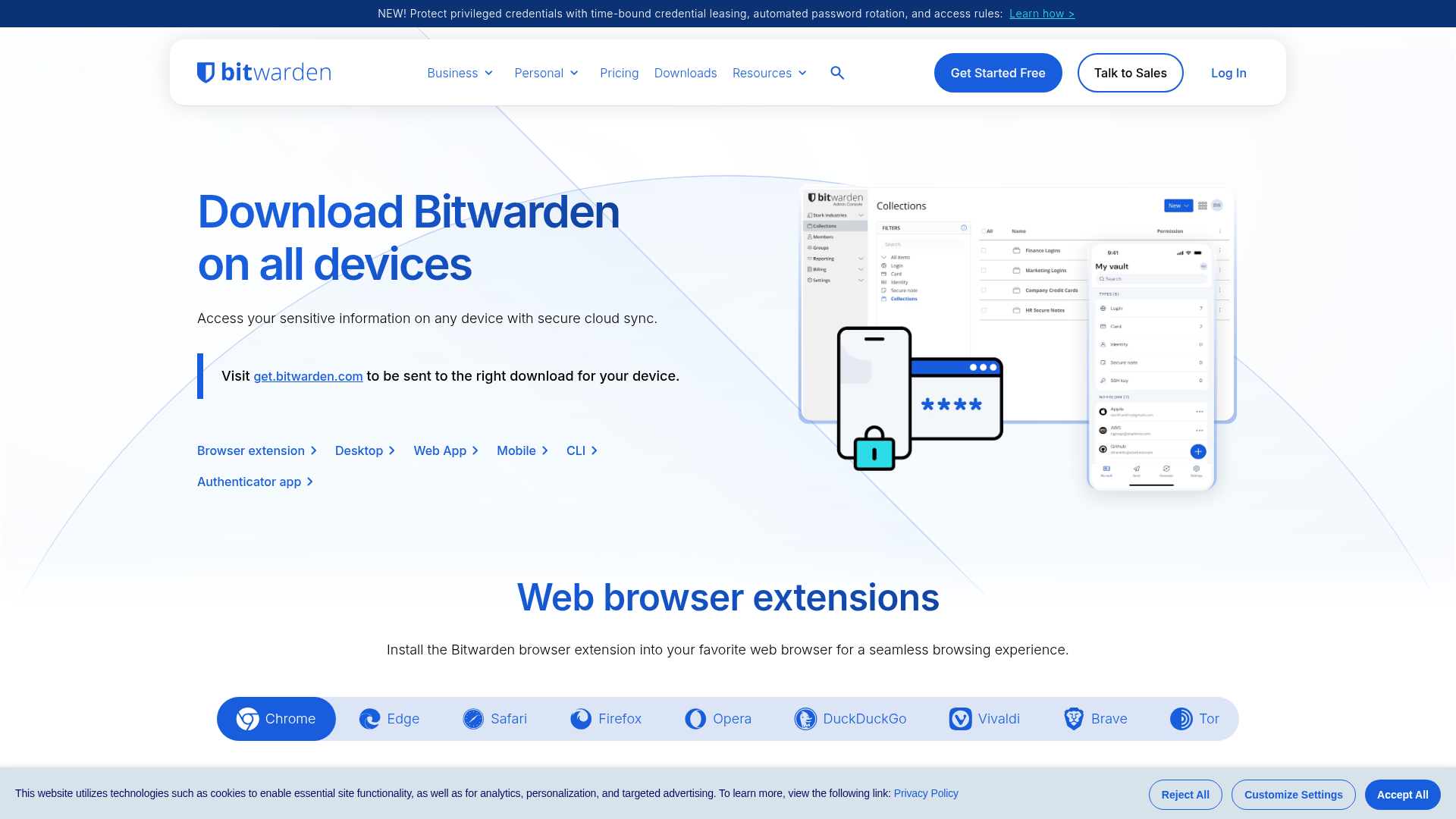
The extension autofills your logins and saves new passwords as you browse. It’s available for Chrome, Firefox, Edge, and Safari.
Go to bitwarden.com/download or search for "Bitwarden" in your browser’s store and install the official extension.
Pin the Bitwarden icon to your browser toolbar so it’s easy to access.
Open the extension and sign in with your email address and master password.
Save your first login
Each login is saved as a Login item. To create your first one:
Open the extension and go to the Vault tab.
Select the New (+) icon and choose Login.
Fill in the login details: an Item name to identify it (for example,
Mi Duplika), the Username, the current Password, and the Website (URI) with the address where you sign in.Select Save.
You can also save a login when you use it: when you sign in to a site, the extension displays a prompt with the Save option to save the username and password.
Repeat this for each service: one for Mi Duplika, another for cPanel, another for Webmail, and another for your WordPress site. This way, each login has its own entry and password.
Generate a unique password
When you save a login with its current password, take the opportunity to replace it with a stronger one generated by Bitwarden:
Open the saved item and select Edit.
Next to the Password field, select Generate and, if you like the suggestion, Use this password.
Select Save to save the change to your vault.
Copy the new password using the copy icon and paste it into the form where the site asks you to enter and confirm your new password.
If something goes wrong when changing a password, Bitwarden saves the history of the last five passwords for each login.
Protect your Bitwarden account with two-step verification
With two-step verification, signing in to your vault requires an additional code from your phone, as well as your master password. The recommended method for free accounts is an authenticator app on your phone, such as Bitwarden Authenticator.
Install Bitwarden Authenticator or your preferred authenticator app on your phone.
In the Bitwarden web app (vault.bitwarden.com), go to Settings → Security → Two-step login.
Under Authenticator App, select Manage. You’ll be asked to enter your master password.
Scan the QR code on the screen with the app. The app will show you a six-digit code.
Enter that six-digit code and select Enable.
Back on the Two-step login screen, select View Recovery Code, enter your master password, and save the recovery code.
The recovery code lets you sign back in if you lose your phone. Store it outside Bitwarden: print it or save it somewhere safe that doesn’t depend on the password manager or your phone.
To also strengthen access to your customer account, follow the guide to enable two-step verification in Mi Duplika.