

Realizar una prueba de conexión vía traceroute
Actualizado hace 3 meses
Si empleas Windows, deberás primero presionar la tecla de Windows + la tecla R (WIN+R). Estoabrirá en tu sistema una ventanita para ejecutar comandos. Allí escribe cmd tal cual se indica en la captura inferior.
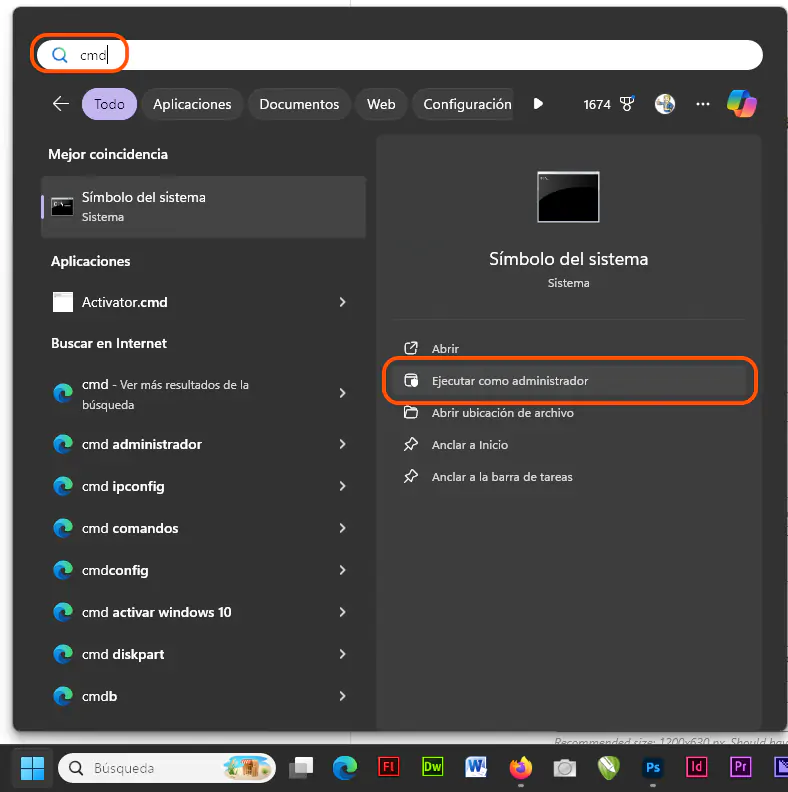
Al presionar Enter se abrirá una ventana de DOS. Dentro de la misma, escribe (o copia y pega) el comando siguiente, reemplazando "dominio-ejemplo.com" por la URL que requiera la prueba (puede ser tu propio sitio web).
tracert -w 1000 dominio-ejemplo.comEn caso de que te encuentres en macOS o Linux deberás abrir la consola de comandos o terminal, y ejecutar en la misma el siguiente comando (reemplazando el dominio de ejemplo):
traceroute dominio-ejemplo.comSi esto te arroja un error de permisos o un acceso denegado de manera inmediata, puedes probar con el siguiente comando (nuevamente reemplazando el dominio según corresponda).
tracepath dominio-ejemplo.comCuando visualices el mensaje "Traza completa", o bien se alcancen los 30 saltos (por defecto), significa que el proceso ha terminado. En este caso, necesitaremos que nos envíes una copia de texto o una captura de pantalla mostrando el resultado en cuestión. En el caso de Windows, puedes usar el programa Recortes (que viene por defecto instalado) para tomar una captura de el área del programa únicamente (es decir un 'recorte'). Si no, puedes seleccionar el texto y copiarlo usando el botón derecho del mouse. En el caso de macOS o Linux, puedes tomar una captura de pantalla con el botón PrtScr, o seleccionar el texto y copiarlo en una consulta.