

Run a traceroute connection test
Updated 3 months ago
If you’re using Windows, first press the Windows key + R (WIN+R). This will open a small window on your system for running commands. Type cmd there, exactly as shown in the screenshot below.
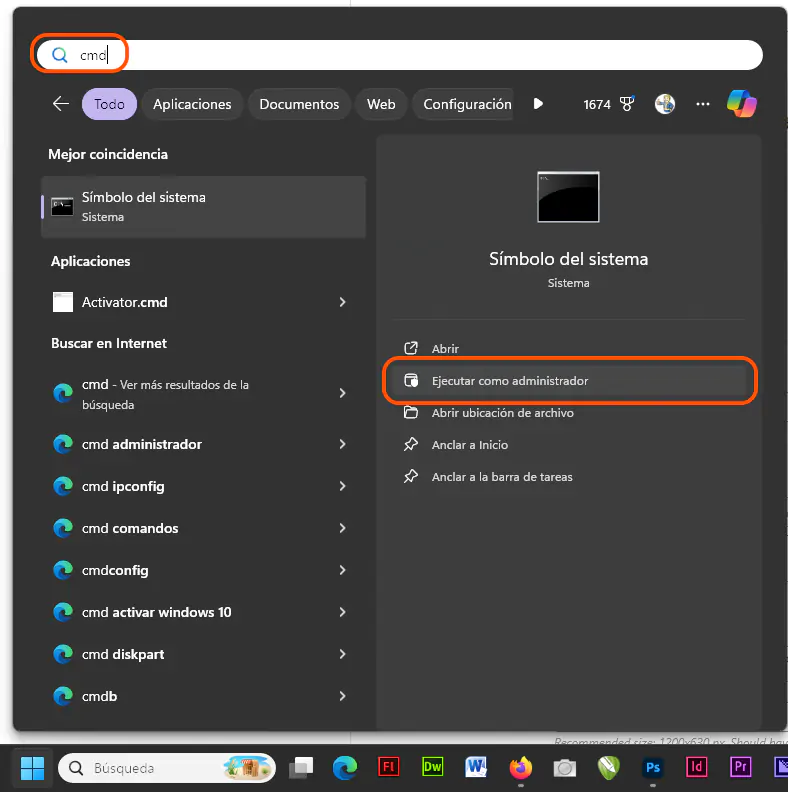
Pressing Enter will open a DOS window. In it, type (or copy and paste) the following command, replacing "example-domain.com" with the URL you need to test (this can be your own website).
tracert -w 1000 dominio-ejemplo.comIf you’re using macOS or Linux, open the command console or terminal, and run the following command in it (replacing the example domain):
traceroute dominio-ejemplo.comIf this immediately returns a permission error or an access denied message, you can try the following command (again, replacing the domain as appropriate).
tracepath dominio-ejemplo.comWhen you see the message "Trace complete" or the trace reaches 30 hops (the default), the process is finished. In this case, we’ll need you to send us a text copy or a screenshot showing the result. On Windows, you can use the Snipping Tool (which is installed by default) to capture just the program area (that is, take a 'snip'). Otherwise, you can select the text and copy it by right-clicking. On macOS or Linux, you can take a screenshot using the PrtScr key, or select the text and copy it into a support request.