

Creación masiva de cuentas de correo
Actualizado hace 2 meses
El Importador de direcciones de cPanel permite crear varias cuentas de correo en una sola operación subiendo un archivo CSV o XLS, en lugar de crearlas una por una. La herramienta está en la sección Email del panel, bajo el nombre Importador de direcciones.
Requisitos
Necesitas acceso a cPanel y que la herramienta esté habilitada en tu cuenta. Si todavía no sabes cómo entrar, consulta Cómo ingresar al panel de control cPanel.
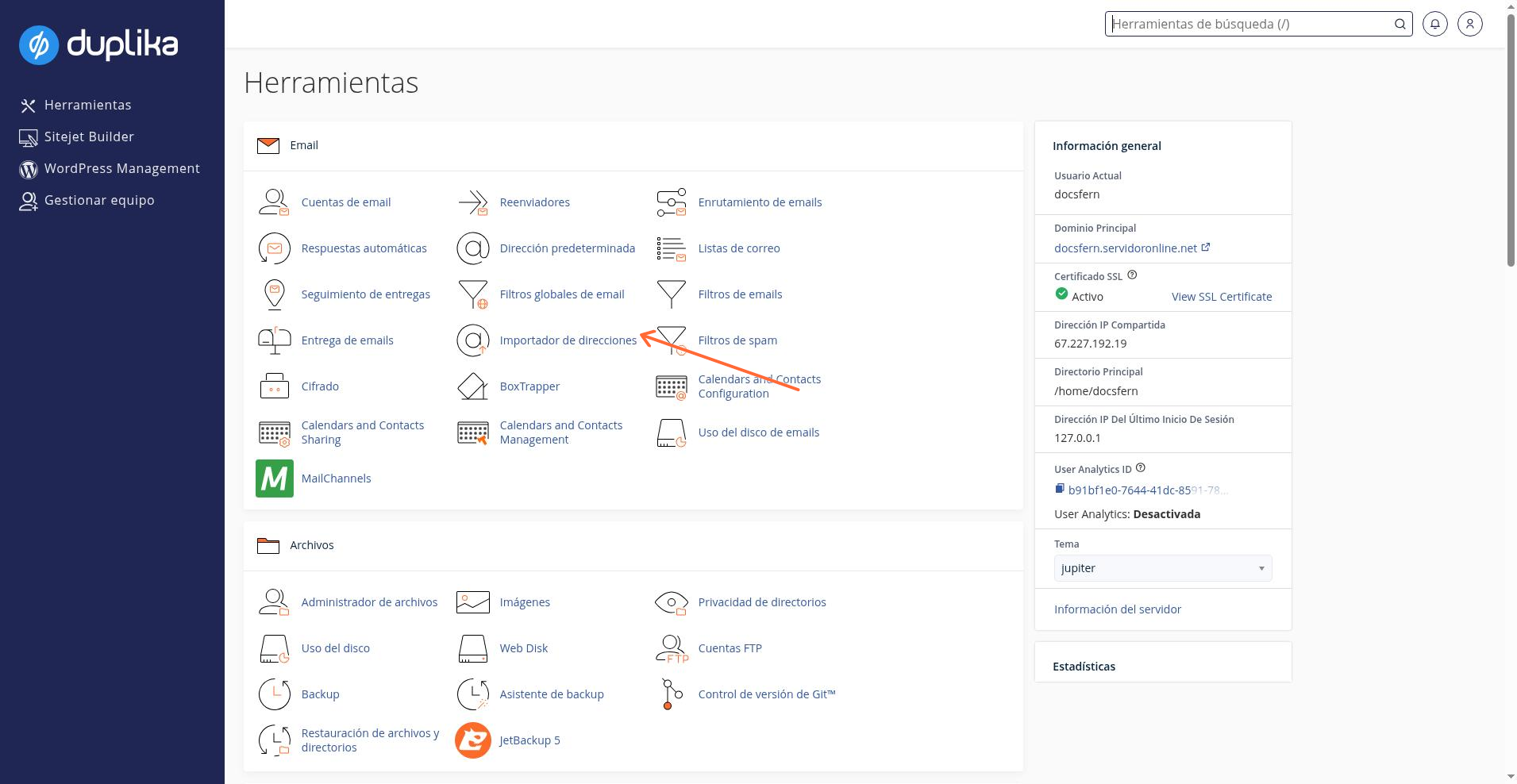
En cPanel, abre la sección Email y haz clic en Importador de direcciones, en la barra lateral izquierda.
Preparar el archivo
Prepara un archivo CSV o XLS con una cuenta por fila. cPanel documenta tres datos por cuenta: usuario o dirección de correo, contraseña y cuota. Por ejemplo: [email protected], Password, 10.
El dominio no tiene que formar parte del nombre de usuario: puedes usar user1 o [email protected]. Si tu archivo incluye una columna de dominio, podrás mapearla en el asistente.
El archivo puede usar coma, punto u otro delimitador consistente. Si el delimitador no aparece en la lista, elige Other e introdúcelo manualmente.
Los encabezados de columna no son obligatorios. Si tu archivo tiene una primera fila de encabezados, marca Treat first row as column headers.
Importar las cuentas
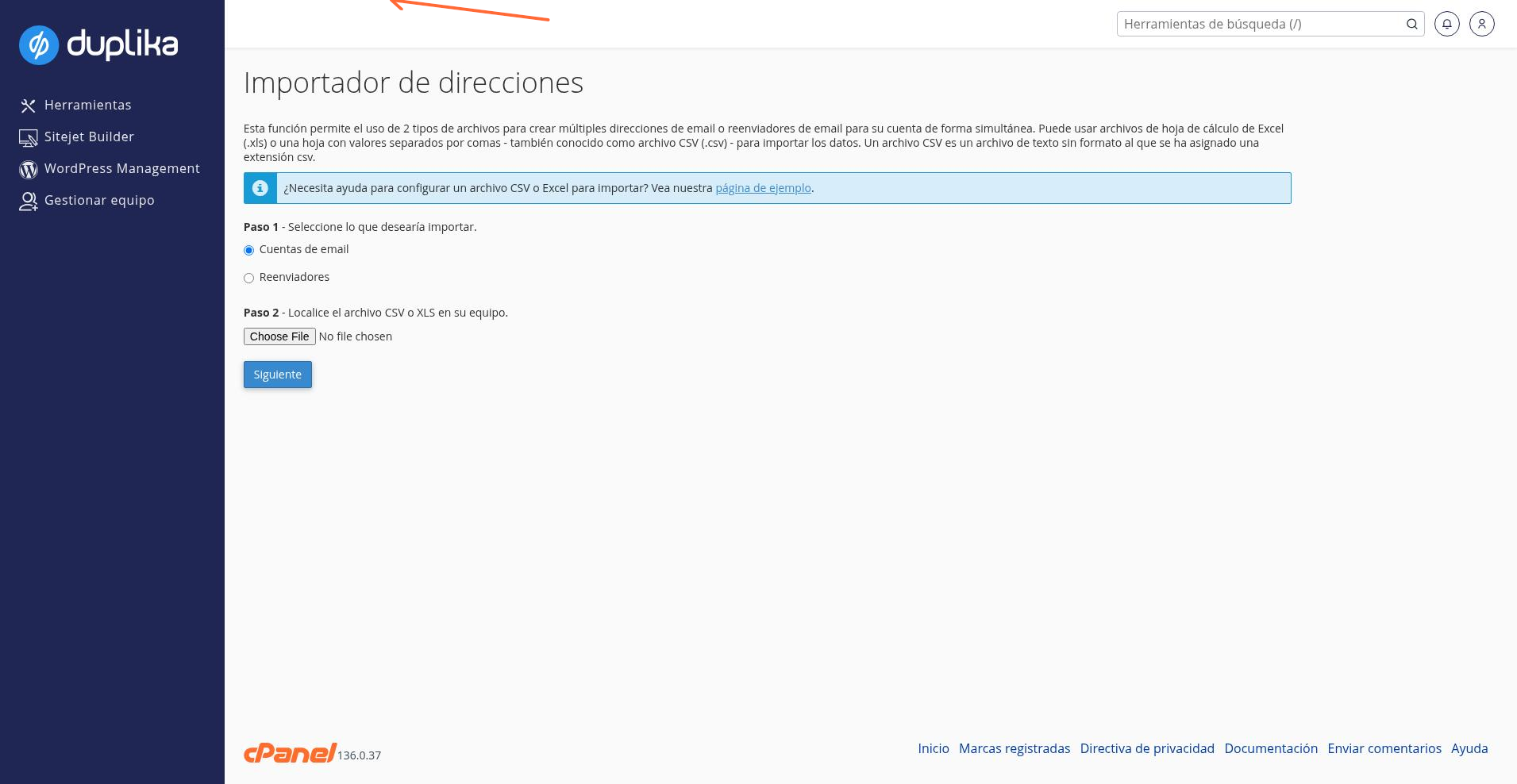
El asistente guía la carga del archivo, la selección del delimitador y el mapeo de columnas.
En la primera pantalla, deja seleccionada la opción Cuentas de email (es la opción por defecto) y haz clic en Elegir archivo para subir tu archivo CSV o XLS.
Si el archivo es CSV, elige el delimitador que usa (coma, punto u otro). Si no aparece en la lista, elige Other e introdúcelo manualmente.
Si tu archivo tiene una primera fila de encabezados, marca Treat first row as column headers.
Haz clic en Next.
Asigna cada columna con los menús superiores: Email, Password y Domain. Las columnas que no necesites se asignan a Ignore.
Selecciona el dominio en el menú Domain.
Haz clic en Next y luego en Finish para crear las cuentas.
Para importar otro archivo, haz clic en Import More, que te devuelve a la primera pantalla.
Contraseñas y límites
Las contraseñas importadas deben alcanzar una calificación de seguridad de 65 o superior. Puedes generar contraseñas seguras desde cPanel, en Preferences > Password & Security.
La pantalla Email Accounts muestra la cuota total de cuentas que permite tu plan y cuántas tienes creadas; Los planes de hosting con cPanel incluyen cuentas de correo ilimitadas. Otros planes pueden tener límites específicos; consulta las condiciones de tu plan.
Para crear o administrar una sola cuenta, consulta Administrar y configurar cuentas de mail.