

Create and Configure a Python App with Setup Python App
Updated 3 weeks ago
Python applications (Flask, Django, and any WSGI application) run on your hosting through CloudLinux's Python Selector: in cPanel, the Setup Python App option creates the application, installs its dependencies, and runs it under your domain. This guide covers the entire process: creating the application, uploading the code, installing dependencies, and managing it.
Create the application
The application is registered in cPanel, in the Software section.
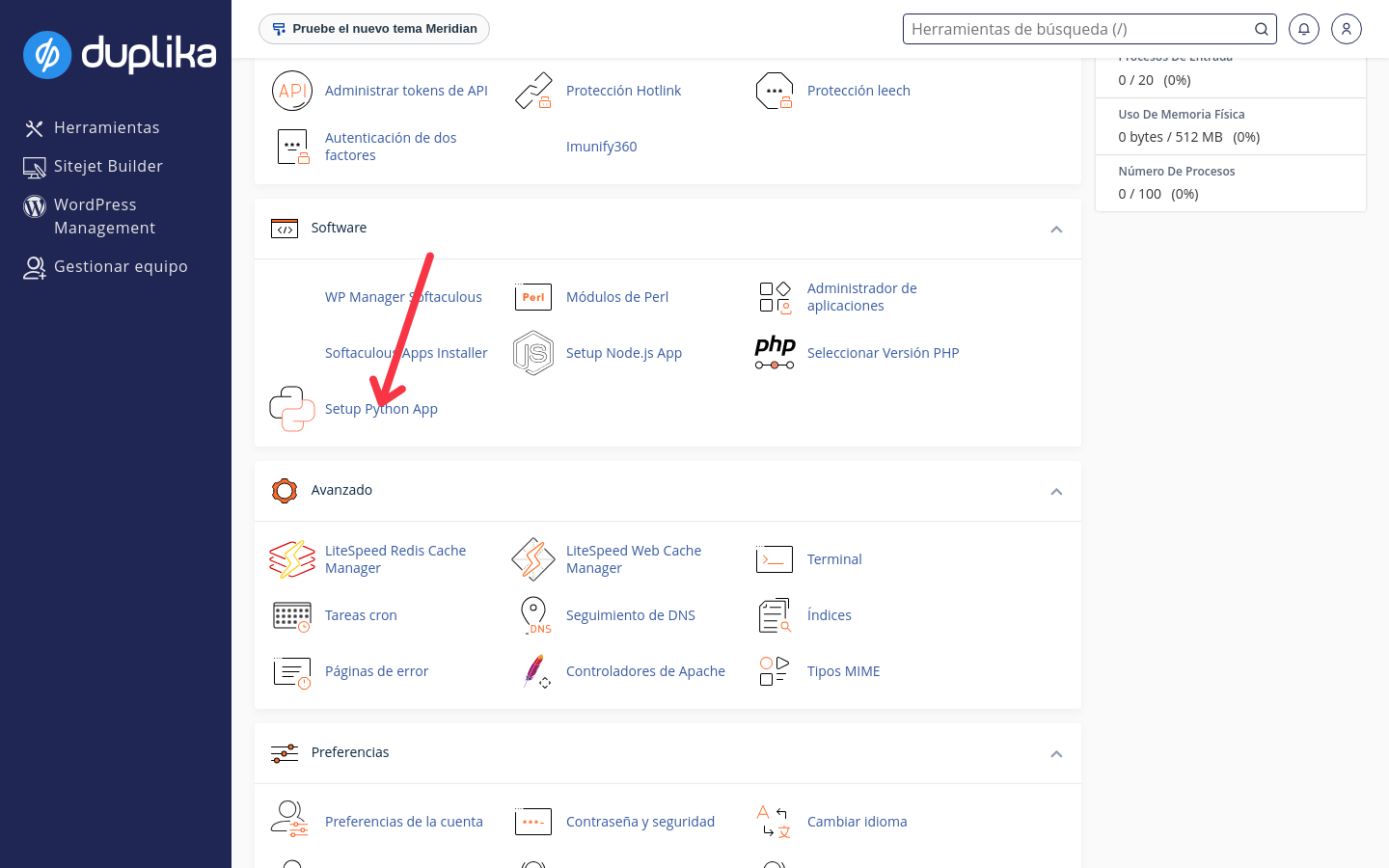
Log in to cPanel and, in the Software section, click Setup Python App.
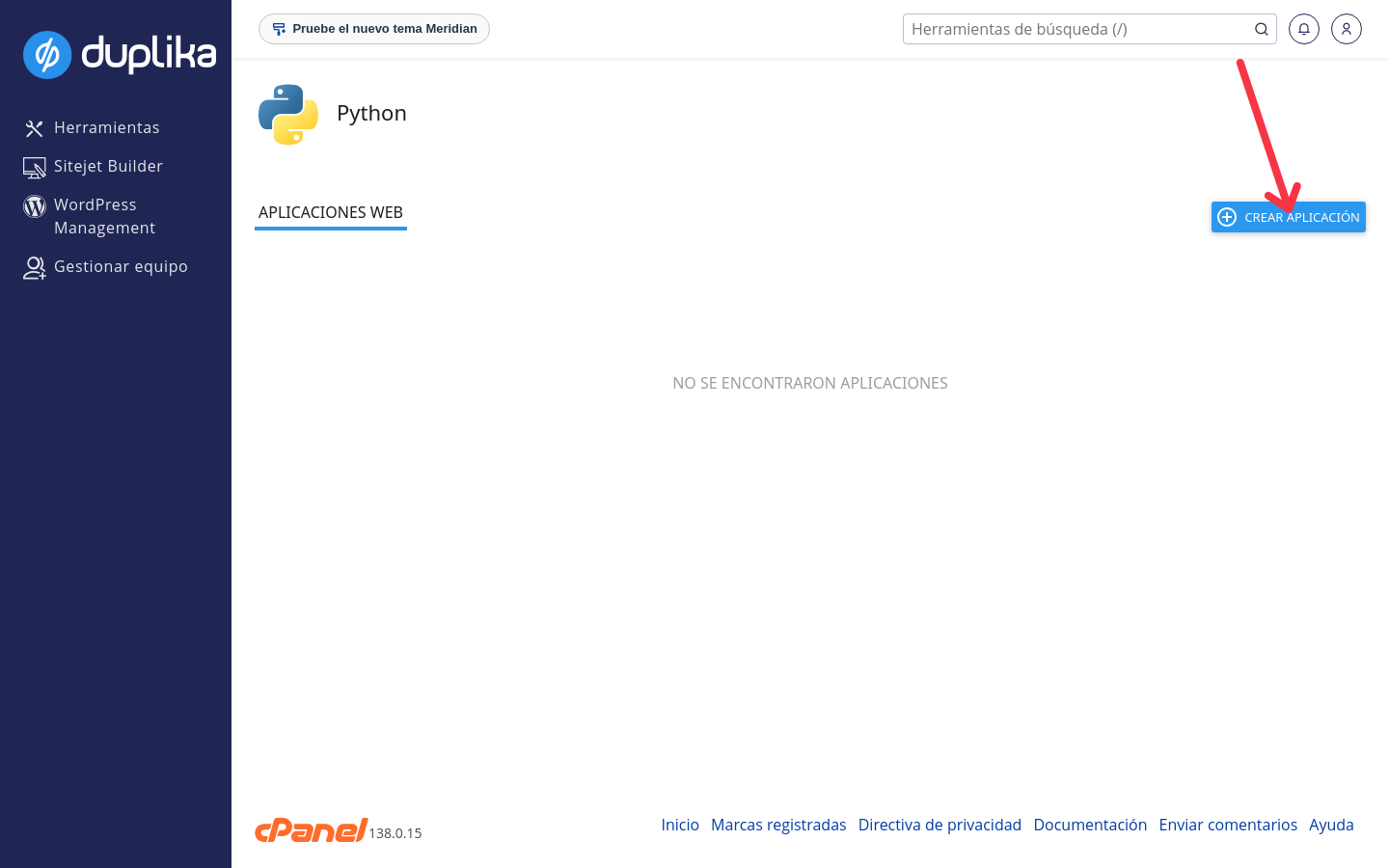
Click CREATE APPLICATION.
Under Python version, choose the version your application needs. The dropdown shows the versions enabled on your server and marks the recommended one.
Under Application root, enter the folder where the code will live, for example
guia-python-app. This is the physical path within your account where you will later upload the application files.Under Application URL, choose the domain and enter the URI where the application will be accessed, for example
/guia-python-app.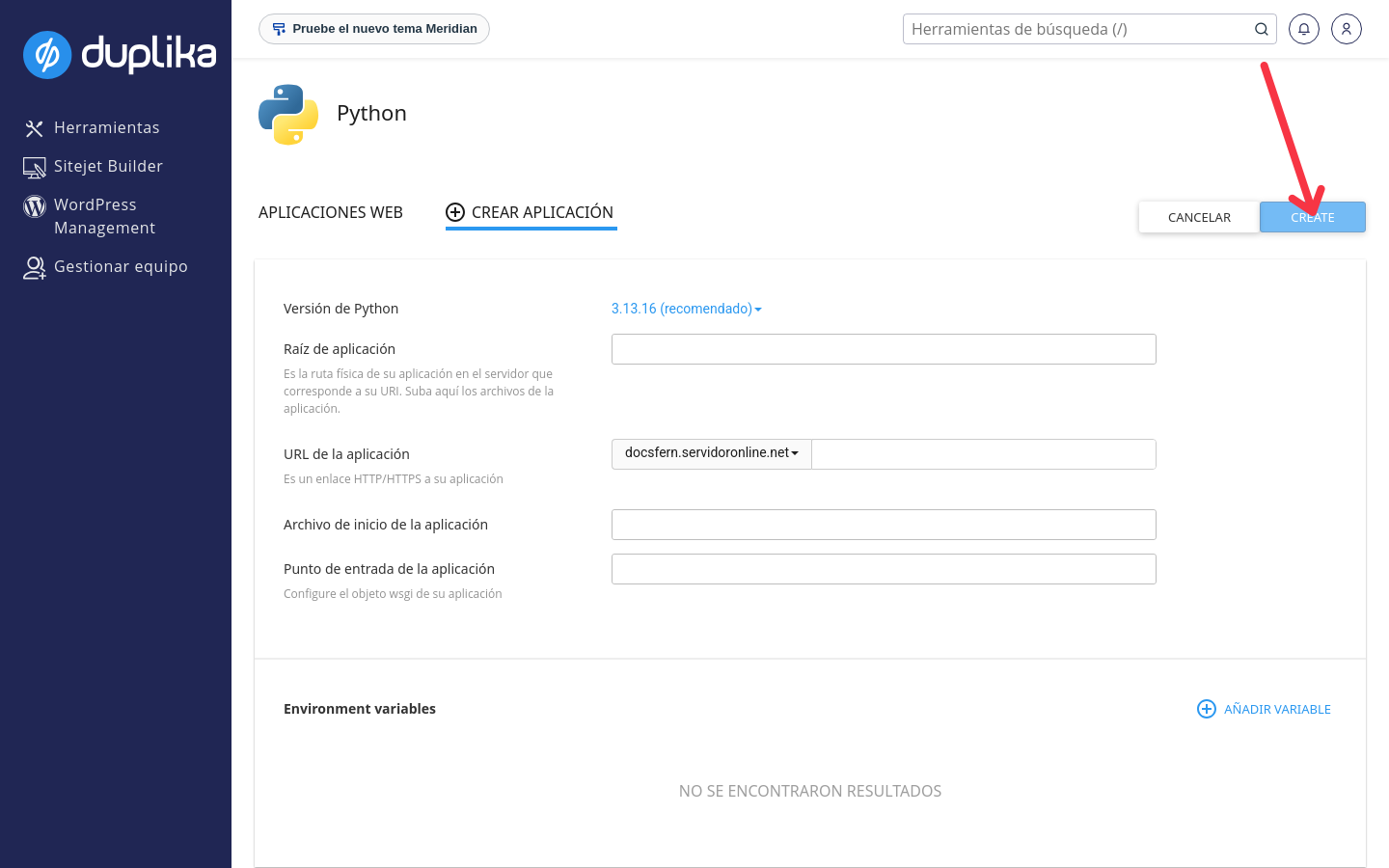
Leave Application startup file and Application entry point blank if you want to use the default values: the selector uses
passenger_wsgi.pyas the startup file and looks for the WSGI objectapplication.Click CREATE. The application is registered and appears in the WEB APPLICATIONS list with its status.
Do not use public_html as the Application root: the selector does not allow it. Create a dedicated folder for the application.
Upload your code
The selector does not upload the code for you: upload your application files to the folder you defined as the Application root, using File Manager or SSH. For the application to work, the startup file must expose the WSGI object with the name application. For a Flask application, passenger_wsgi.py should look like this:
from pythonapp import app as applicationReplace pythonapp with your project module. You can view and change each application's startup file and entry point by opening it from the list. For more information about WSGI, the official cPanel documentation has a complete guide.
Install dependencies with requirements.txt
Dependencies are installed in the application's virtual environment, directly from the control panel.
Upload your
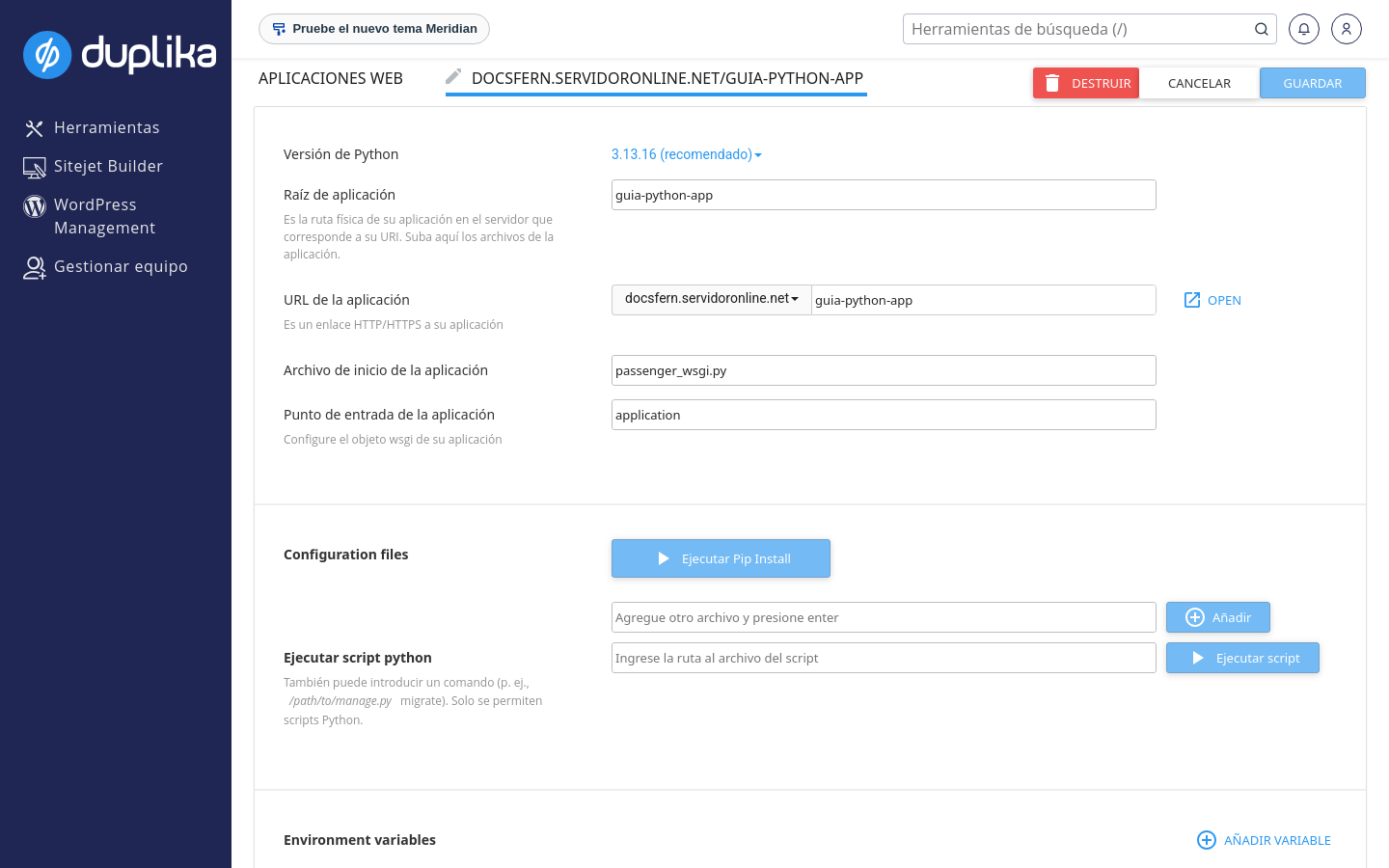
requirements.txtfile to the Application root.In Setup Python App, open your application from the list (pencil icon).
Under Configuration files, enter
requirements.txtin the Add another file and press enter field, then click Add.Click Run Pip Install and choose
requirements.txtfrom the list.
Dependency versions must be compatible with the Python version you selected. If you change the application's Python version later, reinstall the dependencies.
Run scripts and commands
Next to Configuration files, the Run Python script section lets you run commands in the application's virtual environment, for example /path/to/manage.py migrate in a Django project. Only Python scripts are allowed.
Environment variables
Under Environment variables, click ADD VARIABLE, enter the name and value, and save your changes by clicking SAVE. You can also edit or delete variables you have already created.
Stop, restart, and view status
The WEB APPLICATIONS list shows each application's URL, folder, status (for example, started, with the Python version in parentheses), and available actions: stop, restart, edit, and delete. Within the application, the STOP APP and RESTART buttons do the same.
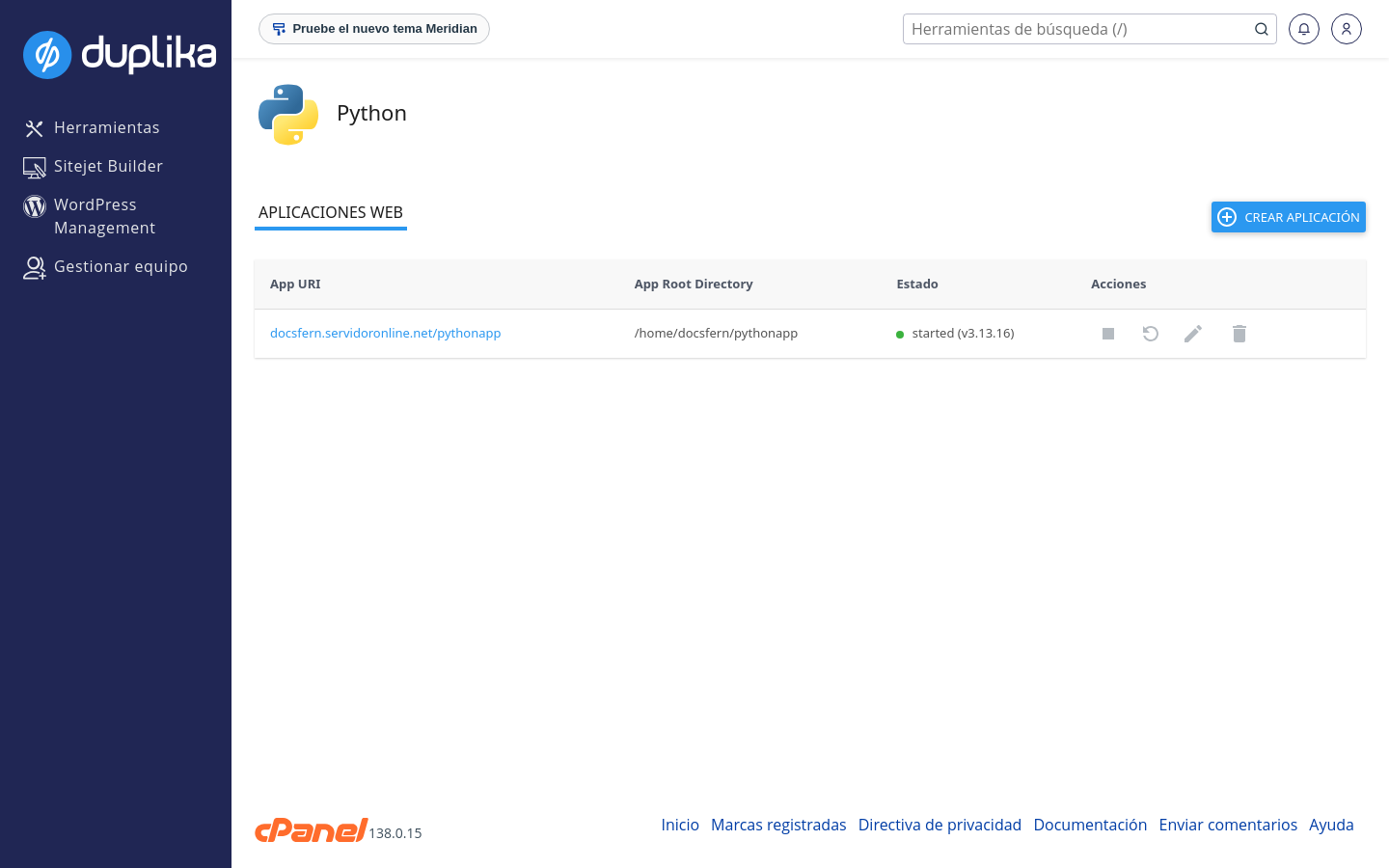
After changing code, dependencies, or environment variables, restart the application to load the changes.
Work from the virtual environment
Each application has its own virtual environment. To run pip, python, or scheduled tasks with the correct dependencies, connect over SSH (or use Terminal in cPanel's Advanced section) and run the command shown next to Enter to the virtual environment on your application's page. The command is specific to each application and includes your username, folder, and Python version, so copy it from there.
Delete the application
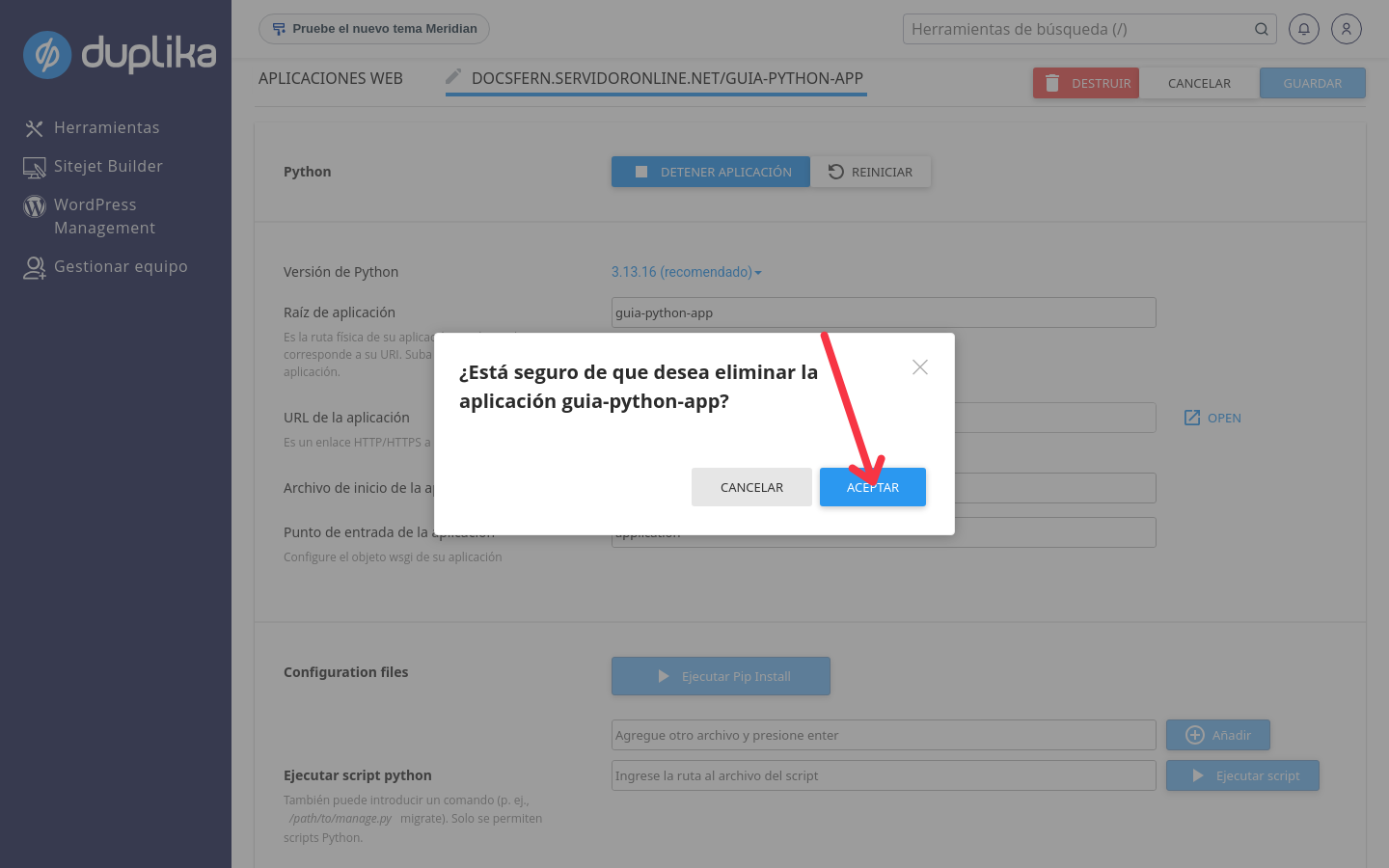
If you no longer need it, open the application from the list, click DESTROY, and confirm by clicking OK. The application will no longer appear in WEB APPLICATIONS.
If something goes wrong
When you open Setup Python App, the message
Apache Passenger is required by Python Selector. Please, contact your hoster.appears: this requires a server-side fix. Contact us on WhatsApp or through the customer area, and we'll resolve it.The application returns 500 or 503 errors: it may have reached your plan's resource limits, such as memory or the number of processes. Check usage under Resource Usage in cPanel. We explain how these limits work in Manage resources and limits with CloudLinux Manager.
A
SyntaxErrorfrom the startup file appears in the application log: fixpassenger_wsgi.pyso that it exposes theapplicationobject without errors.
We manage the infrastructure, control panel, and selector; you are responsible for your application's code, dependencies, and updates.