

Free Up Hosting Space
Updated 2 months ago
If your website has stopped working or receiving emails, you may have run out of physical storage space on your hosting plan. Remember that emails stored on your server, backup files, plugins, and other theme files take up space on your site, even when they’re no longer in use.
First, we recommend checking where this space is being used. You can do this in cPanel by entering the following URL in the address bar.

Note: Remember to replace "misitio.com" with your domain’s correct URL.
To monitor the space in use, use the Disk Usage tool.
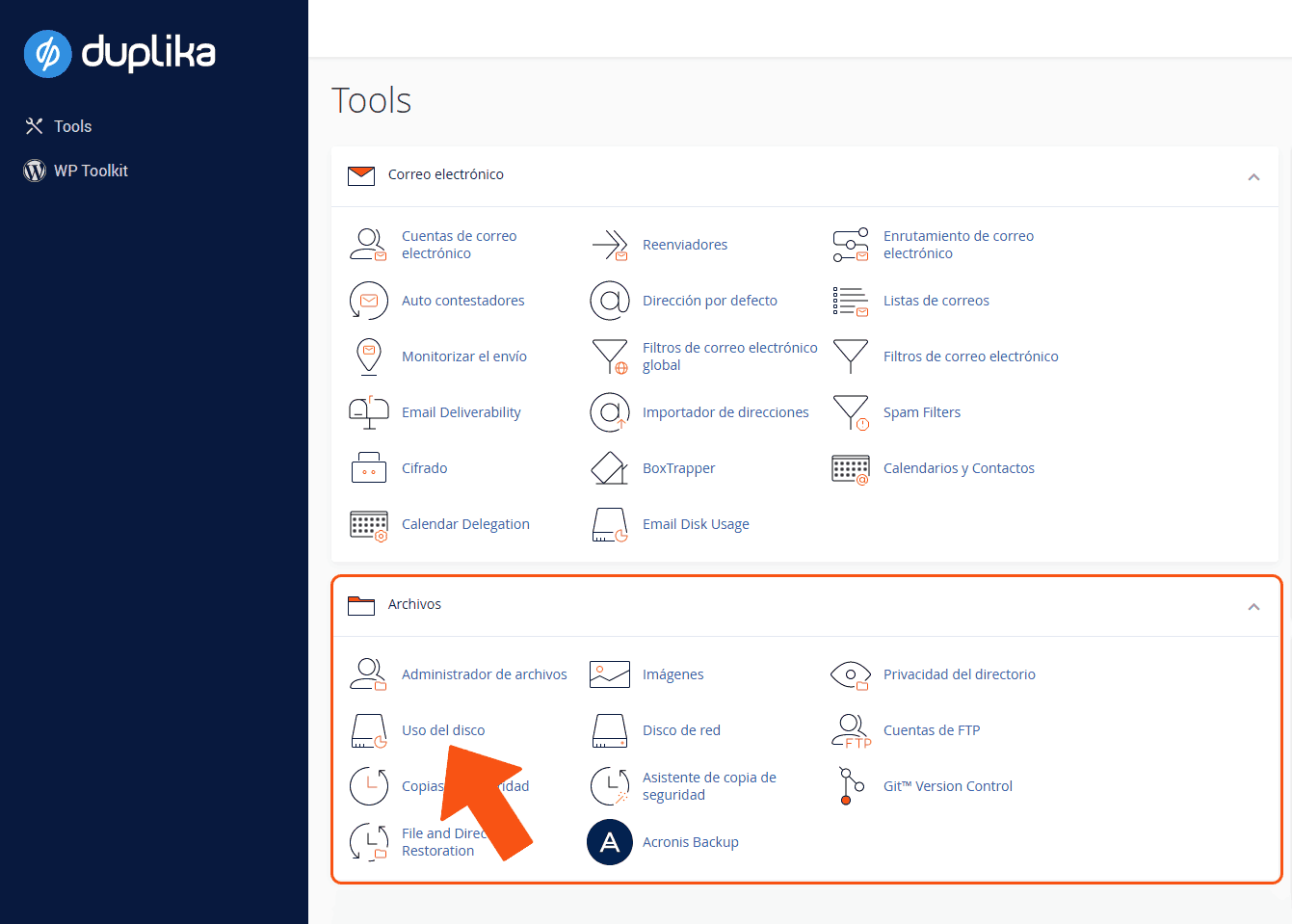
Once you click it, you’ll see a process begin in a new window to determine which resources are taking up space and how much. This will take a few minutes. The information will then be displayed in a format similar to the following screenshot:
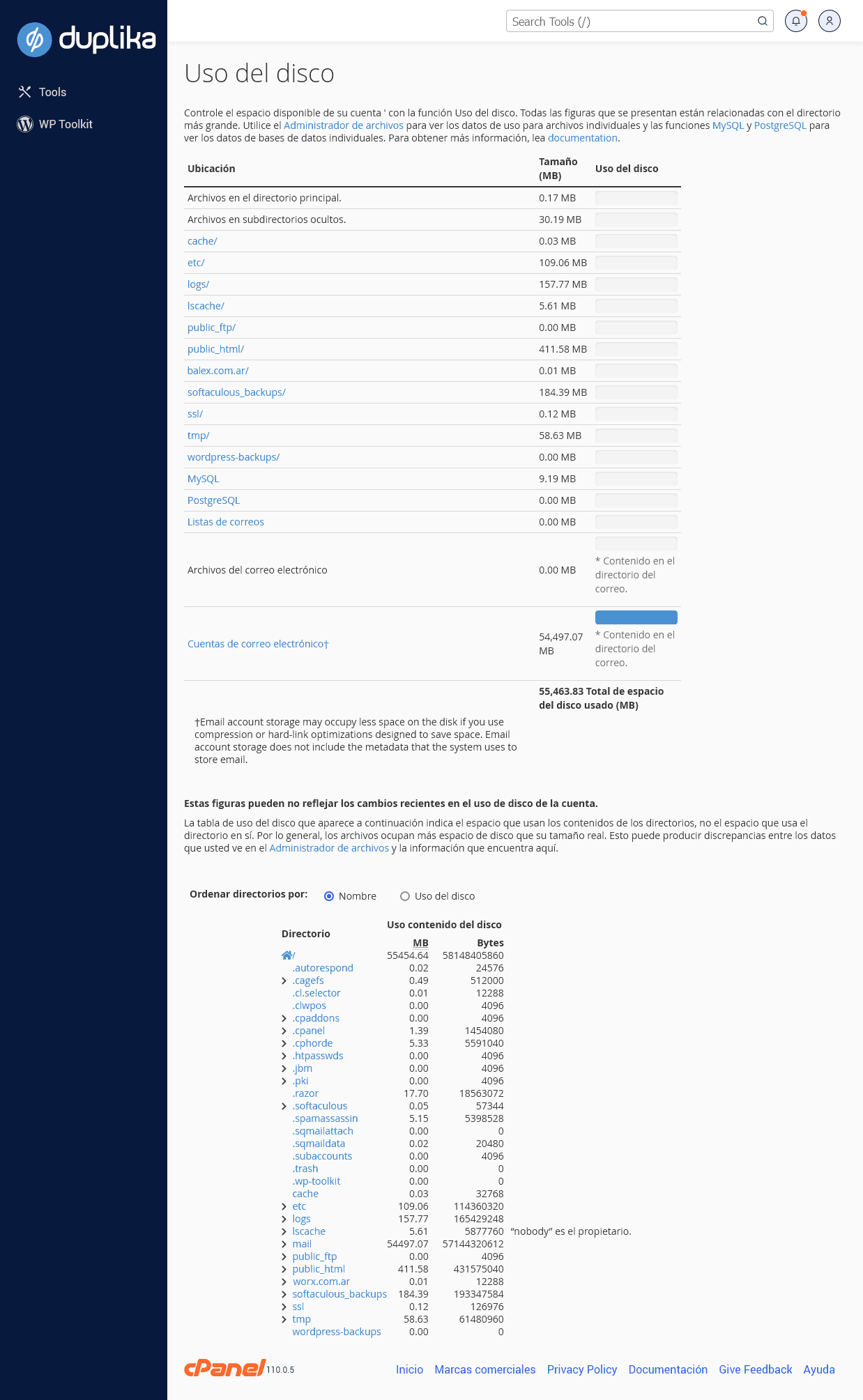
Here you can find a breakdown of everything taking up disk space, and you can delete any files you no longer use (clicking the locations opens the File Manager tool).
Typical solutions to the lack-of-space problem:
Domains: We recommend removing any domains from cPanel that you’re not using or that have expired. This will free up space and help you better manage your active domains.
Email: You can delete old or unimportant emails and regularly empty the junk, sent, and deleted folders, etc. You can also use a client such as Outlook, which will download emails to your computer and save a lot of space on the server (as long as you use the POP3 configuration).
Files: If your hosting account contains files you don’t use, it’s best to delete them too. This includes any .zip files or FTP accounts, as well as cache and temporary files generated by some installed CMS platforms, such as WordPress or PrestaShop.
Images and videos: Reduce the file size of the images and videos you upload to your website (for example, images that exceed a normal screen size or lack compression, such as BMP files). If you find images larger than 200kb, they’re probably poorly compressed or uncompressed, even if they’re JPGs. Also, remember that you can link images from an external service, such as Google Drive or YouTube.
Backups: When creating backups, we recommend downloading them and saving them to your computer or an external hard drive to save space online. After downloading them, delete the copies from your hosting account. Additionally, you can schedule your backups to be sent automatically to the cloud instead of being stored on your plan.
More space: If these possible solutions haven’t resolved your lack-of-space problem, the remaining option is to upgrade your hosting plan through mi.duplika.com to get more space and work with greater flexibility. You can change your plan at any time, instantly and without migration.
If you need help, write to us at [email protected]. We’re here to help.