

Como ingresar a WordPress desde Softaculous
Actualizado hace 3 meses
Puede ocurrir que la instalación/mantenimiento de nuestro sitio WordPress ha estado a cargo de un tercero y por ende no disponemos de los datos de acceso. También que no los recordemos, o que la vía tradicional para ingresar (wp-admin) no funcione. A no entrar en pánico que existe otra alternativa para ingresar al Escritorio de WordPress. La misma se realiza vía cPanel → Softaculous y en este breve tutorial te enseñamos cómo hacerlo, paso a paso con capturas de pantalla.
Breve introducción
Esta guía muestra un método alternativo al ingreso normal a WordPress, que es (lo mencionamos por las dudas) escribiendo la dirección misitio.com/wp-admin
Si no recordamos la contraseña, podemos reestablecerla empleando el enlace "¿Has olvidado tu contraseña?
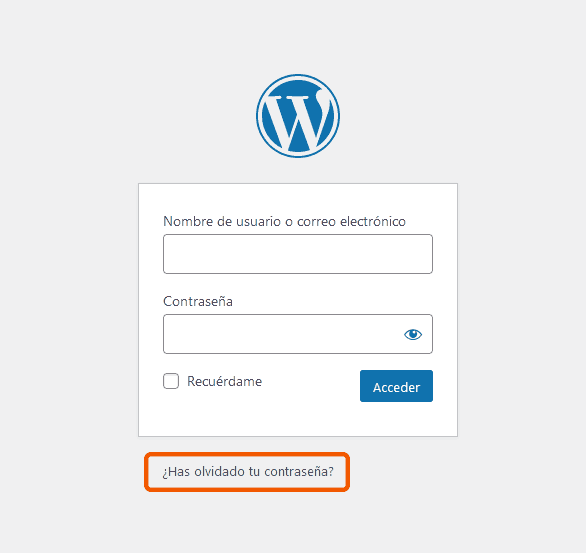
No obstante, este paso requiere poder acceder a la casilla de correo con que se ha generado la credencial en primer lugar. Si NO podemos lograr esto, doblemos por la ruta alternativa que es el sentido mismo de este tutorial.
Acceder a WordPress con cPanel
Este es el método indicado cuando no tenemos acceso a wp-admin por alguna razón, o bien si hemos agotado todos los recursos para recuperar las claves de acceso.
Lo primero es acceder a nuestro cPanel.

Reemplazaremos misitio.com por la dirección real de nuestra web.
Una vez ingresados a nuestro cPanel, deberemos buscar el ícono de WordPress dentro de la sección "Instalador de Aplicaciones" (generalmente situada al final de todo).
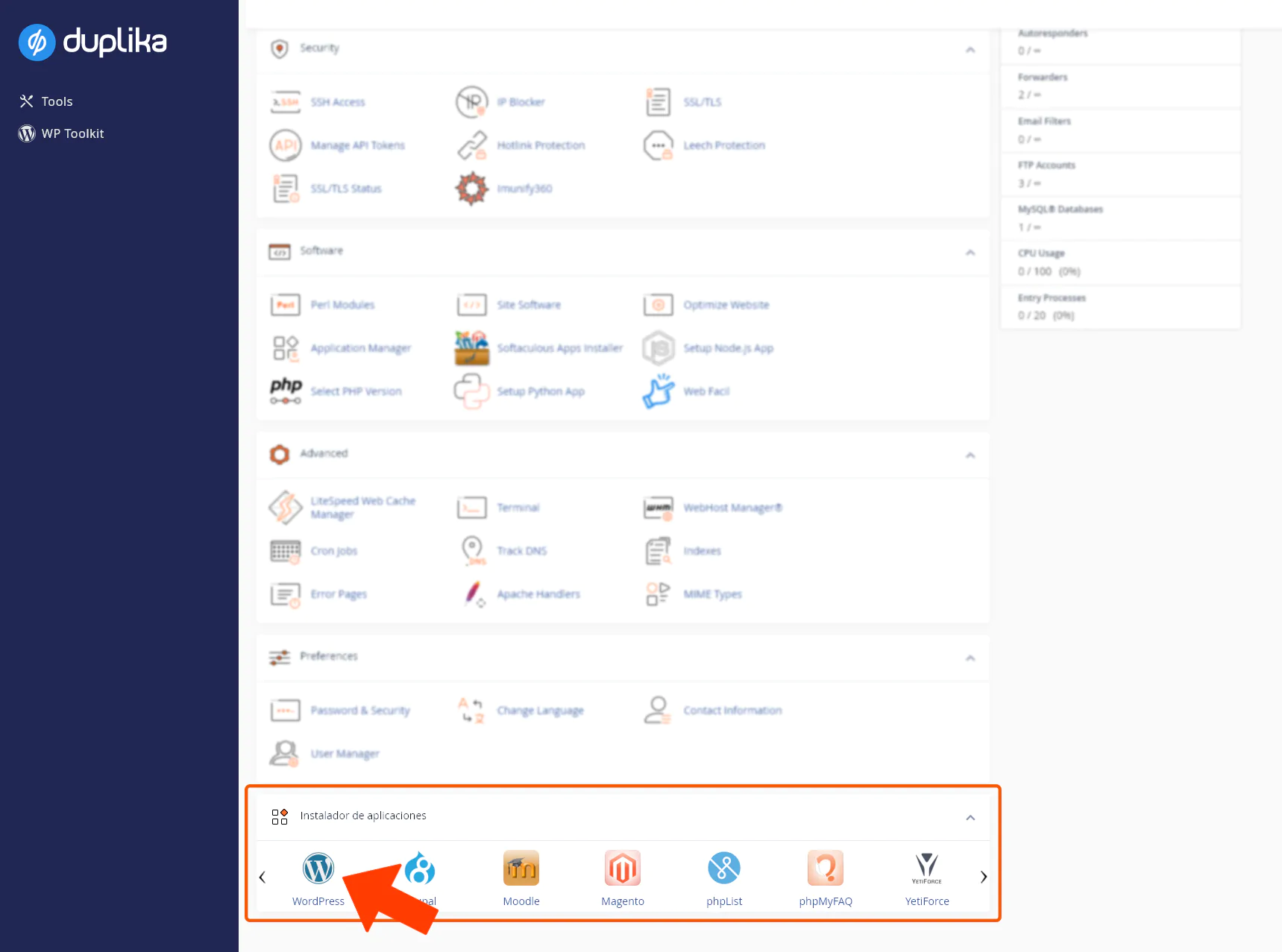
Tras hacer clic sobre el logo de WordPress, veremos una pantalla similar a la siguiente:
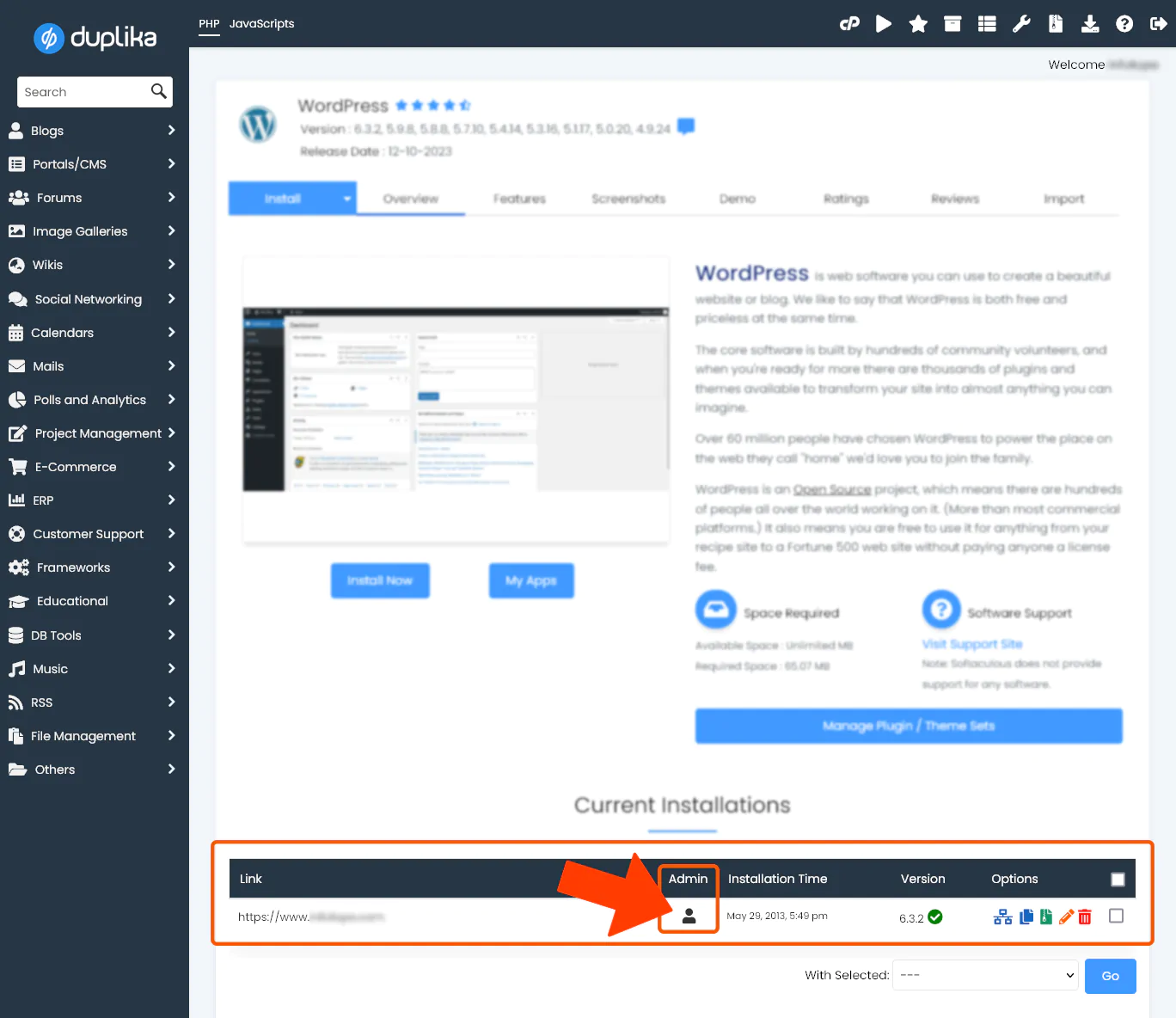
Como muestra la captura superior, debemos buscar el ícono de Admin y cliquear sobre él. Automáticamente habremos logrado entrar al Escritorio de WordPress de manera victoriosa.