

Managing resources with CloudLinux Manager
Updated last week
If you have a Reseller plan with us, or have added CloudLinux to your Cloud VPS, you can analyze the resource usage of each of your accounts and set the limit you want through the CloudLinux Manager option, available in your WHM panel.
This option allows you to set usage limits for each account to prevent any of your sites from consuming all the CPU or memory resources available in your plan.
If an account reaches its limit, it will display a 503 error until your plan has available resources again. If you reach the total usage limit for your entire account, all your sites will display a 503 error.
As a general recommendation, to be as efficient as possible with resource usage, you should ideally access each of your accounts and:
Delete any unused application or file.
Update any application, whether WordPress or Joomla, to the latest version and make sure that all plugins and themes are fully up to date.
Use PHP 8.3 by default and avoid older versions of PHP whenever possible.
How do you manage your account limits?
You must access our WHM panel and select the CloudLinux Manager option.
In the Users tab, you will find your accounts and can assign different limits.
Remember not to assign all available resources to a specific account, because if it exceeds the limit, all your sites will display a 503 error until resources are available again.
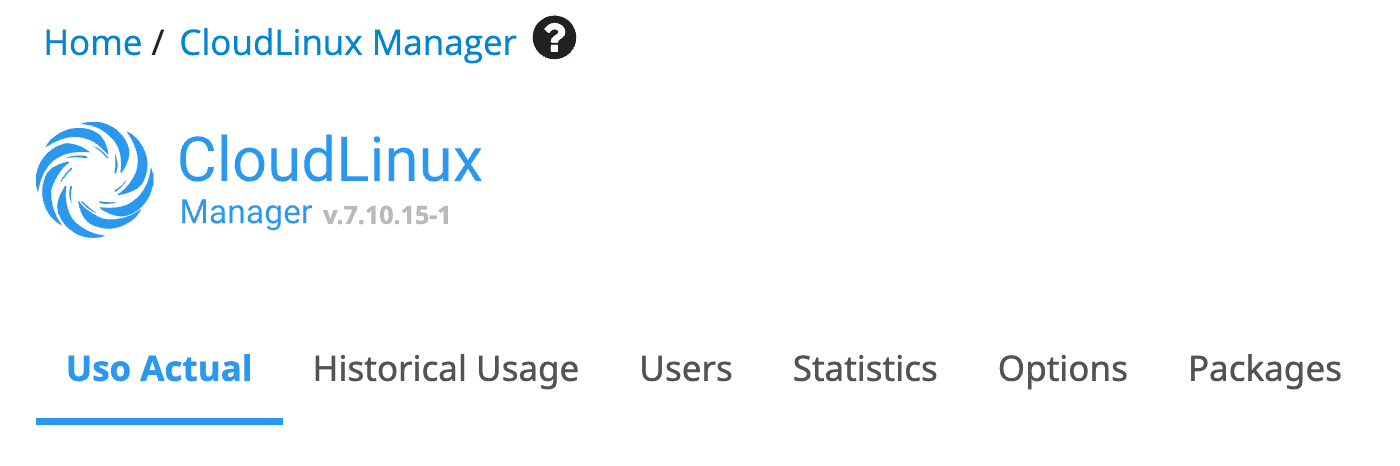
When you access it, you will find several tabs:
Current usage: Accounts with active usage will be listed, along with details of the resources consumed by each account.
Historical usage: You can view your plan's usage history and see the top 5 accounts with the highest resource usage.
Users: In this tab, you can view the resource limits assigned to each account.
Statistics: You can view the historical usage of each of your accounts if you want to identify a usage spike.
Options: This allows you to configure usage limit notifications for yourself and/or your customers.
Packages: If you use predefined resource packages, you can set the resource limits for each of your plans.
From the Users tab, the available resources are:
SPEED: Measured as a percentage of each CPU core available to your account. 100% is 1 core, and 200% is 2 cores.
PMEM: RAM, or physical memory.
IO, IOPS: We do not limit these in any of our plans, but if necessary, you can limit hard drive usage.
EP: Entry Process. The number of connections to LiteSpeed, cron jobs, and SSH sessions.
NPROC: The number of processes.
The first two options are the most common, and as you increase your site's traffic and functionality, you will need more memory and CPU.