

Revisar logs de correos entrantes y salientes
Actualizado hace 3 meses
La herramienta Monitorizar el envío en cPanel es muy útil a la hora de diagnosticar distintos problemas. La misma nos permite visualizar los registros (logs) de e-mails entrantes y salientes hacia el plan de hosting, y también posibilita verificar si un correo fue enviado o no, incluso si algún correo fue rebotado o hasta bloqueado.
Esta herramienta sirve también para revisar el resultado de scripts enviados desde formularios web, o para ver si alguien está enviando correos maliciosos o de tipo no deseado usando tus cuentas de correo.
Para emplear esta herramienta, primero accede a tu panel de control escribiendo la siguiente ruta en tu navegador web.

(nota: reemplaza "midominio.com" por la URL real de tu sitio)
Una vez ingresado, busca la herramienta en la sección Correo Electrónico.
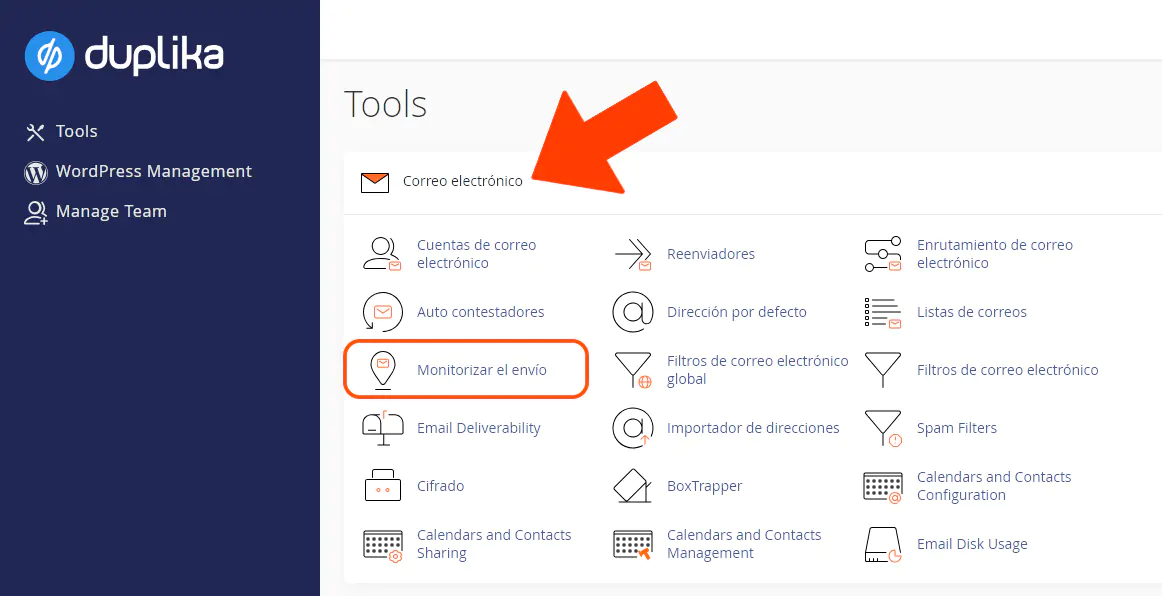
Tras darle clic a la herramienta, concéntrate en el área que te destacamos en la captura debajo. A continuación, te explicaremos qué muestra cada opción.
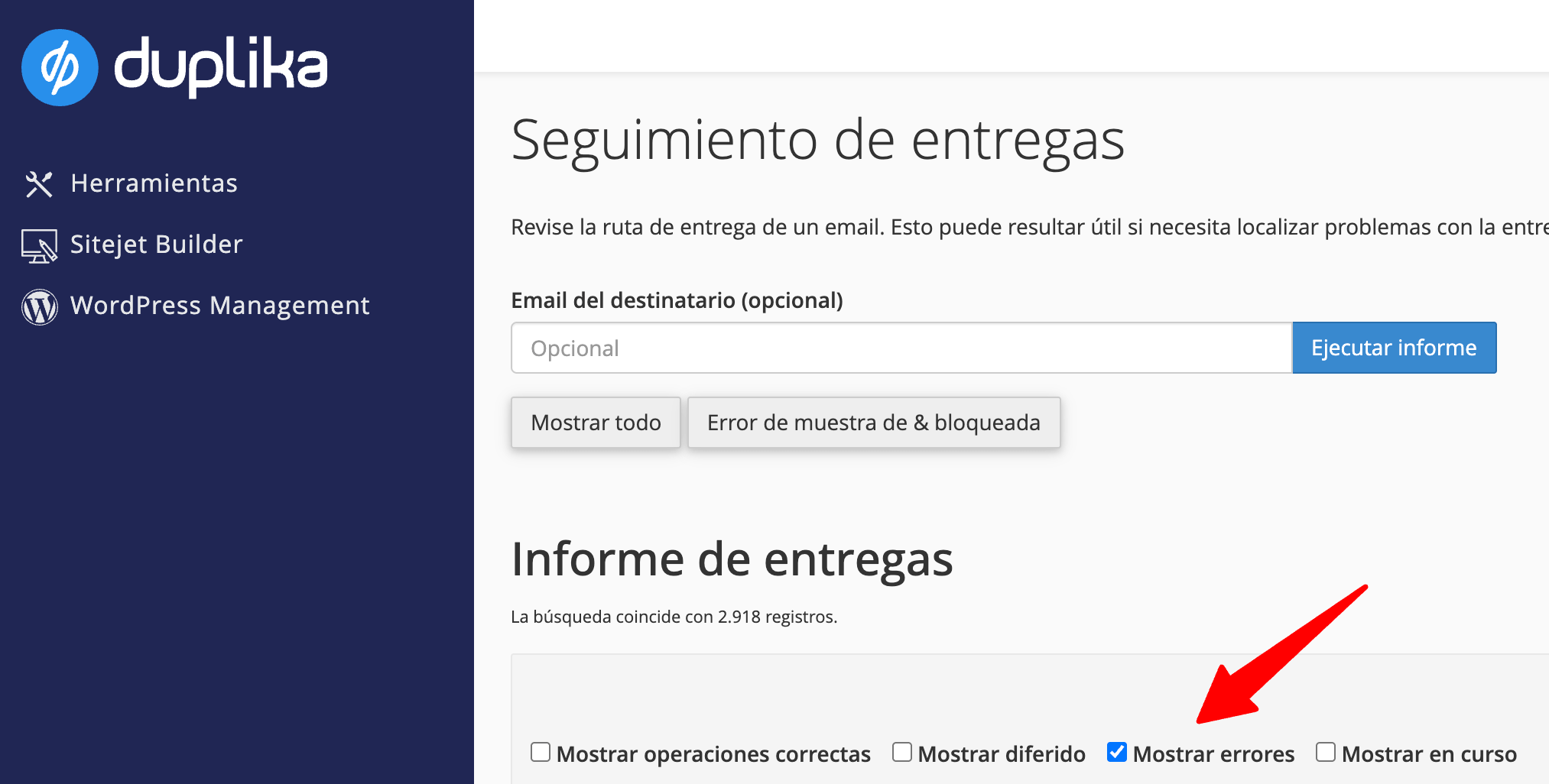
Mostrar éxitos: Listará aquellos correos que fueron enviados y/o recibidos con éxito. Puedes determinar si un correo fue enviado o recibido según si el destinatario incluye o no correos de tu dominio web.
Mostrar aplazados y Mostrar fallos: Como su nombre lo indica, estas opciones mostrarán los correos que no han podido enviarse por algún motivo, o que han sido bloqueados al ingresar al servidor. Usualmente, estos bloqueos se dan por un servicio anti-spam, un listado de tipo RBL o DNSBL, o por un problema con el servicio de los DNS.
Mostrar en progreso: Mostrará los e-mails que se encuentran en la cola de envíos pero que todavía no han podido ser enviados —ni tampoco rebotados—. Nota: usualmente, el tiempo que se mantienen en la cola de espera es de apenas unos minutos.
Ten en cuenta que sólo verás correos en esta lista si te encuentras empleando los MX de tu servicio de correo. Si usas otro servicio (por ejemplo, Google Apps o Zoho Mail), sólo verás los correos que se envíen mediante formularios o scripts en nuestro servidor (si aplica).