

Configurar cuenta de mail en Outlook
Actualizado hace 3 meses
En esta guía rápida veremos cómo recibir y enviar correos de nuestro sitio alojado en Duplika con el cliente Outlook. Comencemos.
Datos a tener a mano
Dirección de correo:
[email protected]y su contraseña.
Servidores de Duplika:
Entrante (IMAP):
mail.tudominio.comSaliente (SMTP):
mail.tudominio.com
Puertos:
IMAP: puerto 993
SMTP: puerto 465
Instrucciones (Outlook 2019, 2021 o Microsoft 365)
Nota: Los pasos pueden variar ligeramente dependiendo de la versión de Outlook que estemos utilizando, pero los conceptos básicos son los mismos.
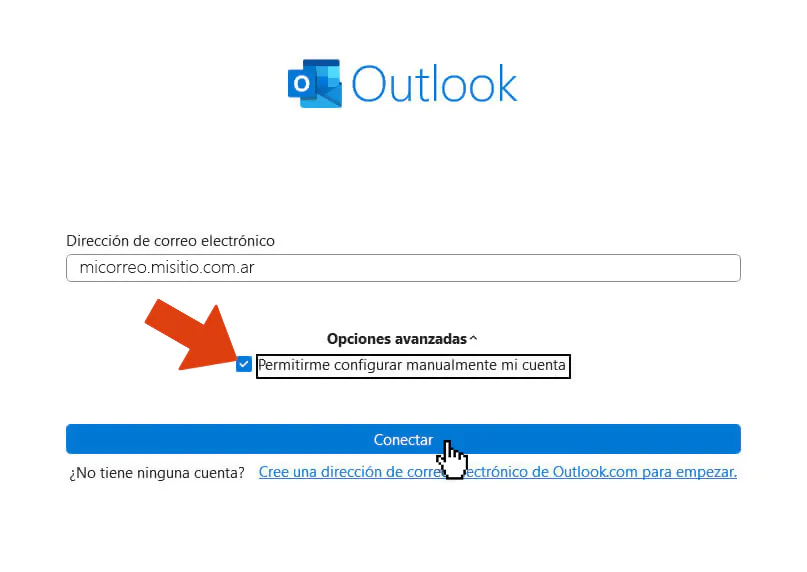
Abrimos el cliente Outlook
Nos dirigimos a Archivo → Agregar cuenta
Ingresaremos la dirección de nuestro correo y luego clic en Conectar
En la siguiente ventana, elegiremos IMAP (puede ser POP3 pero no lo recomendamos)
Completamos los campos manualmente:
Servidor de correo entrante (IMAP)
Servidor: mail.tudominio.com
Puerto: 993
Método de cifrado: SSL/TLS
Nombre de usuario: la dirección de correo completa
Contraseña: la de dicha casilla
Servidor de correo saliente (SMTP)
Servidor: mail.tudominio.com
Puerto: 465
Método de cifrado: SSL/TLS
Requiere autenticación: Sí
Nombre de usuario: nuestra dirección de correo completa
Contraseña: la misma
Luego haremos clic en Siguiente
Outlook verificará los datos. Si está todo bien, mostrará una tilde verde.
Haremos clic en Hecho
Tras este último paso habremos configurado nuestra cuenta de correo en Duplika con Outlook.