

Setting Up Mail in Mozilla Thunderbird
Updated 3 months ago
To set up your email accounts in Thunderbird, you must have created them first. If you haven't yet, visit our guide to creating, managing, and setting up email accounts.
Once you've created your email account in the email section of your control panel, you'll find the configuration details at the bottom of the page. Here's an example:
With these details, open the Thunderbird application on your computer and follow these instructions:
If this is your first time opening the application, the program will ask you to set up a new account (going through the same dialog boxes found under Tools > Account Settings. If you can't see the menu bar, click the icon with 3 horizontal bars in the upper right and go to Options > Account Settings
Below, on the left, click Account Actions > Add Mail Account
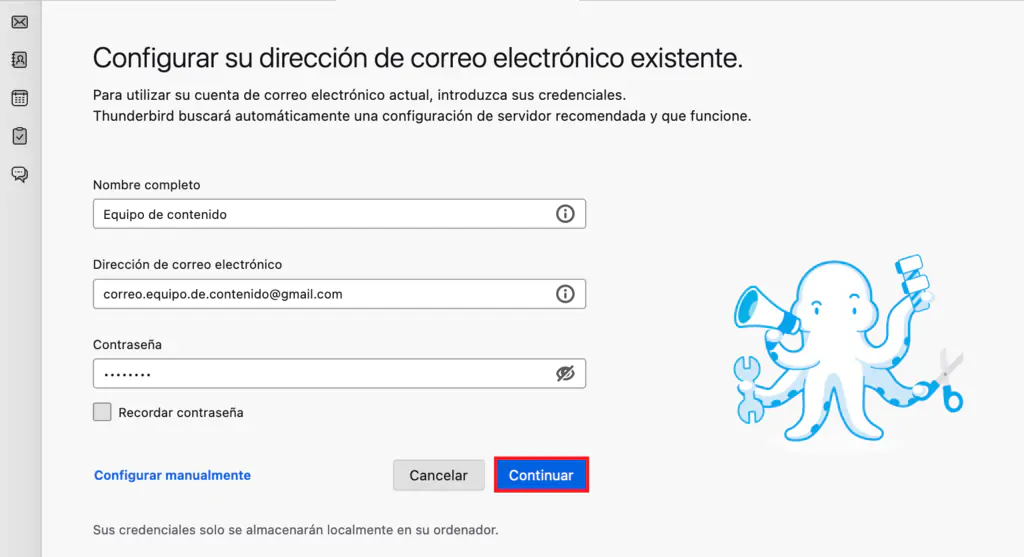
On the email setup page, enter the display name (sender), email address, and password you used when creating your account
When you click Continue, the program will try to guess the correct settings
If it can't, or if the details don't match those in cPanel, adjust the settings as needed using the Re-test or Configure manually buttons to enter the details from cPanel (first screenshot in this guide).
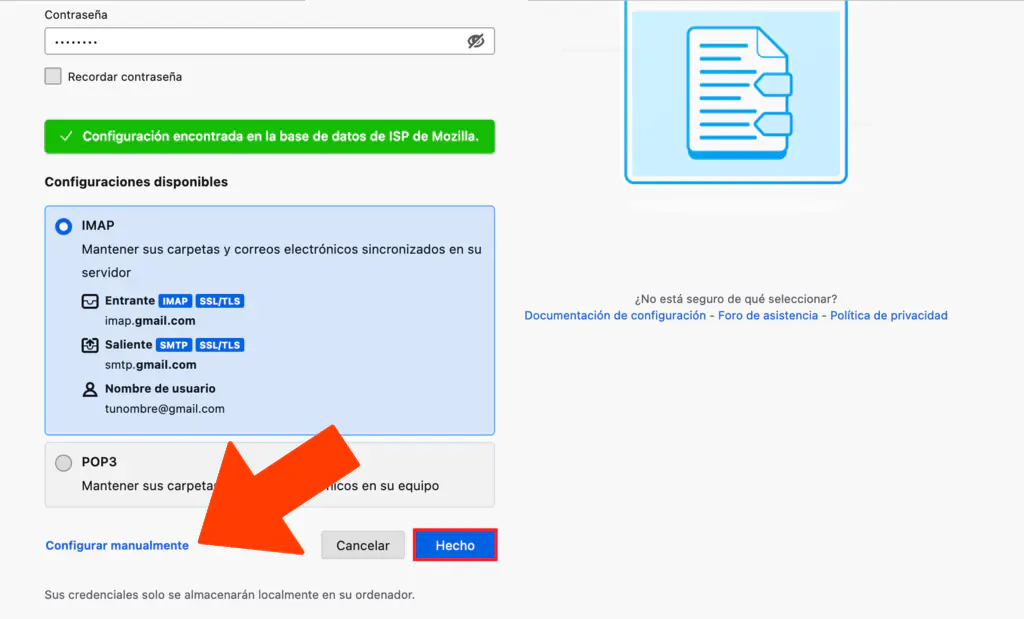
Once complete, the email account will be set up.
If you have several email accounts configured, go back to Account Settings
Select Outgoing Server (SMTP) from the options on the left
Make sure the new email account is set as the default.