

Compartir acceso a Google Analytics
Actualizado hace 7 meses
Si estamos necesitando incorporar a un gestor o especialista SEO, tendremos que otorgarle acceso a las analíticas de Google de nuestra web.
Esto mismo ocurrirá en casos donde necesitemos que un tercero gestione nuestras campañas de Adwords, o, quizás, porque un comprador interesado en nuestro sitio nos solicita —en todo su derecho— visualizar de primera mano la cantidad de visitas que tenemos.
En estos casos tenemos el control, porque podemos dar de baja ese nuevo acceso cuando no lo necesitemos más. Por eso, a continuación se explica cómo compartir el acceso de tu Google Analytics a un tercero paso a paso.
Agregando un usuario a mi Google Analytics
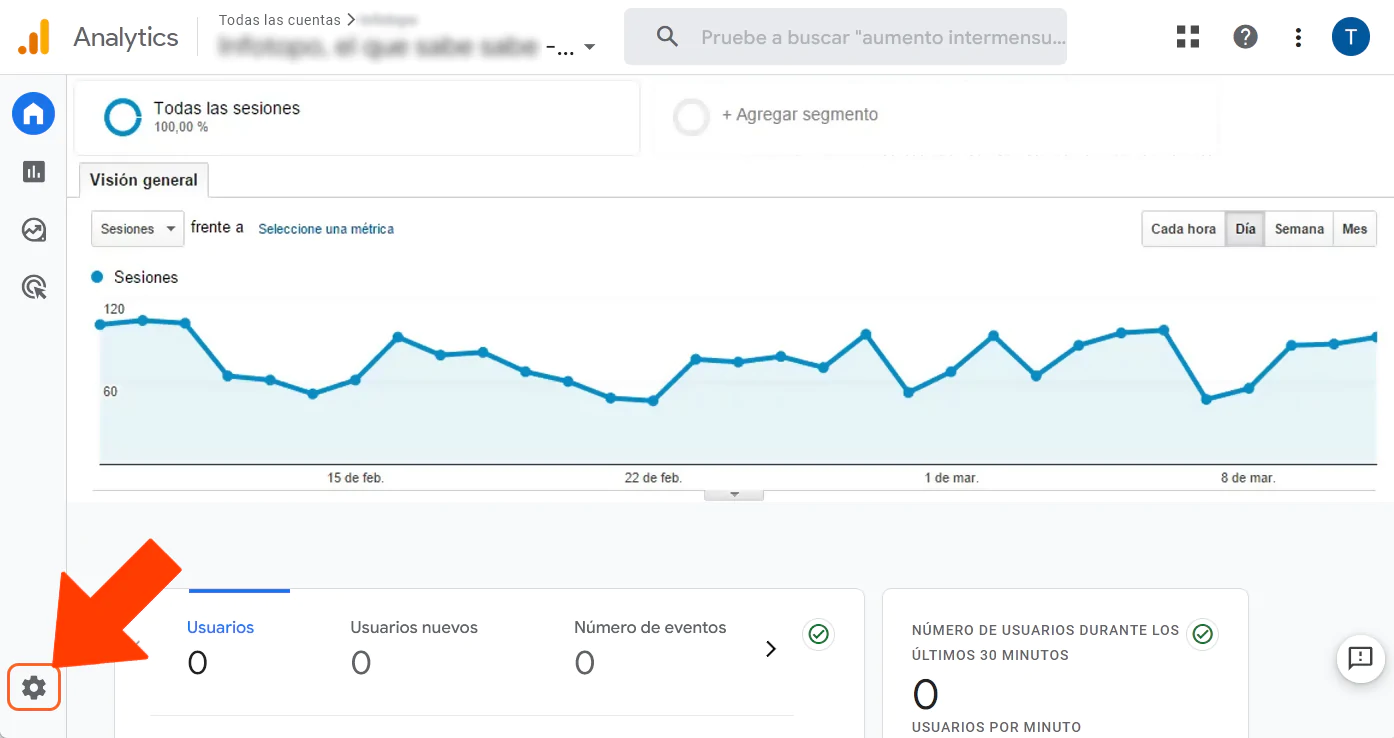
Lo primero es ingresar a nuestra cuenta y hacer un clic sobre el ícono de la tuerca para acceder a la Administración.
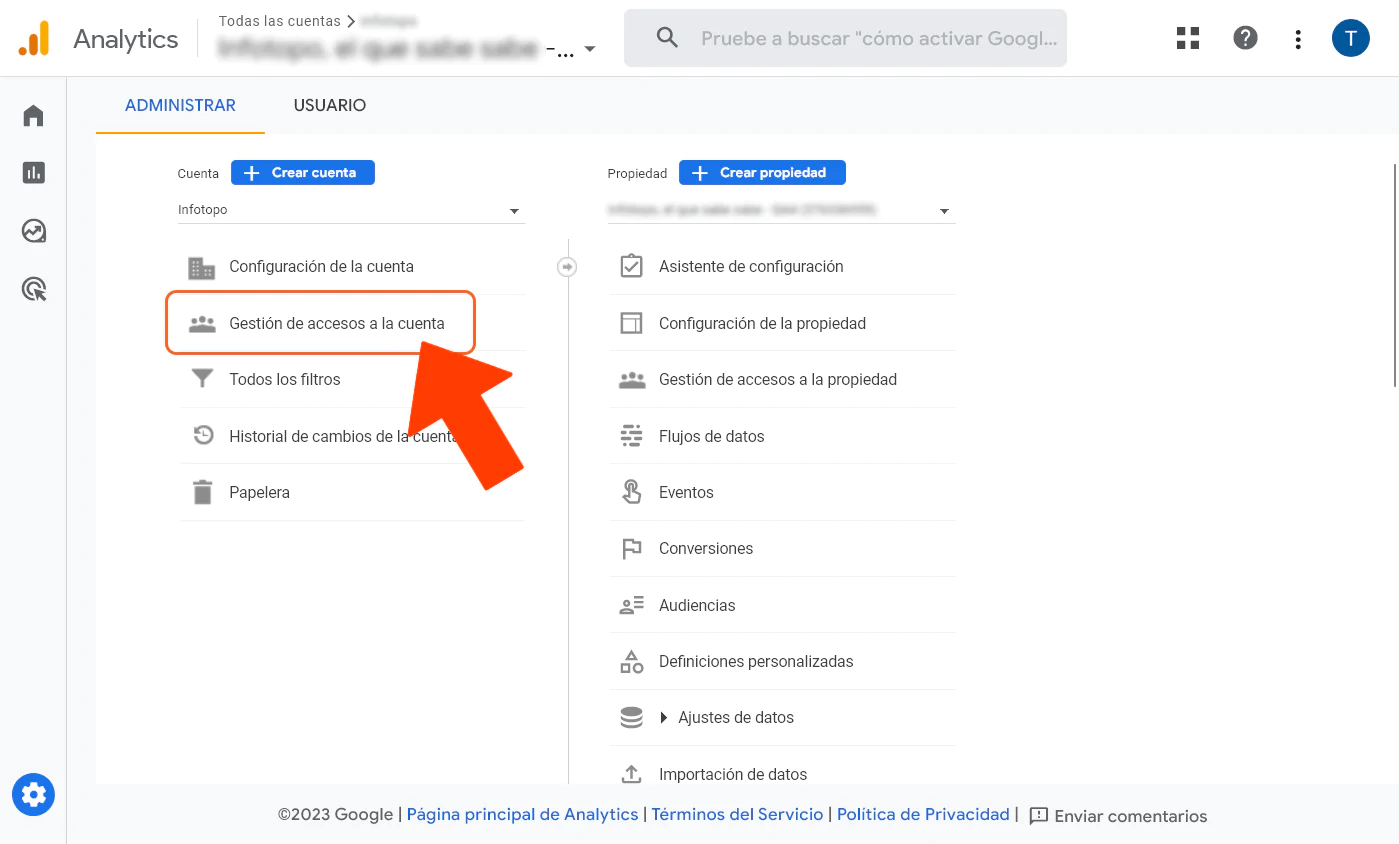
En la pantalla de Administración, debemos ahora cliquear sobre Gestión de accesos a la cuenta.
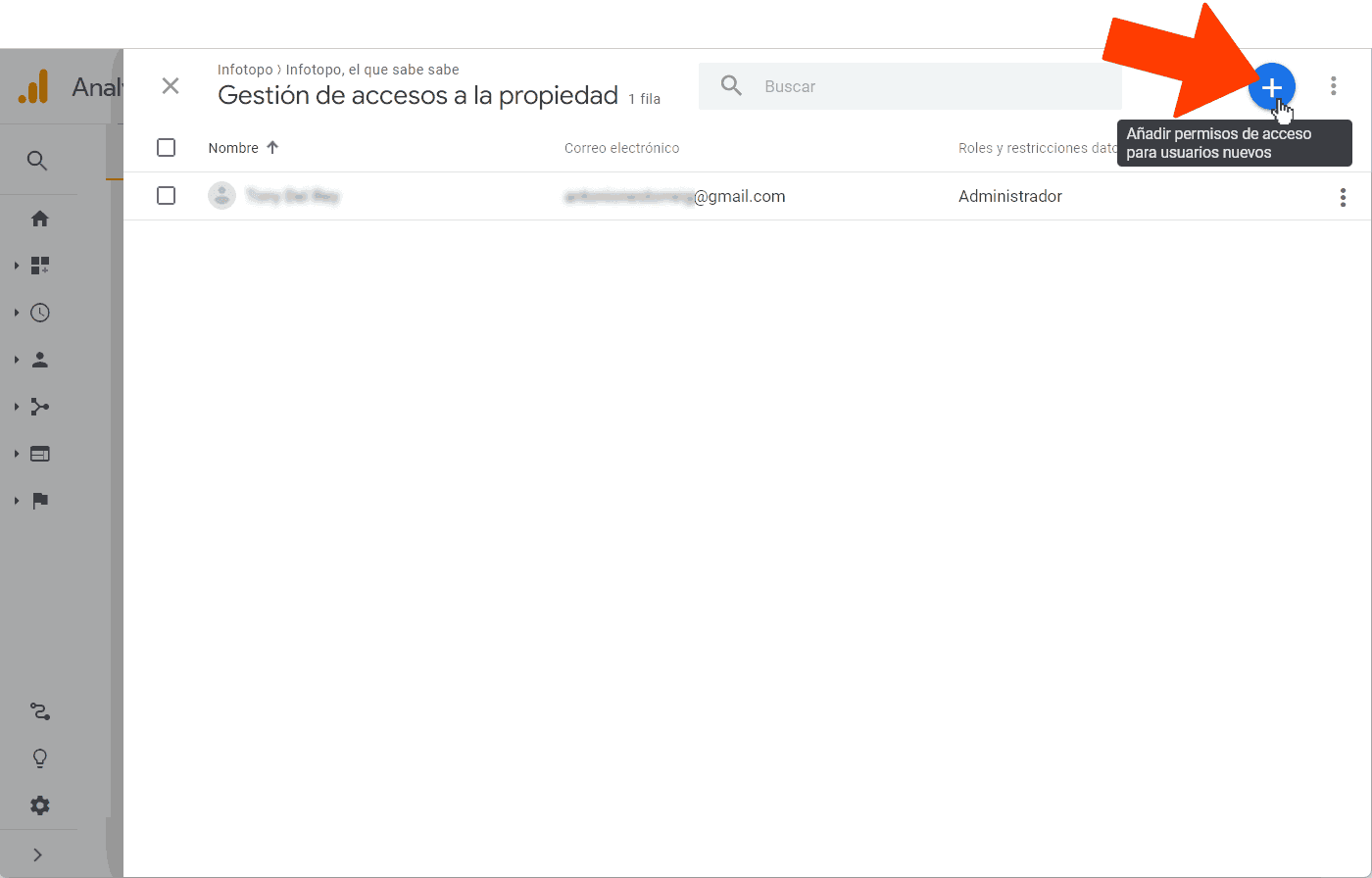
Y luego debemos añadir el usuario cliqueando el botón señalado en la captura inferior.
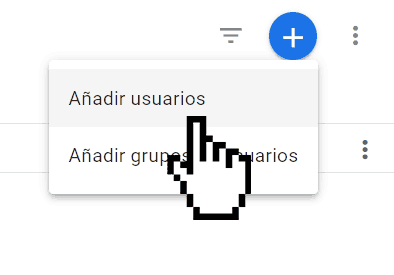
En esta guía usaremos la opción de Añadir usuarios (y no “grupos de usuarios”, algo más puntual y avanzado).
En la pantalla que se abre, como podemos ver, es posible ingresar un correo (o más). Éste será el correo del usuario a quién pretendemos agregar y los permisos que deseemos otorgar.
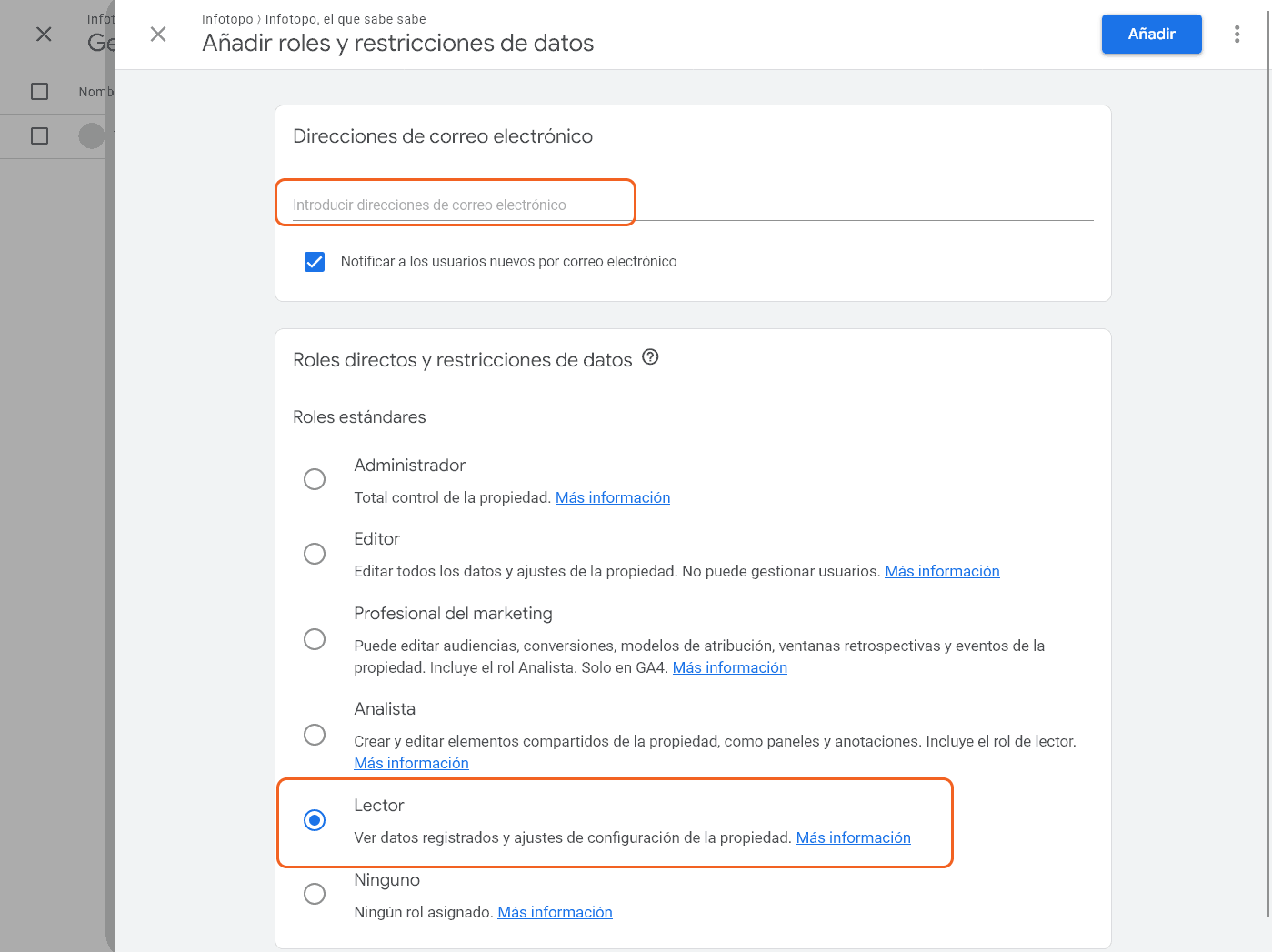
Cada uno de los roles incluye una descripción corta y, además, un enlace de “Más información” para un conocimiento exhaustivo de qué acciones podrá o no realizar el usuario añadido.