

Configuración SPF, DKIM y DMARC para validar tus correos
Actualizado el mes pasado
La función de estos dos servicios es evitar que alguien envíe correos haciéndose pasar por ti, pero, si los configuras mal, puede ocurrir que te bloquees a ti mismo. Recuerda que, para que SPF y DKIM puedan funcionar, debes emplear nuestros DNS (o replicar manualmente estos registros en tu servicio de DNS actual).
El servicio de SPF (Sender Policy Framework) en pocas palabras le "dice" al servidor de correo que reciba un mail con tu dirección de correo, desde qué servidores tiene que aceptarlo, y si el remitente usó un servidor que no sea tuyo entonces el mismo SPF le comunica que debe marcarlo como spam o descartarlo.
El servicio DKIM (DomainKeys Identified Mail) funciona de una manera similar, pero lo que hace es firmar el correo con una firma pública y el servidor revisa que la misma coincida con el registro del dominio; si no coincide lo marca como spam, o bien lo descarta (dependiendo de la configuración del destinatario).
¿Cómo activar SPF y DKIM?
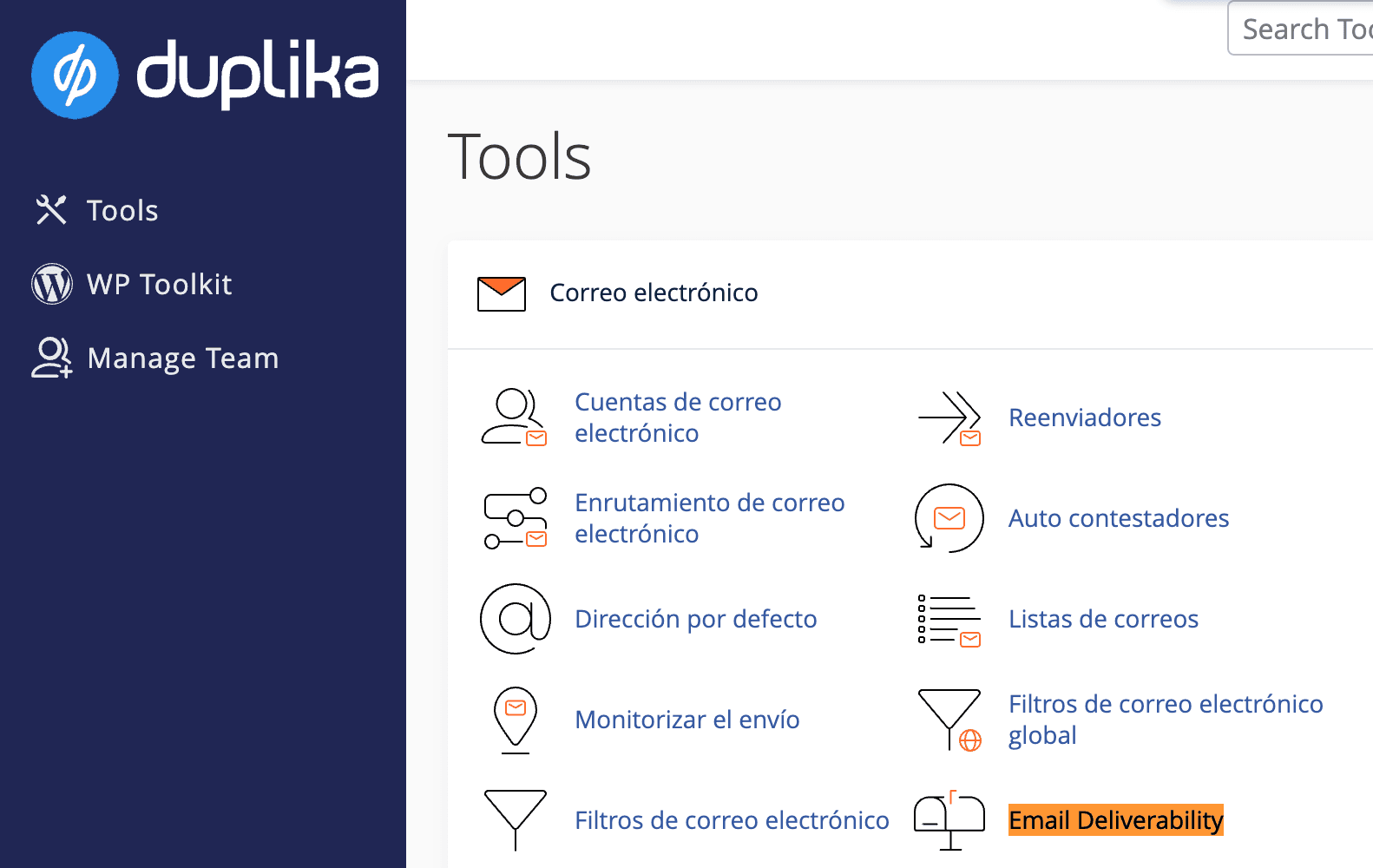
La configuración de ambos se realiza desde el cPanel, en la opción Correo Electrónico > Email Deliverability.
Para poder configurar la autenticación de tus correos, primero ingresa a tu cPanel a la dirección indicada en la captura inferior (reemplazando "midominio.com" por la URL real de tu sitio).

Una vez ingresado a tu panel, busca la herramienta Email Deliverability dentro del grupo Correo Electrónico como se indica en la captura debajo:
Dentro de este servicio, encontrarás una opción para activar DKIM y SPF. Cuando los mismos estén habilitados, el servicio estará protegido.
Si haces clic en Personalizar dentro de SPF, podrás especificar los registros. spf.duplika.com está incluido por defecto, y debe ser utilizado en cualquier plan de hosting compartido.
En caso de que envíes los mails únicamente desde tu web, o desde cuentas de mail desde nuestro servidor, recomendamos activar la opción Use the “-all” Entry".
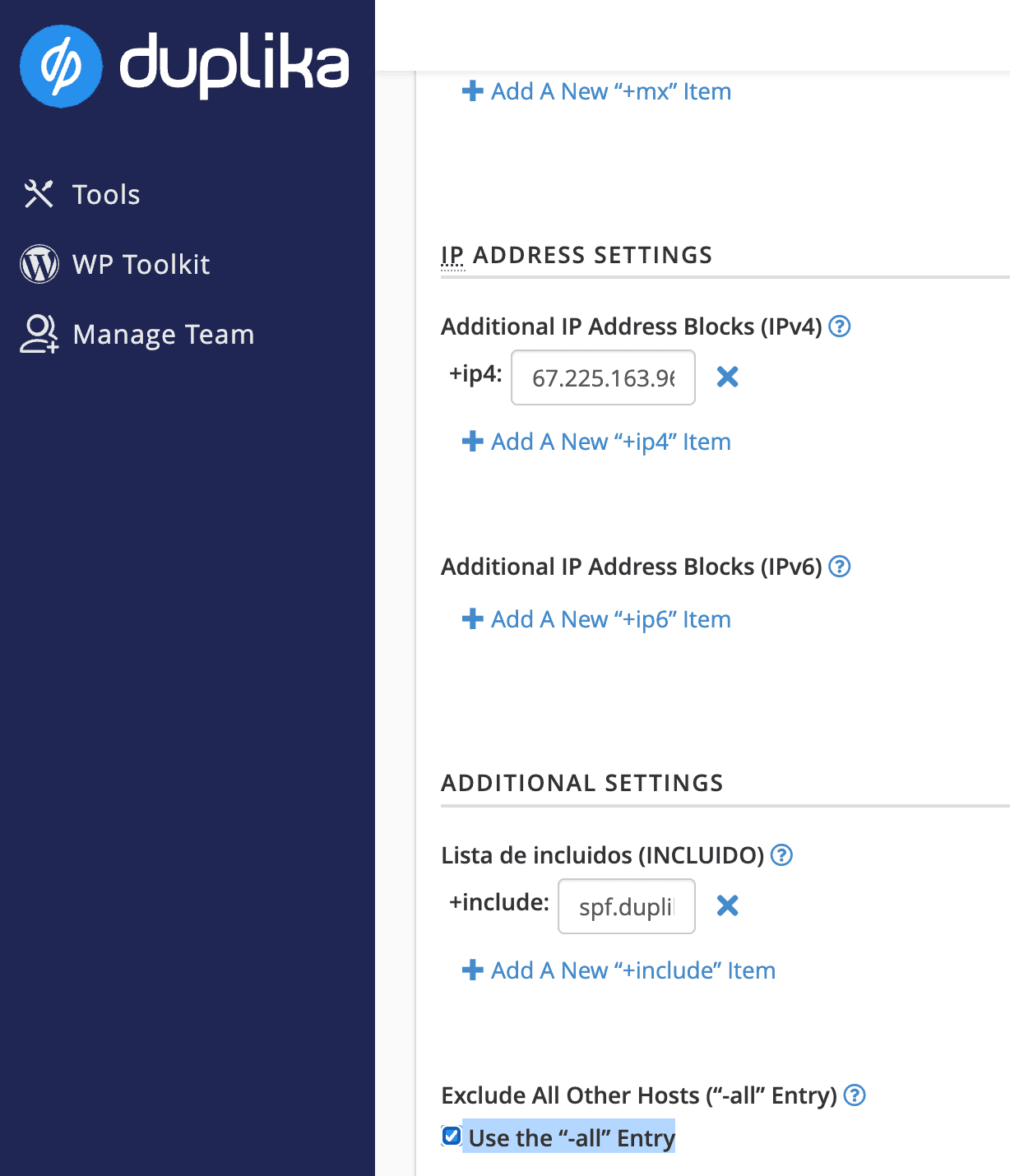
Si usas Gmail para enviar mail con tu dominio, tenes que agregar el servidor _spf.google.com para validar los envios realizados desde ahi.
¿Cómo activar DMARC?
Los registros DMARC en tus DNS definen cómo deben tratarse los correos enviados desde tu dominio que no superen la validación de SPF y DKIM previamente configurada.
Si no nos interesa recibir reportes de dichos correos, para activar DMARC será necesario agregar un nuevo registro de DNS desde nuestro cPanel, Zone DNS Editor, y agregar:
Nombre: _dmarc.tudominio.com. (reemplazando tudominio.com por tu dominio)
TTL: 14400 o valor por defecto
Tipo: TXT
Valor: v=DMARC1; p=none
Opcionalmente, en caso de querer recibir reportes de mails enviados que no cumplan con las validaciónes, usar el siguiente valor:
v=DMARC1; p=none; rua=mailto:[email protected] ; ruf=mailto:[email protected]
(reemplazando [email protected] por la casilla de mail que quieras usar para recibir dichos reportes).