Usar tu correo con Gmail: envío y opciones de recepción
Actualizado hace 4 semanas
Podés usar tu cuenta de correo de Duplika en la aplicación móvil Gmail mediante IMAP, o recibir mensajes nuevos en Gmail web mediante reenvío. Las funciones para consultar cuentas externas por POP y enviar desde otra dirección tienen un calendario de retirada.
Google retirará en enero de 2027 Gmailify, la consulta POP de cuentas externas y la función «Enviar como» para direcciones alojadas fuera de Google. Durante la transición puede restringir nuevas configuraciones. La conexión directa de cuentas externas en la app Gmail seguirá disponible.
Para recibir correos nuevos en Gmail web, configurá el reenvío automático desde tu cuenta de Duplika. Si preferís consultar y enviar desde la cuenta original, agregala mediante IMAP a la app Gmail para Android, iPhone o iPad.
Configuración POP anterior para cuentas que ya estaban vinculadas
Google dejó de admitir nuevos usuarios de esta función después del primer trimestre de 2026. Si ya la utilizabas, podés consultar estos valores durante la transición hasta enero de 2027.
Contraseña: La clave asignada a la cuenta de correo que quieras revisar
Servidor POP: Completa mail.tudominio.com (reemplazando tudominio por el dominio de tu cuenta)
Puerto Servidor POP: 995
Dejar una copia del mensaje: Podemos mantener desactivada dicha opción. Si la activamos, Gmail dejará una copia del mail en el servidor. Si ésta opción queda desmarcada, los mails seran descargados de tu cuenta de mail, a tu Gmail.
Para recuperar mensajes de correo electrónico, utiliza siempre una conexión segura SSL: Activar dicha opción
Asignar una etiqueta a los mensajes entrantes: Opcionalmente, podemos etiquetar los mails que nos lleguen a nuestros Gmail, para rápidamente identificar los que nos llegaron a la nueva cuenta, y no a nuestro Gmail
Archivar mensajes entrantes (Omitir la carpeta recibidos): Dejamos desactivada dicha opción, a menos que querramos que los mails no aparezcan en nuestra inbox, y vayan directamente a la etiqueta que hayamos asignado).
Usá esta referencia para revisar una conexión existente; para una nueva configuración, elegí reenvío o la app móvil con IMAP.
Enviar correos desde Gmail durante la transición
Si la función «Enviar como» sigue habilitada en tu cuenta, esta es la configuración SMTP utilizada para enviar desde tu dirección de Duplika. Dejará de estar disponible para cuentas de terceros en enero de 2027; como alternativa, podés usar la app Gmail con tu cuenta conectada directamente o un cliente de correo con IMAP y SMTP.
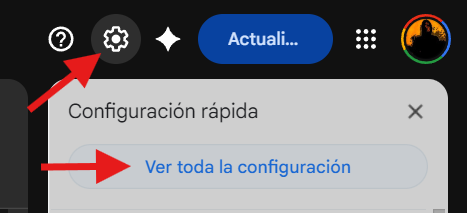
Para ello vamos a la configuración en nuestra cuenta de Gmail:
Luego seleccionamos la pestaña Cuentas e Importación, y en la opción "Enviar mensaje como", seleccionamos Agregar otra dirección de correo electrónico.
Completamos nuestro mail, mantenemos activada la opción Tratarlo como alias, y usamos los siguientes datos:
Servidor SMTP: Completa mail.tudominio.com (reemplazando tudominio por el dominio de tu cuenta)