

SPF, DKIM, and DMARC Configuration to Validate Your Emails
Updated 2 weeks ago
To make sure your emails are validated correctly, enable SPF and DKIM from Email Deliverability in cPanel and publish the DMARC record in the DNS zone. Then check the results by sending a real message to a testing service. For SPF and DKIM to work, your domain must use our DNS servers (or you must manually replicate these records in your current DNS service).
SPF (Sender Policy Framework) tells the server receiving an email which servers it should accept messages from using your address; if the sender used a server you didn't authorize, the recipient marks the message as spam or discards it. DKIM (DomainKeys Identified Mail) signs each email, and the receiving server compares that signature with the public key published on your domain; if they don't match, the message is marked as spam or discarded, depending on the recipient's settings. DMARC defines how messages from your domain that fail these checks should be handled.
All three services prevent someone from sending emails while pretending to be you, but if they're misconfigured, they can block your own outgoing messages.
How do I enable SPF and DKIM?
Both are configured in cPanel, under Email > Email Deliverability. If you don't have access yet, see how to log in to cPanel.
Log in to cPanel using your website address (replace mydomain.com with your actual domain):

Find the Email Deliverability tool in the Email group:
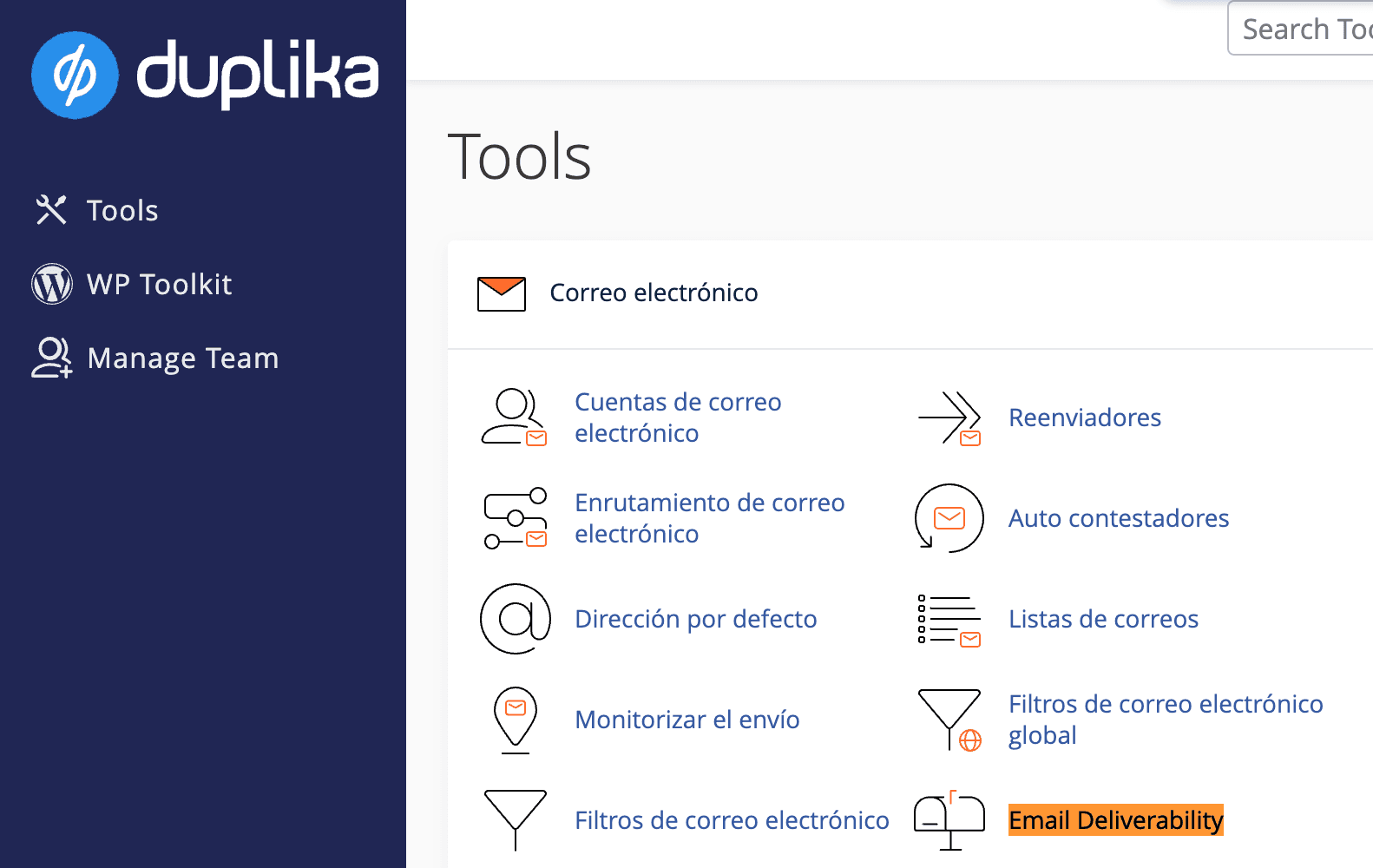
Check the SPF and DKIM status for your domain. If either is disabled, enable it from that same screen. Once both are enabled, your email is protected.
Under SPF, click Customize to review the records.
spf.duplika.com is included by default and must be used with any shared hosting plan.
If you send emails only from your website or from email accounts on our server, we recommend enabling the Use the “-all” Entry option:
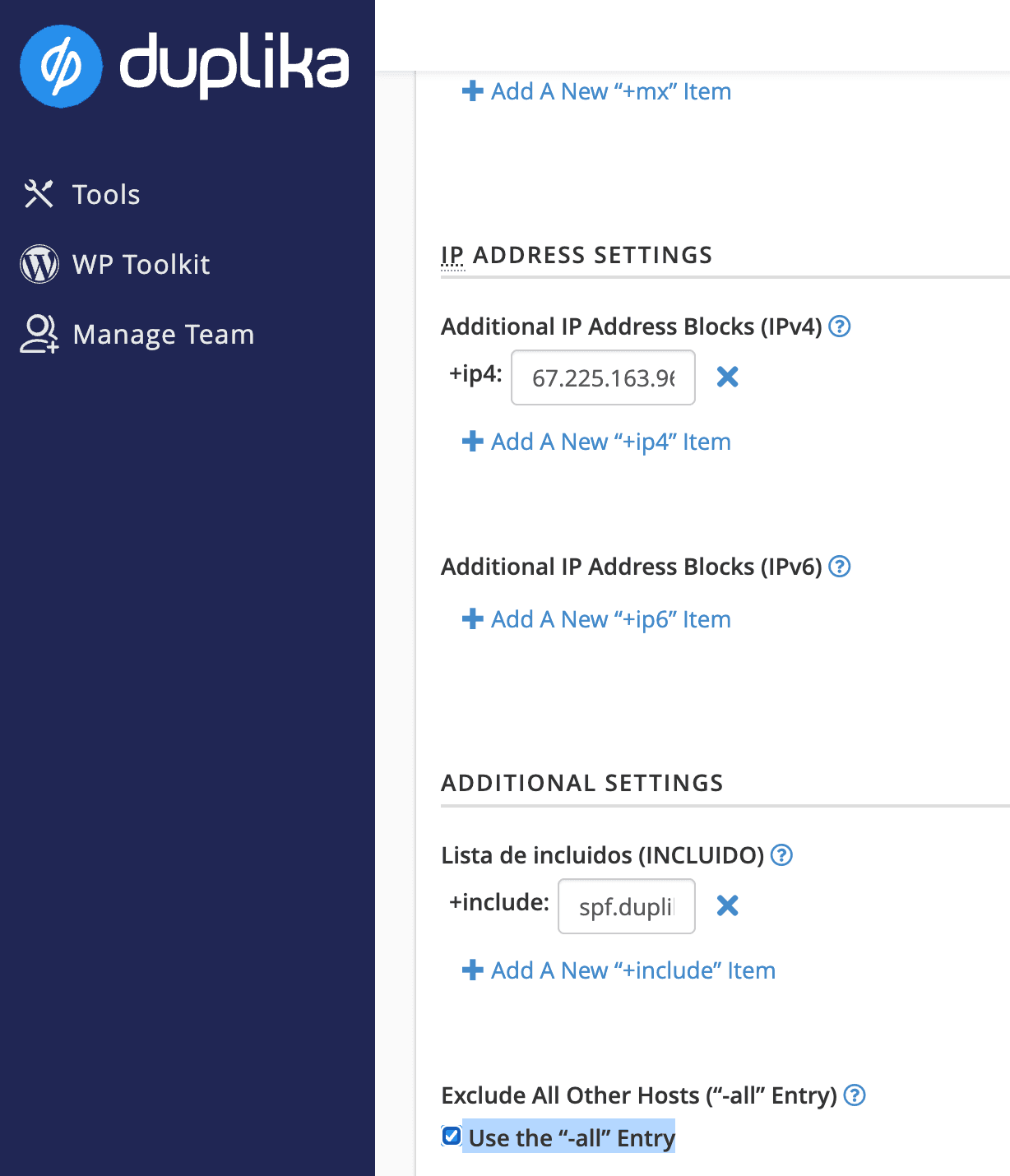
If you use Gmail to send emails from your domain, also add the _spf.google.com server to validate messages sent from Gmail.
Your domain can have only one SPF policy. If you start sending from another platform (an ecommerce platform, CRM, or campaign platform), add its server to the existing record instead of publishing a second record that starts with v=spf1. See the guide to creating and editing DNS records in cPanel for details about each field.
How do I enable DMARC?
The DMARC record defines how emails sent from your domain that fail SPF and DKIM validation should be handled. To publish it, add a TXT record in cPanel's Zone Editor with these values:
Name:
_dmarc.yourdomain.com.(replace yourdomain.com with your domain)TTL: 14400 or the default value
Type: TXT
Record:
v=DMARC1; p=none
If you also want to receive reports about emails that fail validation, use this value instead of the one above (replace [email protected] with the mailbox where you want to receive the reports):
v=DMARC1; p=none; rua=mailto:[email protected]; ruf=mailto:[email protected]Always start with p=none, which only monitors and doesn't block anything. Once you've confirmed that all legitimate services sending emails from your domain pass SPF or DKIM validation, you can strengthen the policy to p=quarantine so that messages that fail validation are quarantined. Since 2024, Gmail and Yahoo have required a published DMARC policy for bulk email.
Check your configuration
After enabling SPF and DKIM and publishing DMARC, test the results using the actual message you plan to send to your recipients, not a two-line draft. A free tool such as Email Spam Tester requires no registration: it gives you a disposable email address, you send your email to it, and it returns a report with SPF, DKIM, and DMARC validation results, a spam score, and which inbox the message landed in at real Gmail, Outlook, Yahoo, and other provider mailboxes.
The test address accepts only one message and expires one hour after you reserve it.
The report link doesn't expire, but anyone with the link can read it: it shows the sender and the full message content, so treat the report as private.
A test is a snapshot of one email delivery: run it again after each configuration change.
If you only want to check the records published on your domain without sending an email, the same website offers free SPF, DMARC, and DKIM checkers: enter your domain to see the record as destination servers read it.
If your emails still go to spam
Having SPF, DKIM, and DMARC configured correctly is essential, but it doesn't guarantee inbox placement: providers also evaluate reputation, content, and recipient behavior. If authentication is passing but your messages are still being classified as spam, follow the guide to investigate why your emails go to spam in Gmail or Outlook.