

Resource Usage and Errors 503–508
Updated 4 weeks ago
Each hosting plan has a set limit for CPU, RAM, simultaneous processes, and the number of files.
If your website exceeds the resource limits of your plan, you will see one of the following errors when you try to visit it:
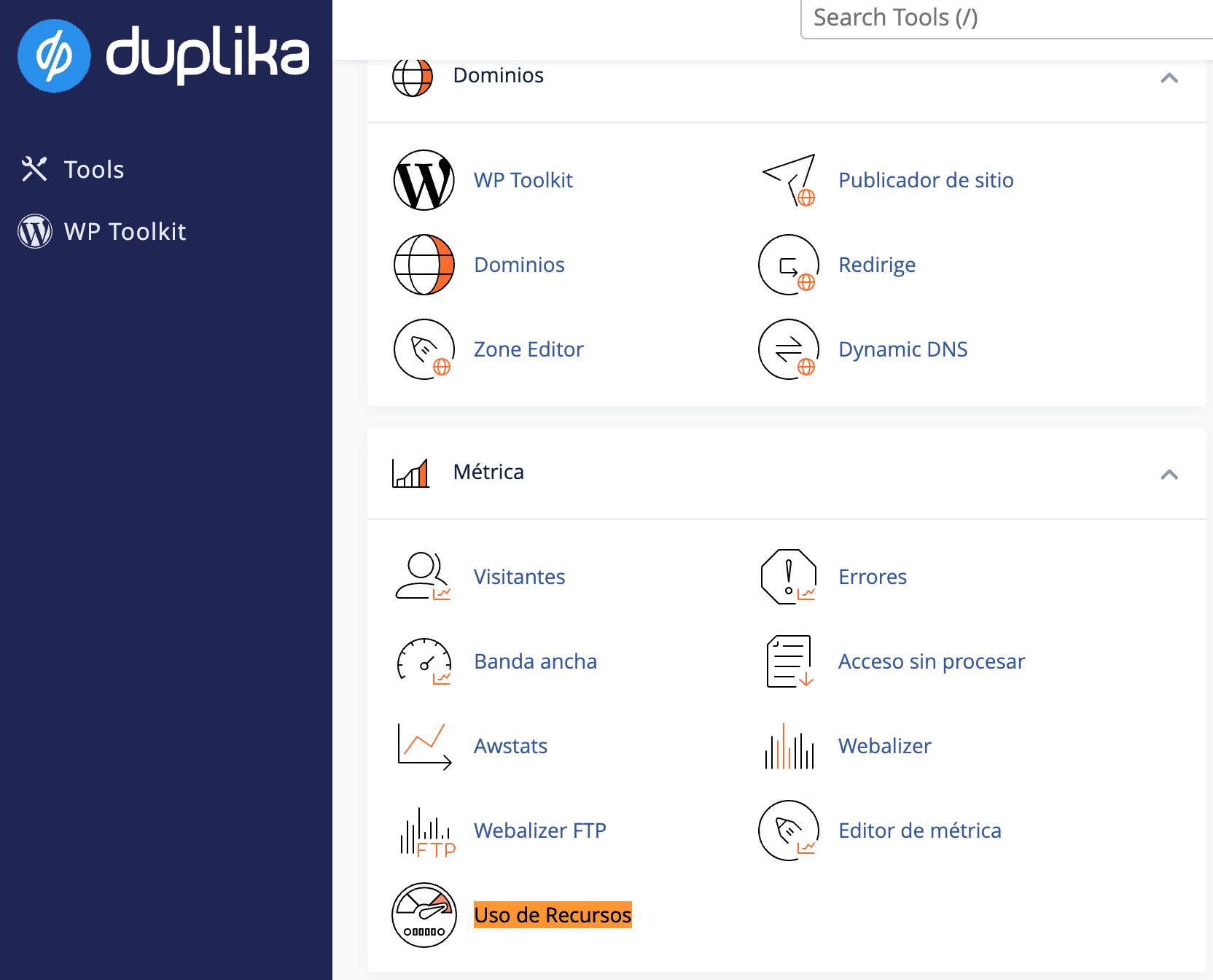
508: Resource Limit Is Reached 503: Service UnavailableTo check your website's resource usage, log in to cPanel and select Resource Usage.
Log in to cPanel as follows:

(Replace "misitio.com" with the correct domain for your website.)
Once you have done this, look for the Resource Usage tool to keep track of how your plan is performing in relation to traffic or application demand:
If you then click details, you can select dates and analyze your website's historical resource usage.
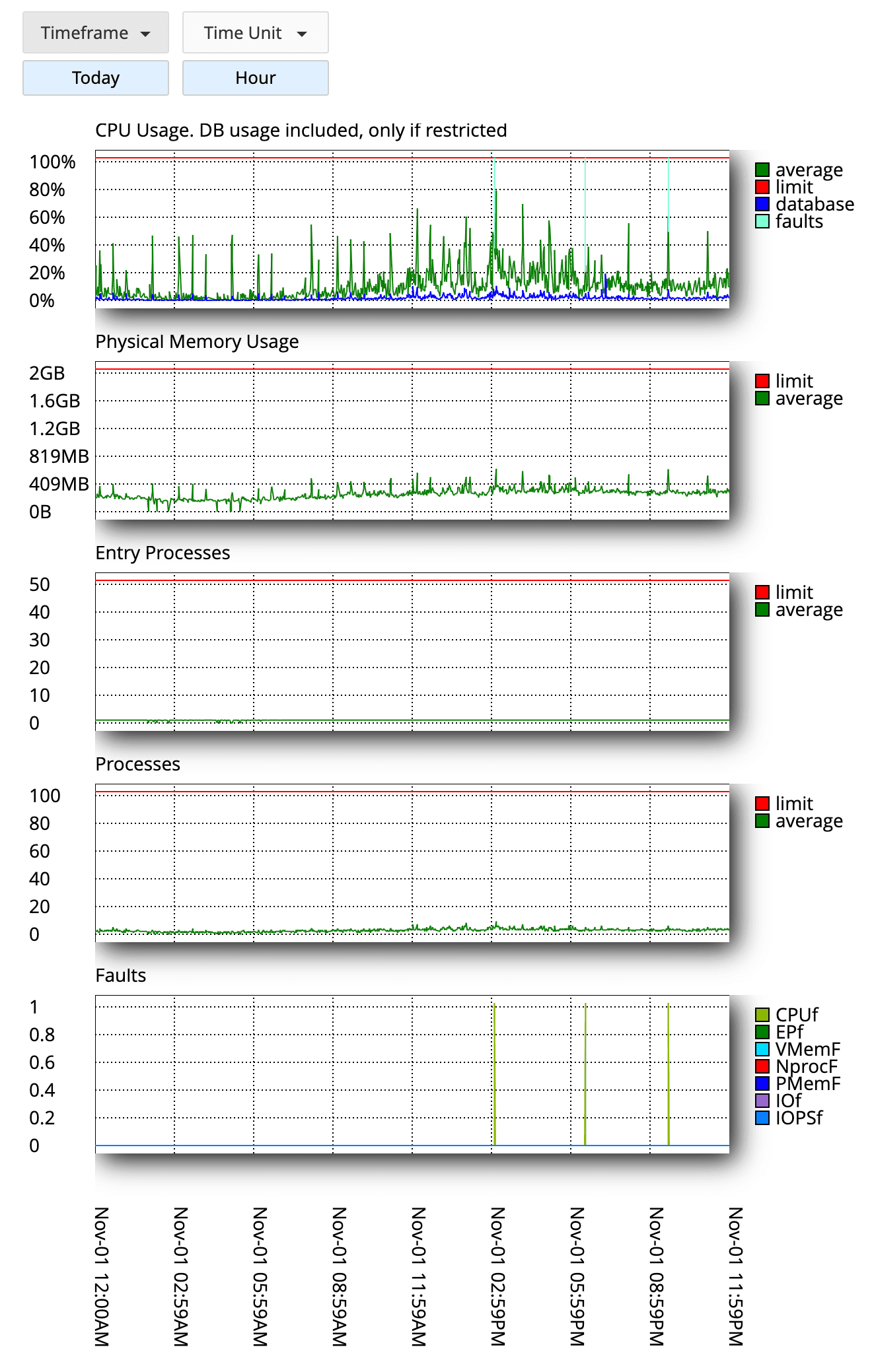
Each row in the last table, "Faults," indicates the number of faults on the website caused by a lack of resources.
A lack of resources will result in a 503 error for any new visit until your plan has enough resources to process the new request.
If you want to analyze your application and the reason for its resource usage in detail, you can use our PHP X-Ray tool to get all the details.
Tips for reducing resource usage
Keep applications, plugins, and themes 100% up to date
If you use WordPress, Moodle, Magento, or any other CMS, make sure your application, plugins, and themes are 100% up to date.Use the latest version of PHP
You can choose the PHP version you want from cPanel. We recommend using PHP 8.0 or later.Enable caching in your application.
We use LiteSpeed for all our shared hosting plans. If your website uses WordPress or Magento, you have a dedicated plugin available to optimize it.
You can check out our blog for various guides (such as how to optimize WooCommerce), or write to us so we can take an in-depth look at your case.