

Consumo de recursos y errores 503 – 508
Actualizado hace 3 semanas
Cada plan de hosting posee un límite determinado de CPU, RAM, procesos en simultáneo y cantidad de archivos.
Si tu sitio web supera los límites de recursos del plan contratado, se te presentará alguno de los siguientes errores cuando intentes visitarlo:
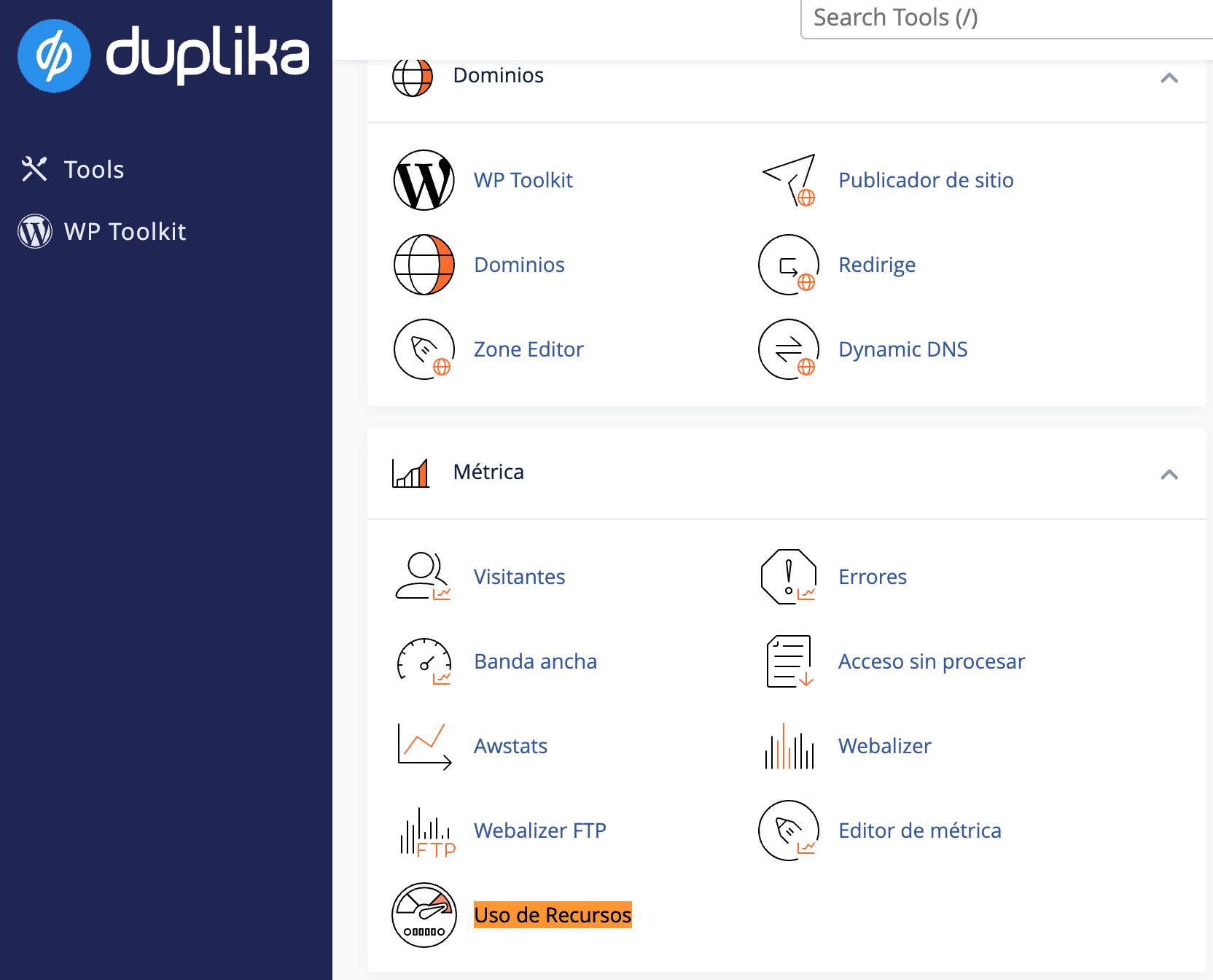
508: Resource Limit Is Reached 503: Service UnavailablePara verificar el consumo de tu sitio, puedes ingresar a tu cPanel y seleccionar la opción Uso de Recursos.
Ingresa a tu cPanel de la siguiente manera:

(Deberás reemplazar "misitio.com" por el dominio correcto de tu website).
Hecho esto, busca la herramienta Uso de Recursos para tener siempre una idea de lo que está pasando con tu plan en relación a la demanda de tu tráfico o de tus aplicaciones:
Si luego realizas clic en detalles, podrás elegir las fechas y analizar el consumo histórico de tu sitio.
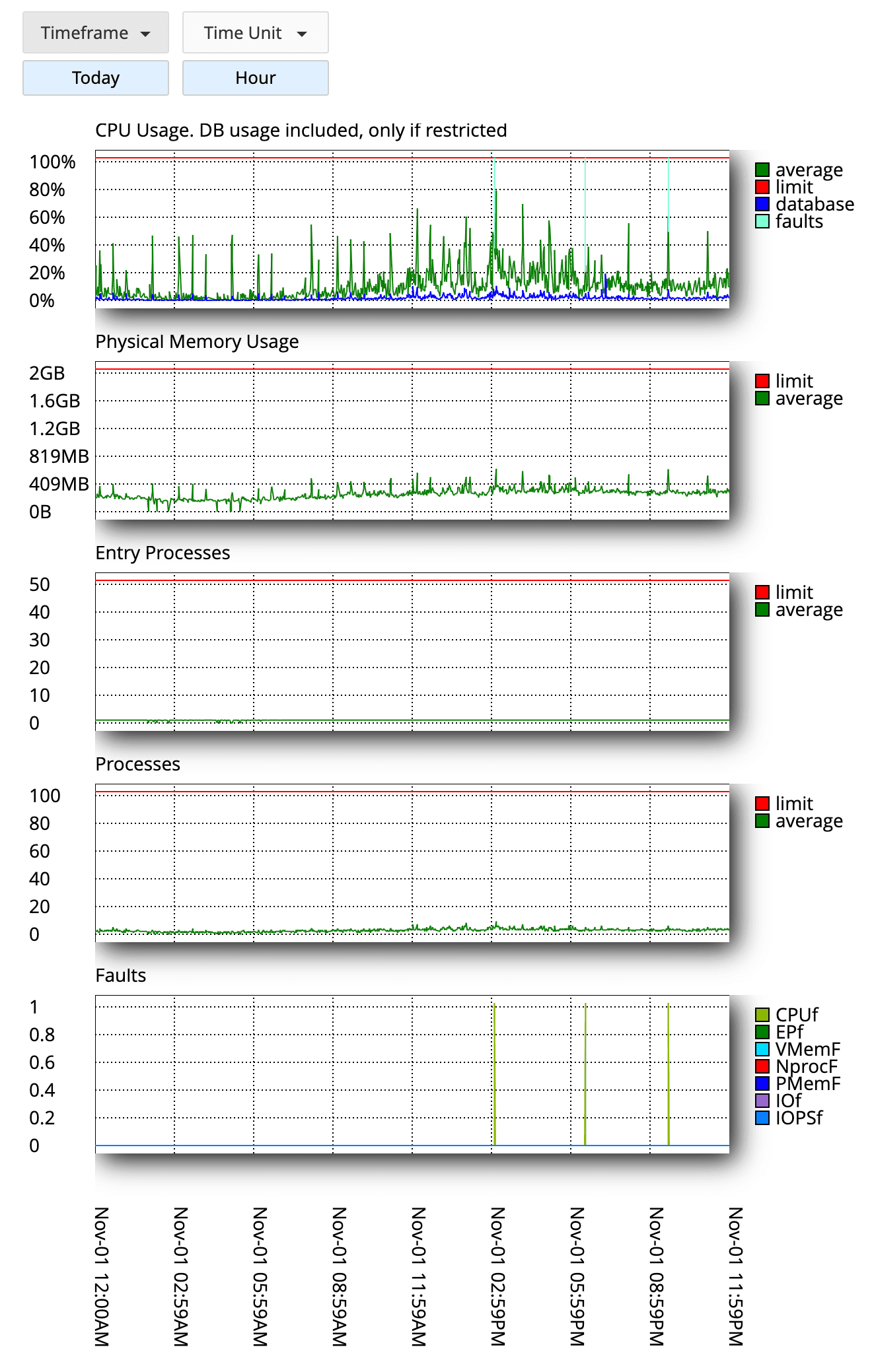
Cada linea en la última tabla "Faults", indica la cantidad de fallas en el sitio debido a falta de recursos.
La falta de recursos mostrará un error 503 a cualquier nueva visita, hasta que tu plan tenga recursos suficientes para procesar la nueva solicitud.
Si deseas analizar en detalle tu aplicación, y el motivo del consumo, puedes aprovechar nuestra herramienta PHP X-Ray para obtener todos los detalles.
Consejos para reducir el consumo
Mantener aplicaciones, plugins y plantillas 100% actualizadas
Si usas WordPress, Moodle, Magento o cualquier otro CMS, asegurate de tener tu aplicación 100% actualizada, con sus plugins y themes.Usa la ultima versión de PHP
Desde tu cPanel puedes elegir la versión de PHP que desees. Sugerimos usar PHP 8.0 o superior.Activa el cache en tu aplicación.
Usamos LiteSpeed para todos nuestros planes de hosting compartido. Si tu sitio emplea WordPress o Magento, tienes a tu disposición un plugin dedicado para optimizar tu sitio.
Puedes consultar nuestro blog con diversas guías (como por ejemplo, cómo optimizar WooCommerce), o bien escribirnos para que analicemos tu caso en profundidad.