

When a domain uses the Cloudflare proxy, the HTTP validation request may not reach the server or may encounter a redirect along the way, and the certificate won't be issued. In that case, temporarily disable the Cloudflare proxy by following how to disable Cloudflare, request the certificate with the wizard, and then turn the proxy back on. If you also forced an HTTPS redirect on your site, see the guide to redirect traffic to https.
How to Install Free SSL in cPanel with AutoSSL
Updated yesterday
The SSL for your plan is issued and renewed automatically, but when you need the certificate right away (for a new domain, a recent migration, or a domain that has just been pointed to the server), you can request it instantly from the cPanel certificate wizard. All hosting plans include free SSL for the account's domains and subdomains, with certificates from Let's Encrypt managed by AutoSSL.
Before you start: domain validation
cPanel verifies that you control the domain before issuing the certificate. Validation works in two ways, and only one of them needs to work:
Domain delegated to our DNS servers. The server can publish the validation directly in the DNS zone.
Domain pointed to the server's IP address. Even if another provider manages the DNS, an A record pointing to the hosting IP allows HTTP validation: the server publishes a temporary file, which the certificate authority checks on your site.
If you manage DNS outside cPanel, DNS validation isn't available to the server, so HTTP validation is the only option—as long as the domain resolves to the hosting IP. To point the domain using an A record, follow the guide to create and edit records in cPanel; our server names are listed in the Duplika DNS guide.
Check the SSL status for each domain
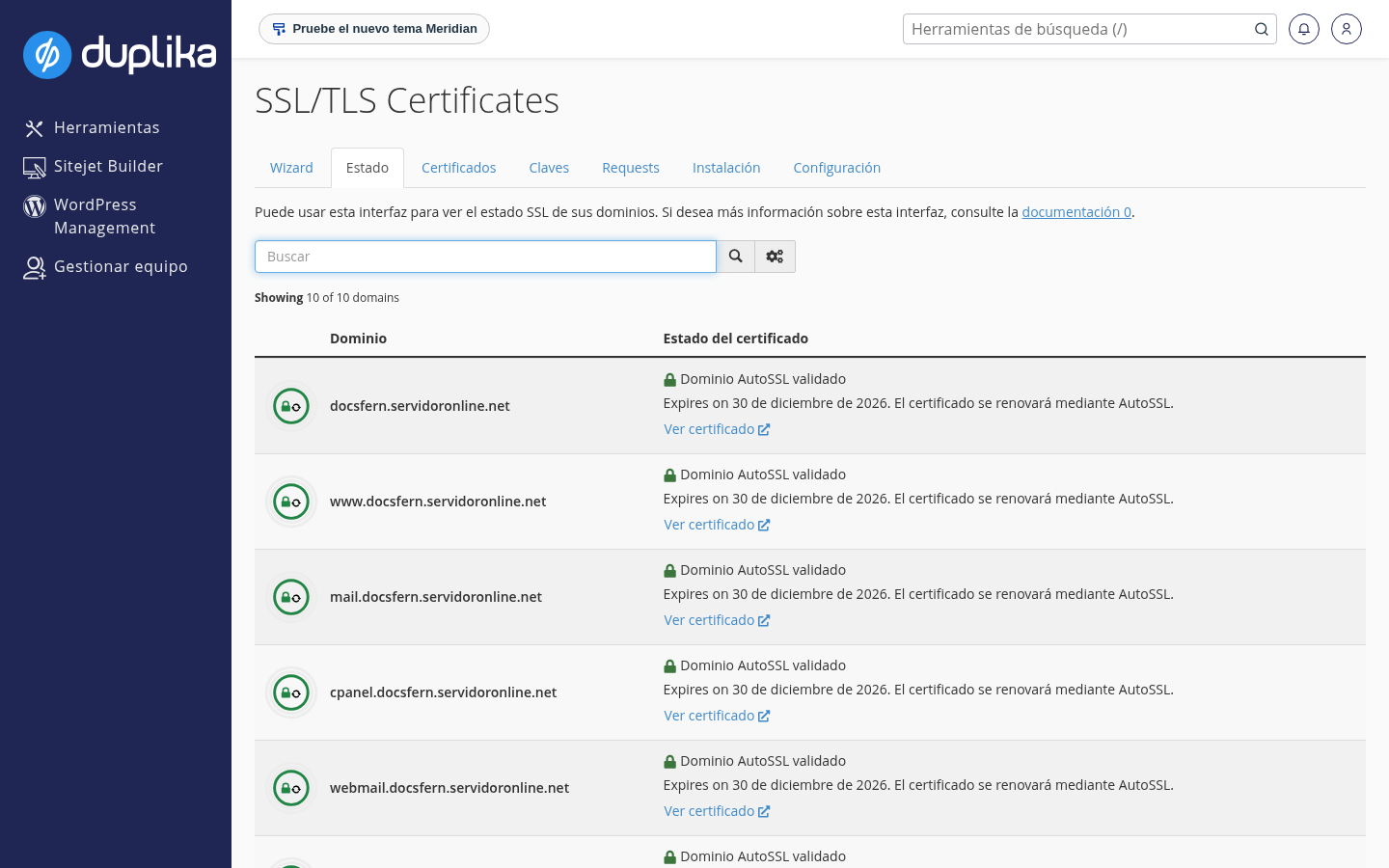
The Status tab shows which domains in the account have a certificate, when it expires, and whether it will renew automatically.
Log in to cPanel; if you don't have access yet, follow how to log in to the control panel.
Type SSL in the search bar at the top and open SSL/TLS Certificates in the Security group.
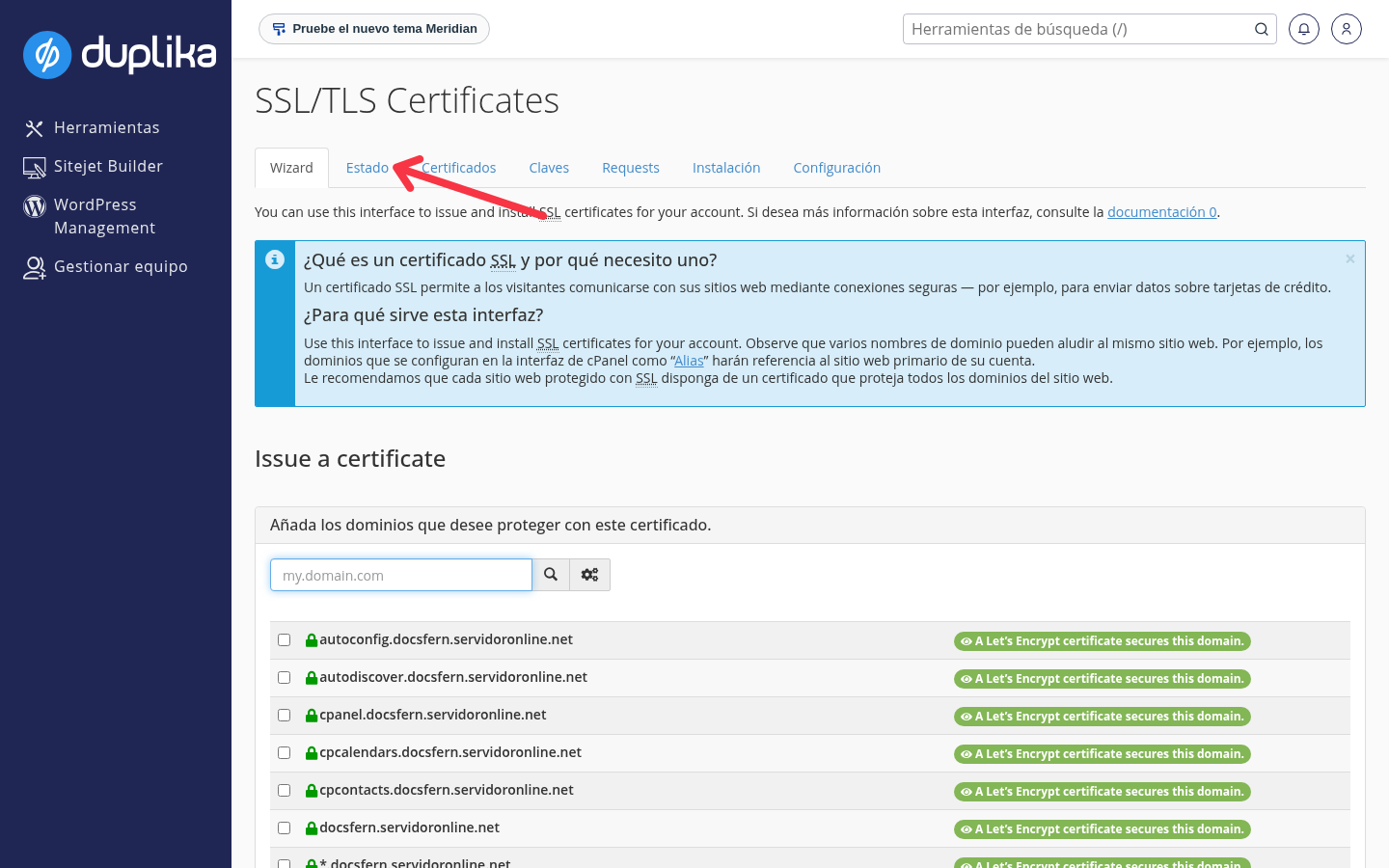
Click the Status tab.
Each domain is shown with its status: a green status means the domain has been validated by AutoSSL, along with the certificate's expiration date and a notice that it will be renewed by AutoSSL.
Request the certificate now with the wizard
The wizard (Wizard tab) issues and installs a new certificate for the domains you select, without waiting for automatic renewal.
In SSL/TLS Certificates, open the Wizard tab.
In the Issue a certificate section, find the domain in the list and check its box. You can use the search box if the list is long.
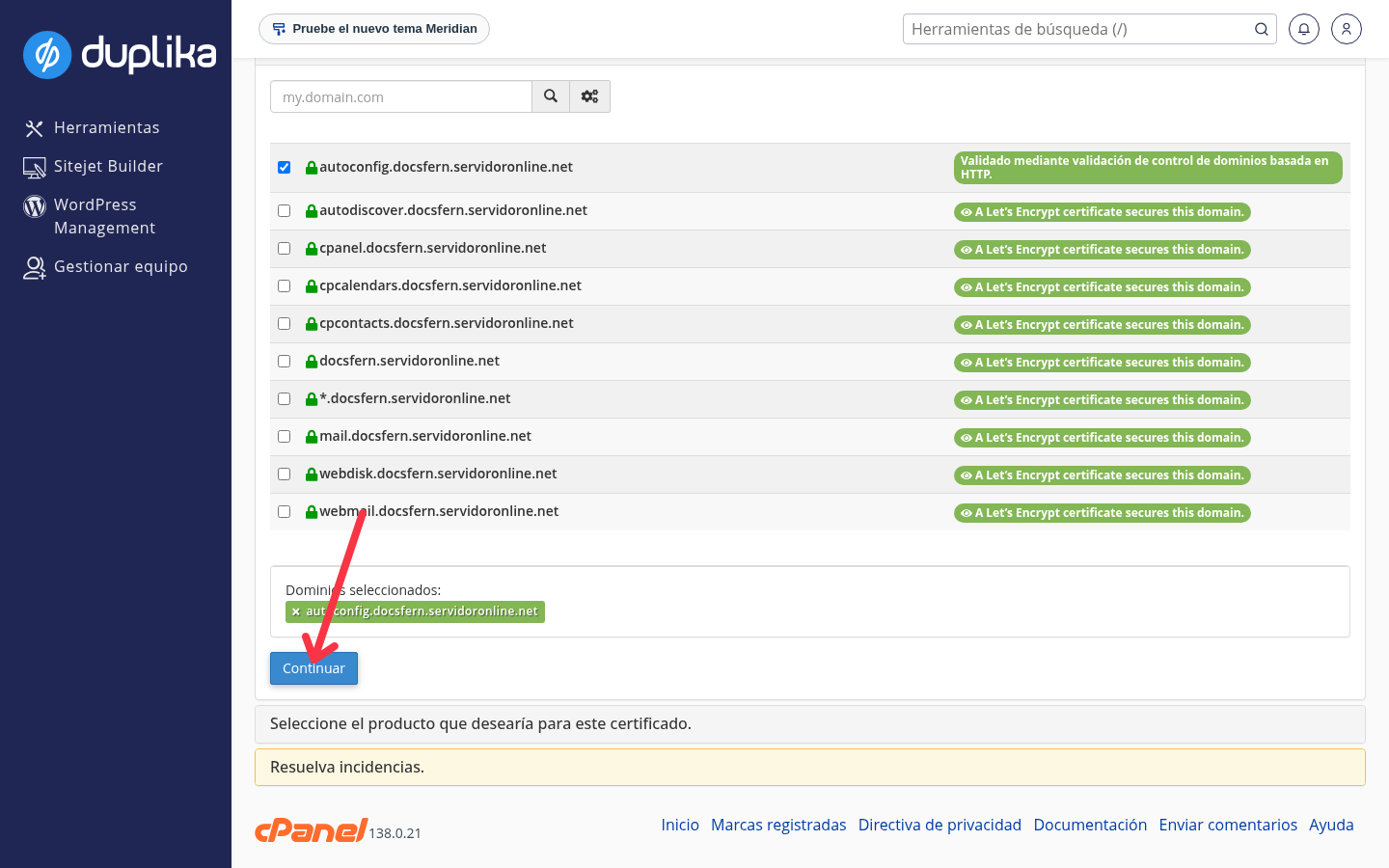
When you check each domain, the panel shows the validation result. Repeat for the domains and subdomains you want to cover: each name you include must pass validation.
Review the selected domains below the list and click Continue.
Complete the wizard: the panel will ask you to select the certificate product and confirm that you want to issue and install it.
When you're done, check the result in the Status tab.
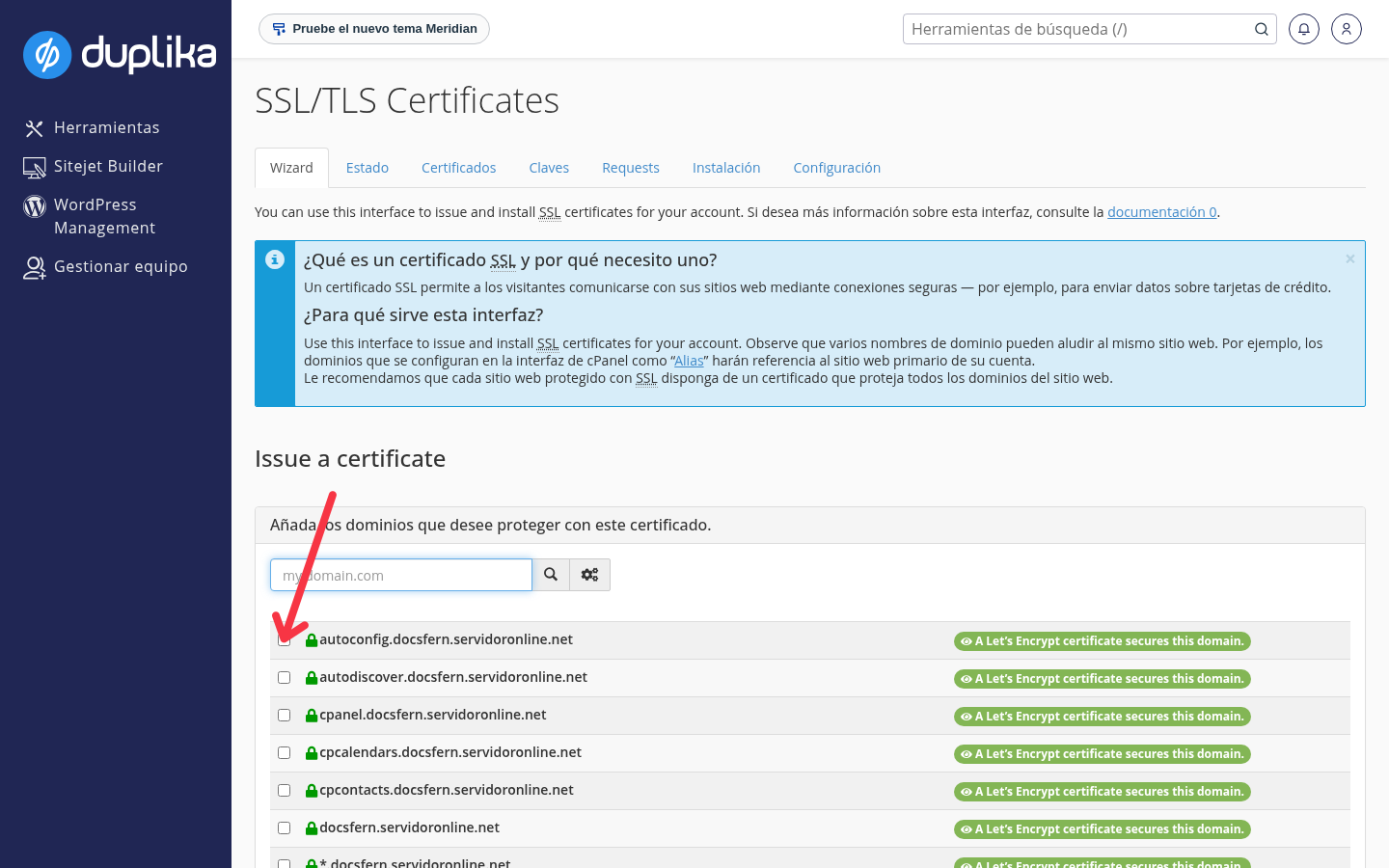
Next to each domain, the panel shows whether it's already protected with Let's Encrypt; when you select it, the HTTP validation result appears.
If the domain hasn't been pointed to the server yet, validation can't be completed and the certificate won't be issued. Wait for the DNS change to finish propagating before trying again: see our DNS propagation guide.
When it renews automatically
You don't need to do anything to keep SSL up to date: Let's Encrypt certificates expire after 90 days, and AutoSSL renews them automatically when 29 days remain before expiration. The Status tab shows this date and the automatic renewal notice for each domain.
Check the certificate externally
To confirm how your site appears to the rest of the world, check your domain using the HostingFAQ SSL checker.
The domain uses Cloudflare and the certificate isn't issued
If the domain is already pointed to the server and the wizard still won't issue the certificate, send us an inquiry with the domain and the exact message shown in the panel.
Was this helpful?
Was this helpful?