

Resource Usage and Errors 503–508
Updated 2 weeks ago
Each hosting plan has specific limits for CPU, RAM, simultaneous processes, and the number of files.
If your website exceeds the resource limits of your plan, you'll see one of the following errors when you try to visit it:
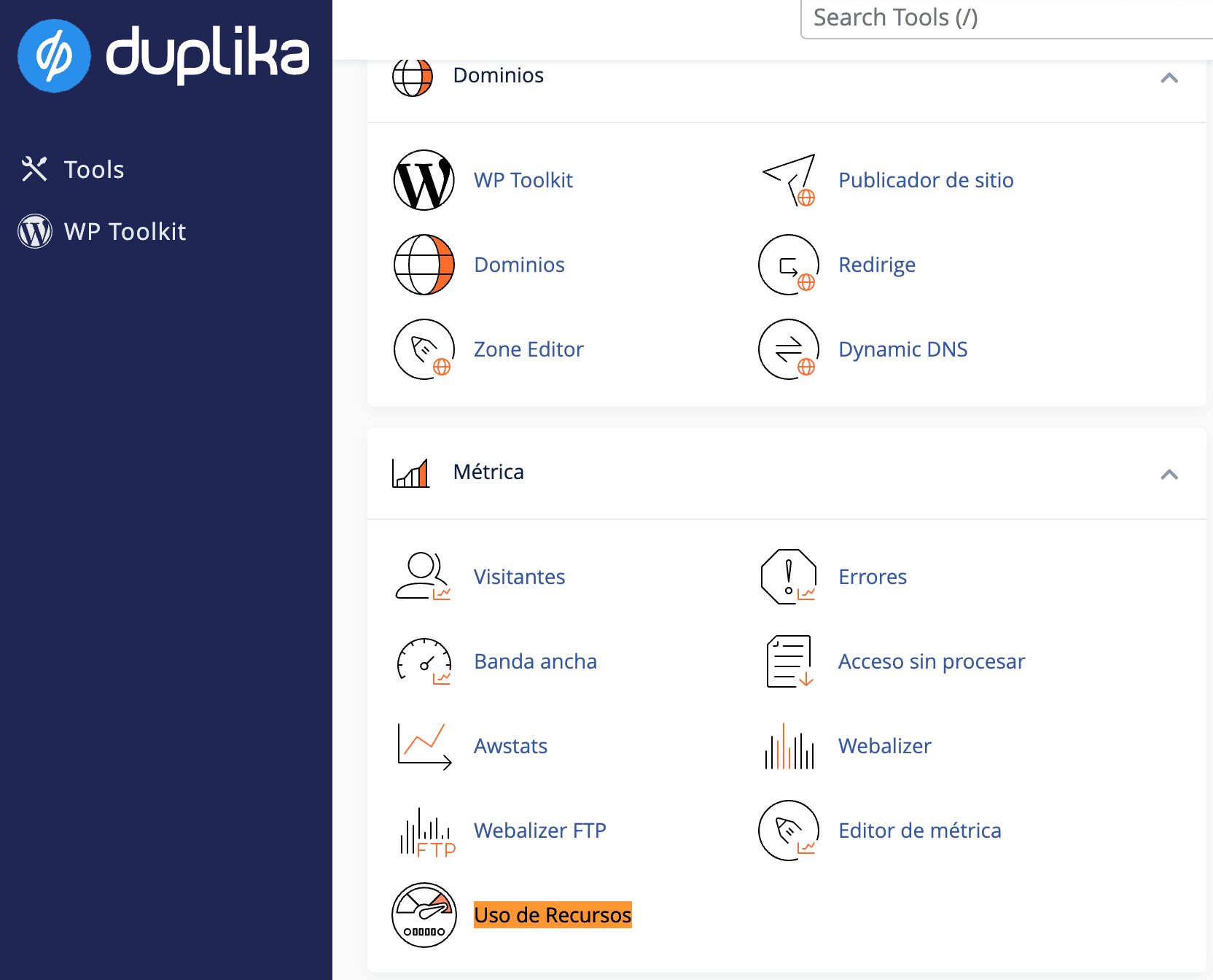
508: Resource Limit Is Reached 503: Service UnavailableTo check your site's resource usage, log in to cPanel and select Resource Usage.
Log in to cPanel as follows:

(Replace "mysite.com" with the correct domain for your website.)
Once you've done that, look for the Resource Usage tool to keep track of how your plan is handling demand from your traffic or applications:
If you then click details, you can choose dates and review your site's historical usage.
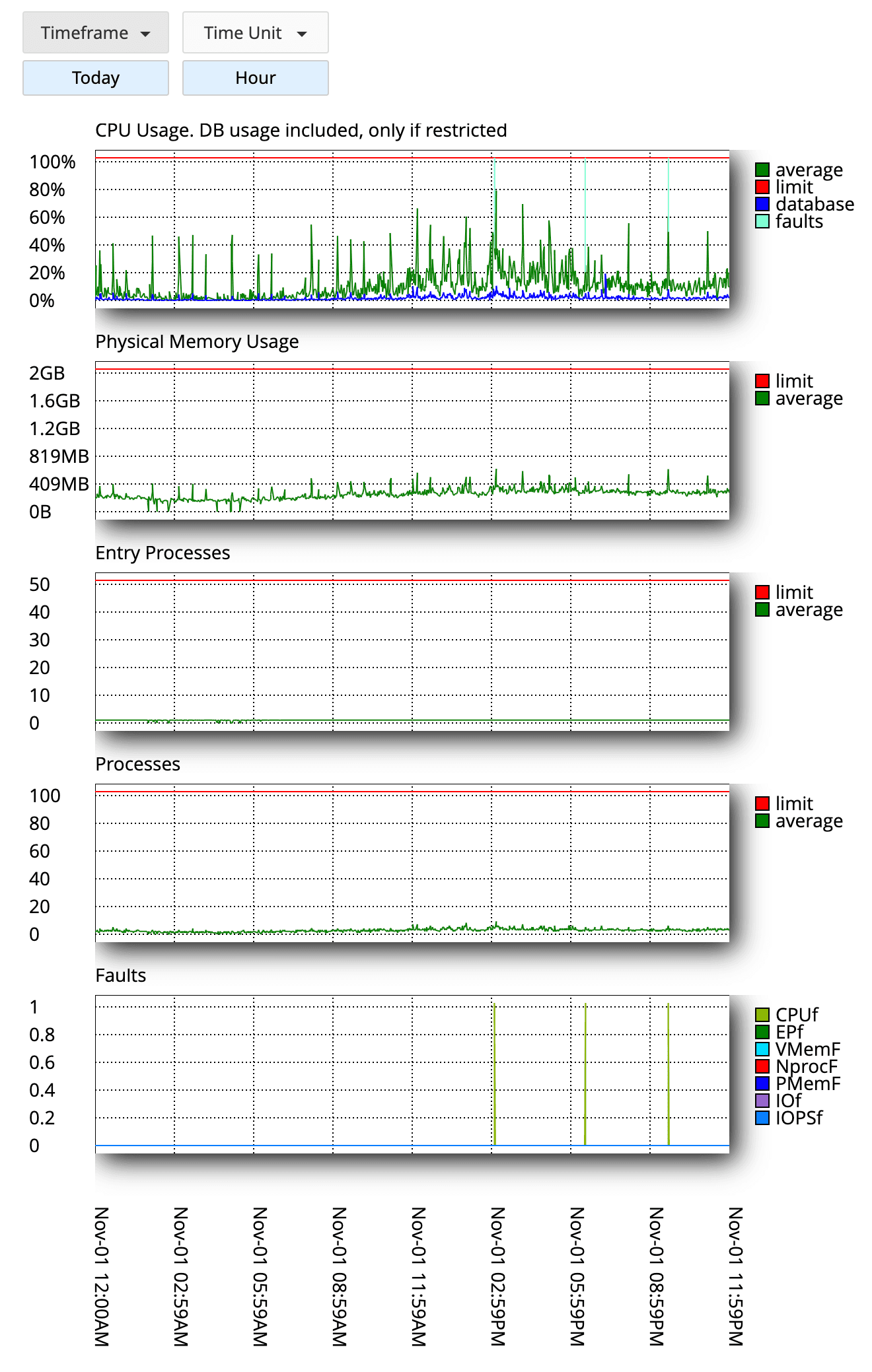
Each line in the last table, "Faults," indicates the number of failures on the site due to insufficient resources.
Insufficient resources will result in a 503 error for any new visit until your plan has enough resources to process the new request.
How to identify resource limit events
When your site slows down or shows 503 or 508 errors, the same tool lets you see when the failures occurred, so you can give support the precise details.
In cPanel, open the Resource Usage tool.
On the Current Usage tab, check whether the site was limited: the tool shows an alert when resources have been limited in the past 24 hours.
Click DETAILS to choose dates and review historical usage. Each line in the Faults table indicates the number of site failures due to insufficient resources.
Note the date and the number of failures for each record. If you received a usage notice by email, it will already show the affected resource and the number of failures for that day (for example, CPU, PMEM, or NPROC; we explain what each limit means in Shared and reseller hosting resource limits).
Contact us through the mi.duplika.com support desk with that information. Include your domain, the dates and times of the events, what you expected to happen, and the error you see (503 or 508). You can also contact us via WhatsApp or at [email protected]; don't send passwords through public channels.
If your site was suspended due to resource usage, reply to the notice we sent you or contact us to reactivate the account. In Why was my service suspended?, we explain how this process works.
If you want to analyze your application and the reason for its resource usage in detail, you can use our PHP X-Ray tool to get all the details.
Tips to reduce resource usage
Keep applications, plugins, and themes 100% up to date
If you use WordPress, Moodle, Magento, or any other CMS, make sure your application, plugins, and themes are 100% up to date.Use the latest version of PHP
You can choose the PHP version you want from cPanel. We recommend using PHP 8.0 or later.Enable caching in your application.
We use LiteSpeed for all our shared hosting plans. If your site uses WordPress or Magento, you can use a dedicated plugin to optimize it.
You can check out our blog for various guides (such as how to optimize WooCommerce), or contact us so we can take a closer look at your case.