

Manage an Email Account from Gmail
Updated 5 days ago

If you want to manage an email account from your hosting plan through your Gmail account, you can do so in two simple steps:
Check your mailbox from Gmail
Google is phasing out the ability to check external email accounts via POP from Gmail: after the first quarter of 2026, it will no longer be available to new users, and the option will disappear from Gmail for computers. To continue receiving your messages, we recommend setting up automatic forwarding of new emails to your Gmail account, or using the Gmail mobile app with your Duplika account via IMAP. If you still want to set it up while it remains available, go to Gmail and select Settings > See all settings > Accounts and Import (tab) > Check mail from other accounts > Add a mail account.
In the settings, keep the following information in mind:
Username: The full email address (e.g., [email protected])
Password: The password assigned to the email account you want to check
POP server: Enter mail.tudominio.com (replacing tudominio with your account's domain)
POP server port: 995
Leave a copy of the message: You can leave this option disabled. If you enable it, Gmail will leave a copy of the email on the server. If this option remains unchecked, the emails will be downloaded from your email account to your Gmail account.
To retrieve email messages, always use a secure SSL connection: Enable this option
Assign a label to incoming messages: Optionally, you can label the emails received in Gmail to quickly identify those delivered to the new account rather than to your Gmail account.
Archive incoming messages (Skip the Inbox): Leave this option disabled unless you want the emails to stay out of your inbox and go directly to the label you assigned.
Gmail has announced that this feature will no longer be available soon.
Send emails from Gmail using your email account
Add the email account so Gmail lets you choose whether to send emails using your Gmail account or the account hosted with Duplika.
To do this, go to the settings in your Gmail account:
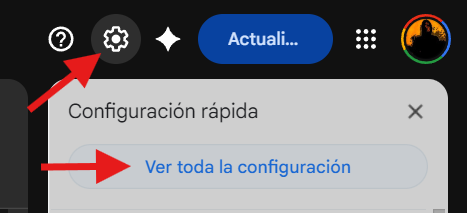
Then select the Accounts and Import tab, and under the "Send mail as" option, select Add another email address.
Enter your email address, leave the Treat as an alias option enabled, and use the following information:
SMTP server: Enter mail.tudominio.com (replacing tudominio with your account's domain)
Port: 587
Username: The full email address (e.g., [email protected])
Password: The password assigned to the email account you want to check
Secure connection using TLS (recommended)