

cPanel Getting Started Guide
Updated 4 weeks ago
cPanel is your hosting control panel: you use it to manage your website, domains, email, databases, files, and backups. This guide walks you through the current cPanel interface (Jupiter theme, version 138) with screenshots of the control panel, and explains the new Meridian interface at the end.
How to access cPanel
You can access it from the mi.duplika.com client area or directly in your browser using the cpanel subdomain followed by your domain.
Log in to mi.duplika.com with your username.
View your list of services and click the account you want.
Click the Log in to cPanel button.
Your service activation email contains your username and password. For access details, see How to log in to the cPanel control panel.
The cPanel interface (Jupiter)
The home screen is called Tools and is organized into three areas: the top navigation bar, the left sidebar, and the list of tools grouped by category.
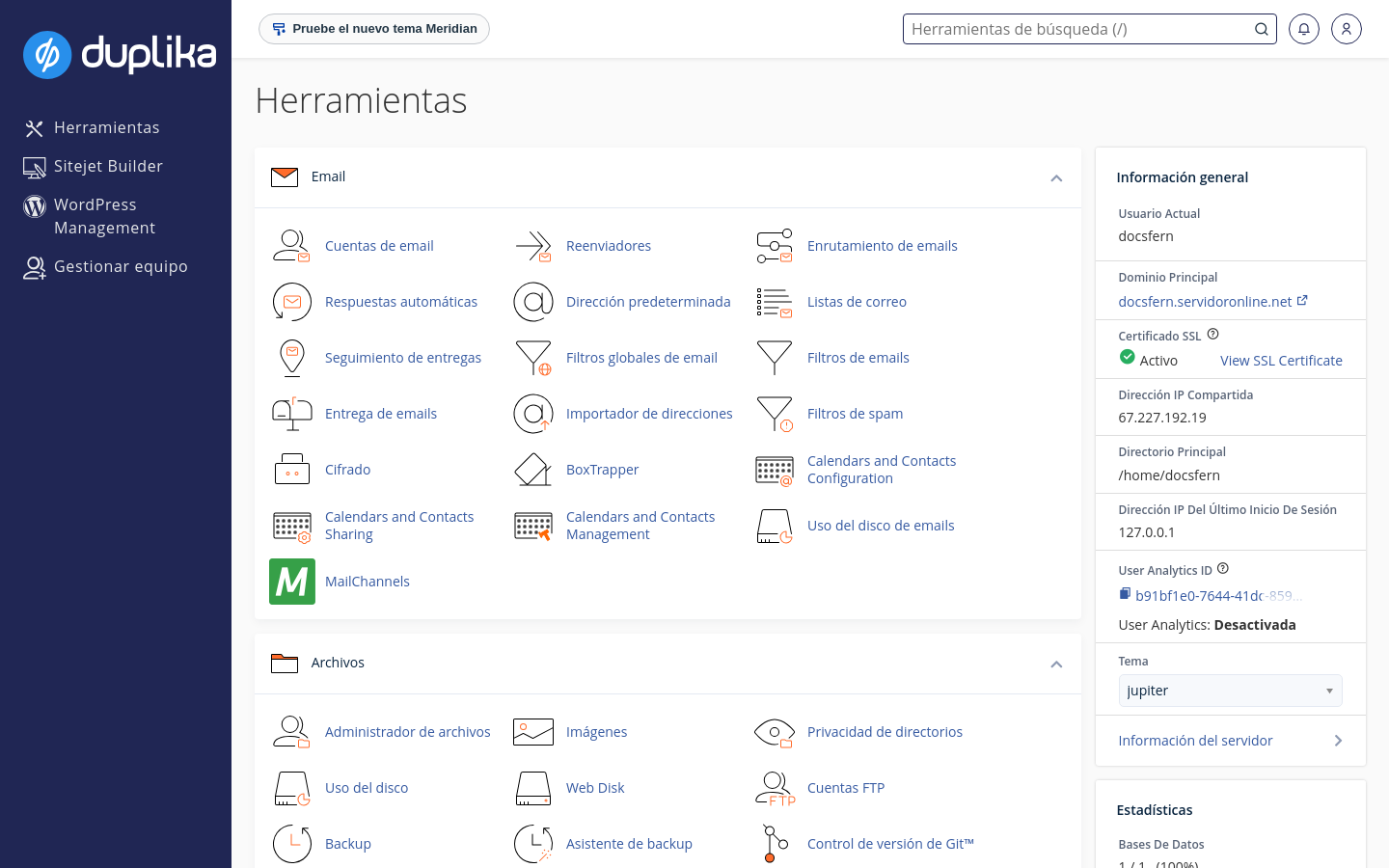
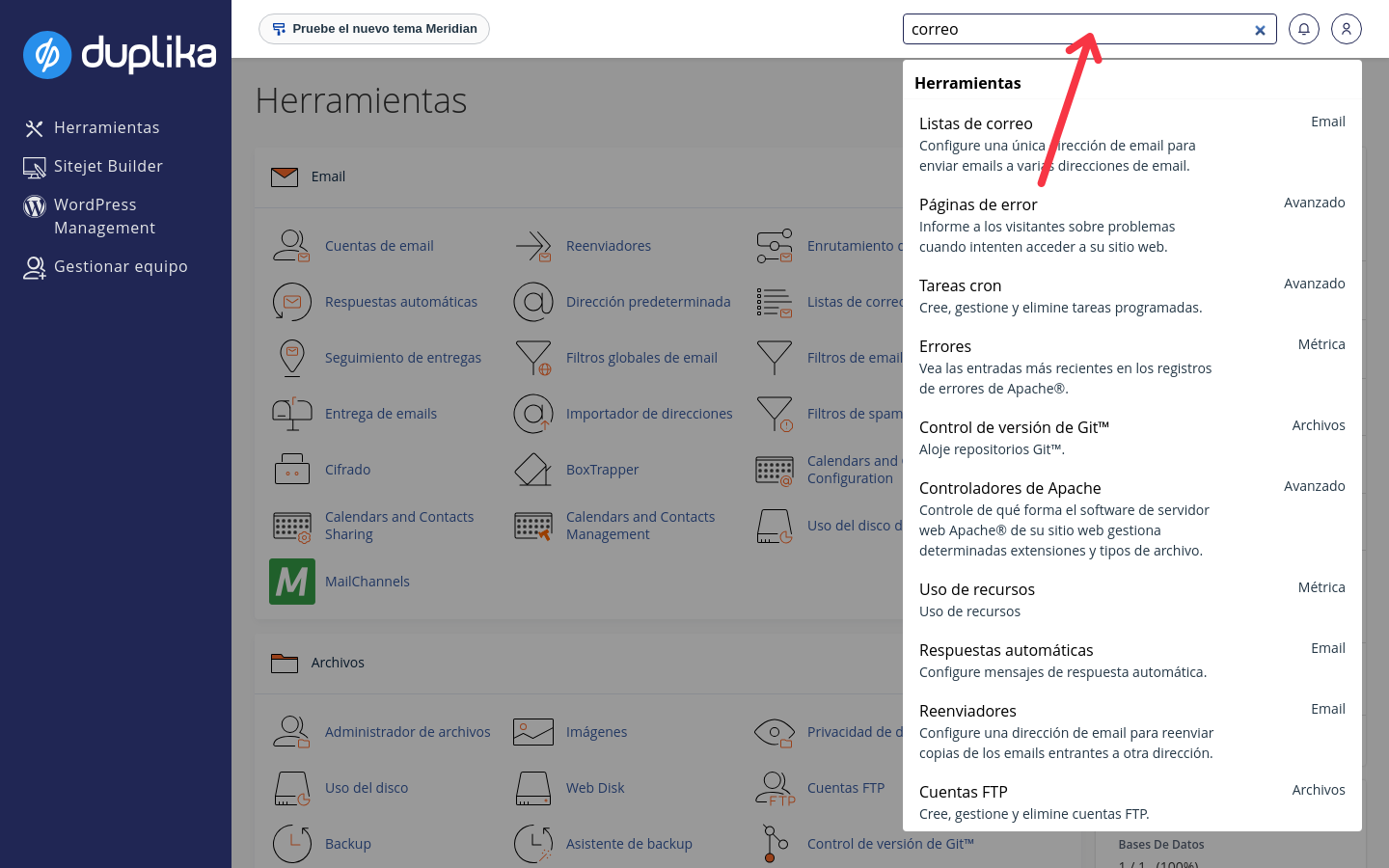
The top bar contains:
The search box in the top bar: type the name of a tool, and cPanel displays it instantly, showing which group it belongs to.
The system notifications bell.
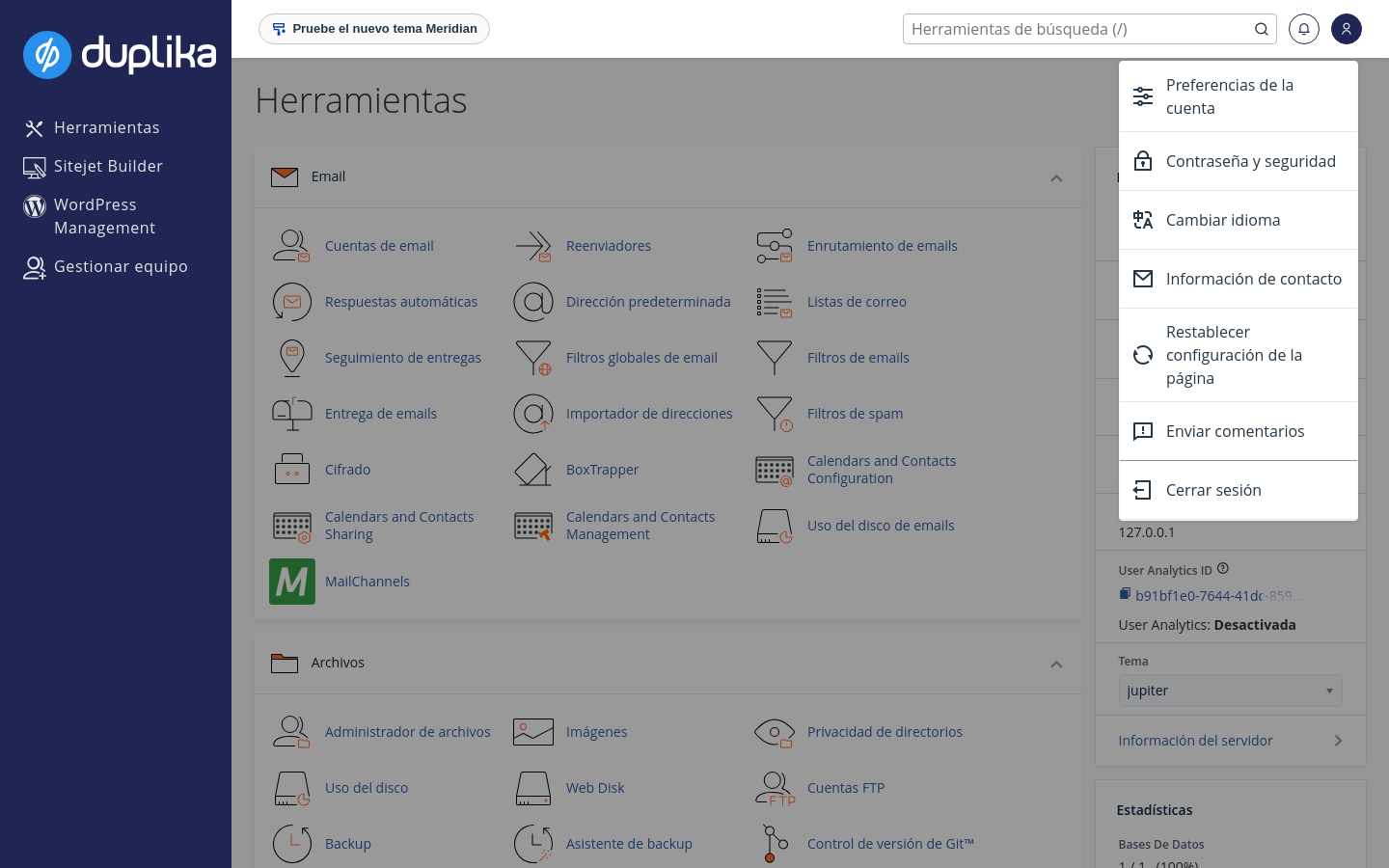
The user icon, with your account menu.
The left sidebar has four fixed shortcuts: Tools (the home screen), Sitejet Builder (website builder), WordPress Management (WP Toolkit), and the shortcut for managing the account team. The center of the screen groups tools by category, such as Email and Files. On the right, the General Information panel shows the current user, main domain, SSL certificate, shared IP address, home directory, and active control panel theme; account usage statistics appear below.
The user icon in the upper-right corner opens the account menu. From there, you can access account preferences, change your password and language, update your contact information, reset the page settings, and log out.
Organize the home screen
Collapse each group of tools using the arrow in its heading, so you only see the categories you use every day. You can also rearrange the icons: drag a tool and drop it somewhere else, and cPanel will save that layout for your next sessions.
Account Preferences
Account Preferences brings together your personal information and control panel settings. Open it from the user icon menu.
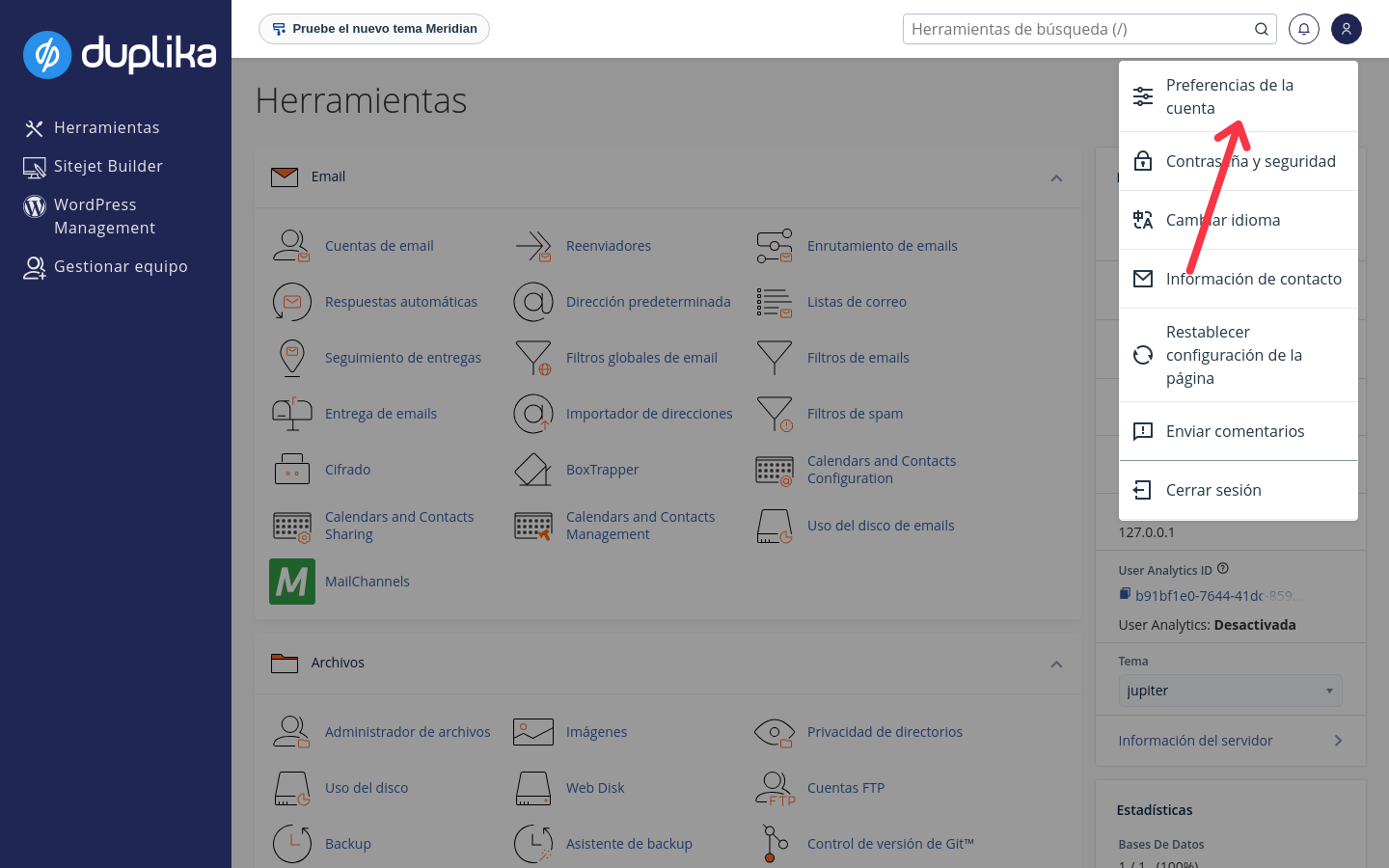
Click the user icon in the upper-right corner.
Select Account Preferences.
From there, you can update your contact information, the email address where you receive account notifications and password reset confirmations, and the control panel language. Change your password using the Password & Security shortcut in the same menu.
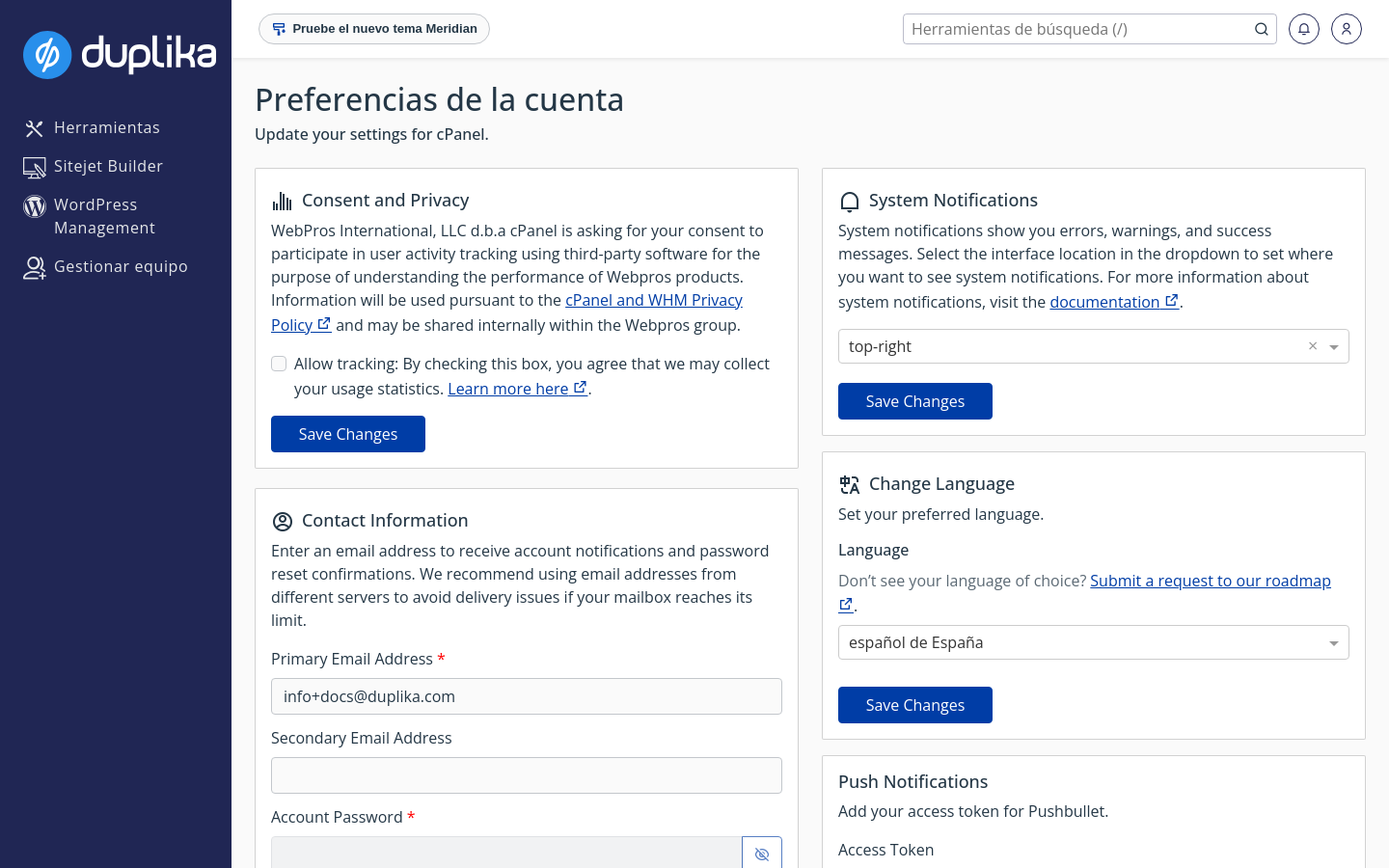
In Contact Information, it's a good idea to use an email address hosted by another provider rather than one on your own hosting account: if your mailbox reaches its limit, you'll still receive notifications.
If you have lost access, follow the steps in How to get a new password for your hosting account.
Domains
The Domains tool manages all the domains in your account. Open it by typing domains in the search box or from the Domains group on the home screen.
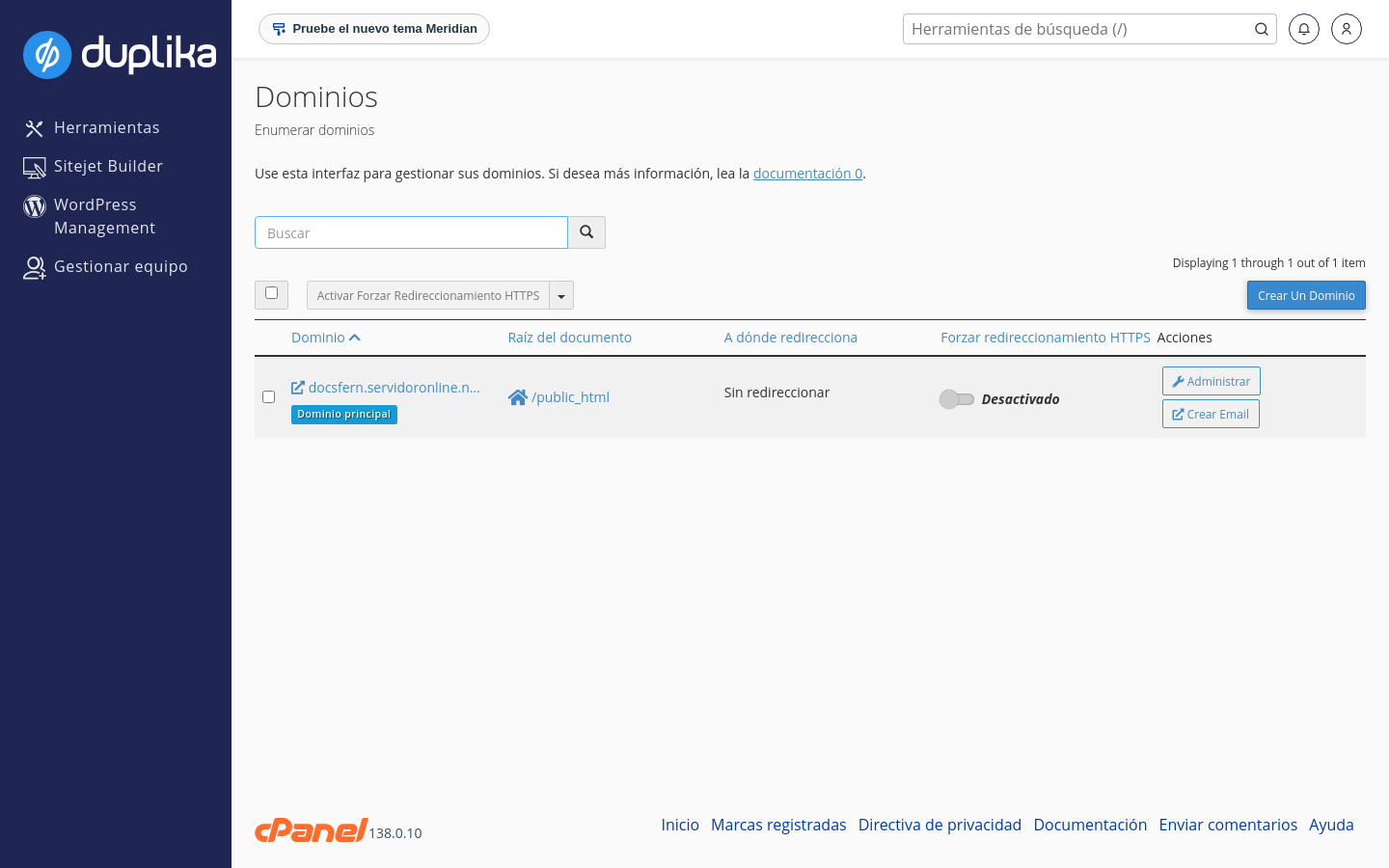
The list shows each domain, its document root (the folder where its files are stored), where it redirects, and whether it enforces HTTPS redirection. The account's main domain is marked with the Main Domain label. The button for creating a domain adds an additional domain to your plan, and Manage lets you configure the selected domain.
The Email group contains all email tools, including accounts, forwarders, filters, and autoresponders.
Create an email account
Type Email Accounts in the search box and open the tool.
Click Create.
Enter the username, domain, and password, and adjust the storage space if needed.
Click Create to confirm.
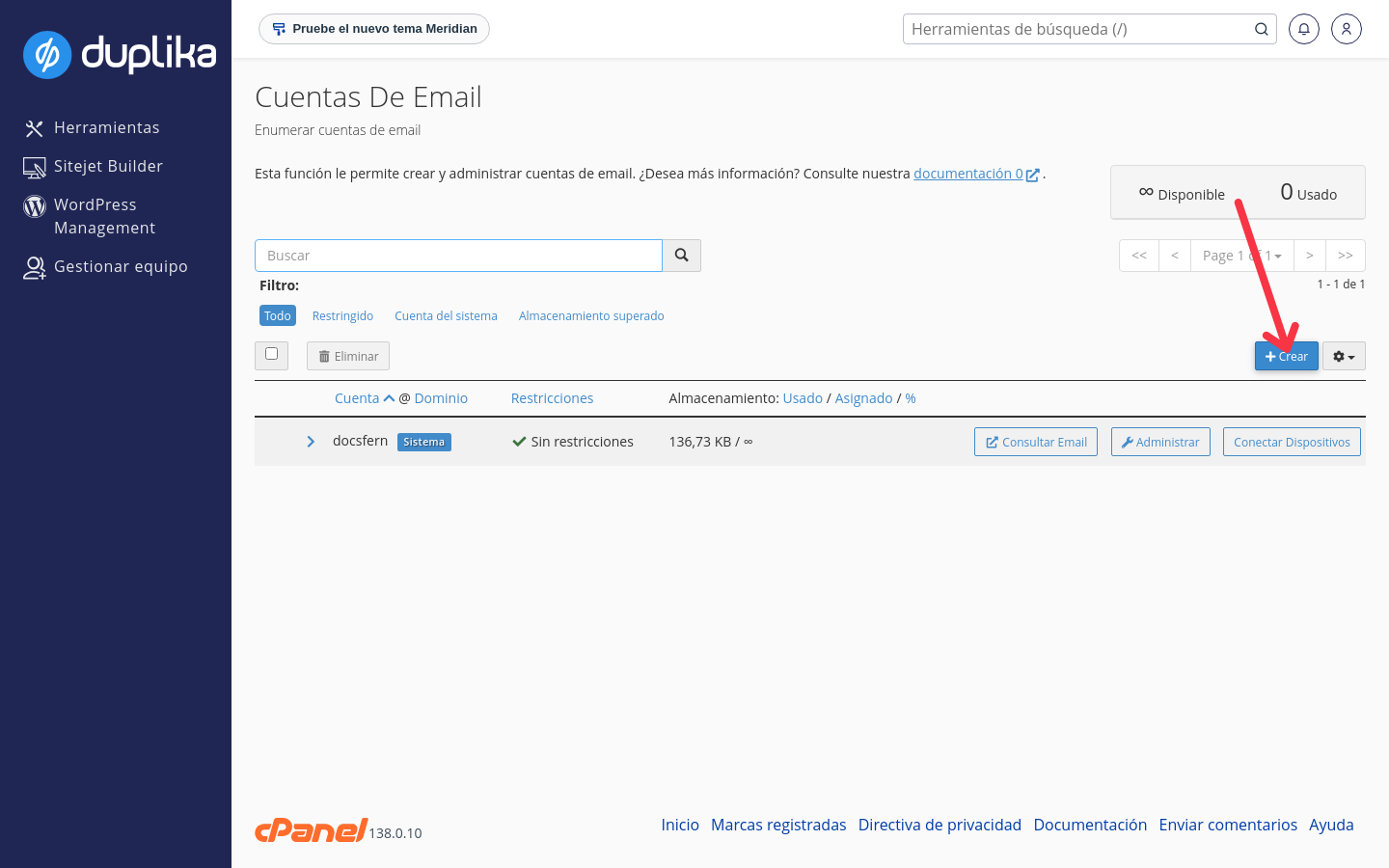
The same page lists each mailbox with its storage usage and buttons to open its webmail, manage it, and get configuration details for computers and mobile devices. For full instructions, see Manage and configure email accounts.
Forwarders
Forwarders send a copy of each email received at one address to another mailbox. Create one forwarder per email address or one for the entire domain, and choose whether to keep a copy in the original mailbox or only forward the message.
Spam Filters
The Spam Filters tool enables Apache SpamAssassin for your account. When an email exceeds the configured sensitivity score, the system marks it as spam. The default threshold is 5.0, and a lower number filters more aggressively.
Address Importer
The Address Importer bulk-imports email accounts or forwarders from a two-column file: for accounts, the address and password; for forwarders, the source and destination addresses. This is useful when migrating email from another provider.
File Manager
File Manager lets you work with your website files in a browser, without using FTP. Open it from the Files group or with the search box.
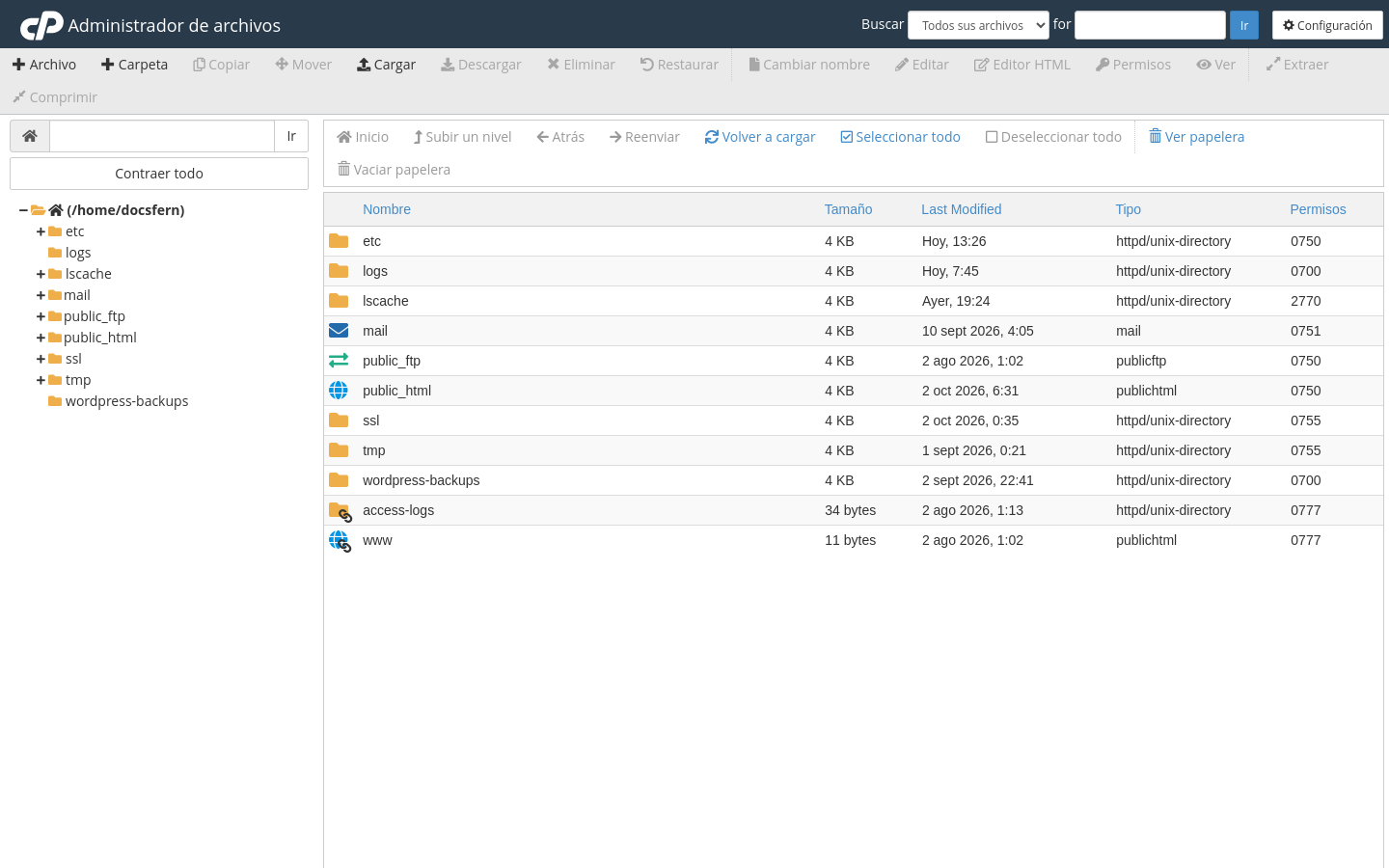
The public_html folder is the document root for the main domain: upload your website there. Use File and Folder in the top bar to create files and folders, Upload to add content, and Download, Rename, Edit, and Permissions to work with selected files. Expand the folder tree on the left using the + sign next to each directory.
FTP Accounts
The FTP Accounts tool (in the Files group) creates FTP users with access to a specific folder. Set the username, password, and directory they can access, and the account will be ready to use with an FTP client.
Disk Usage
Disk Usage shows how much space each account folder takes up and the total used compared with your plan's quota. The page breaks down directories such as public_html, mail, and databases, with the total at the bottom.
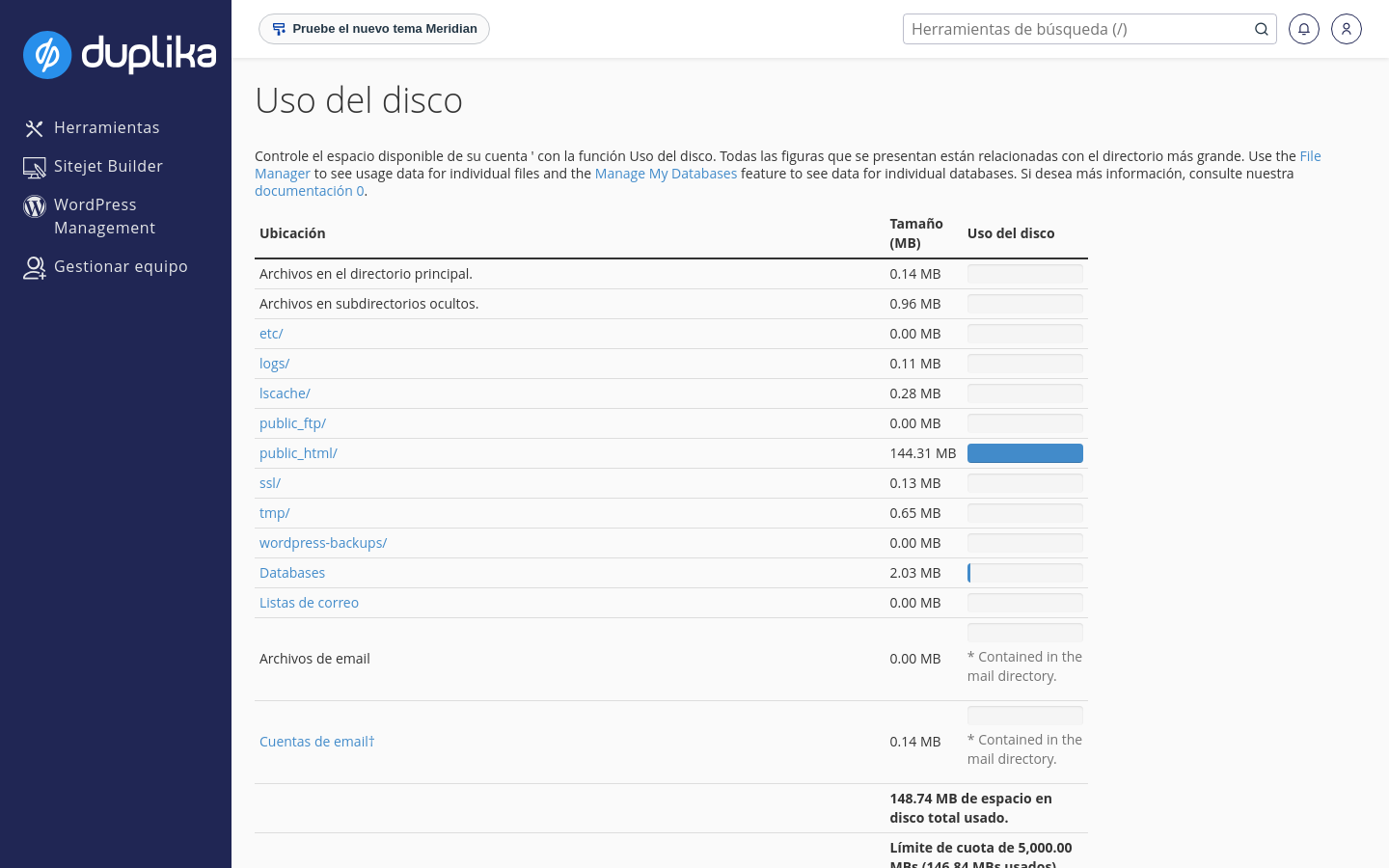
To understand each category and free up space, see Disk Usage Details.
Databases
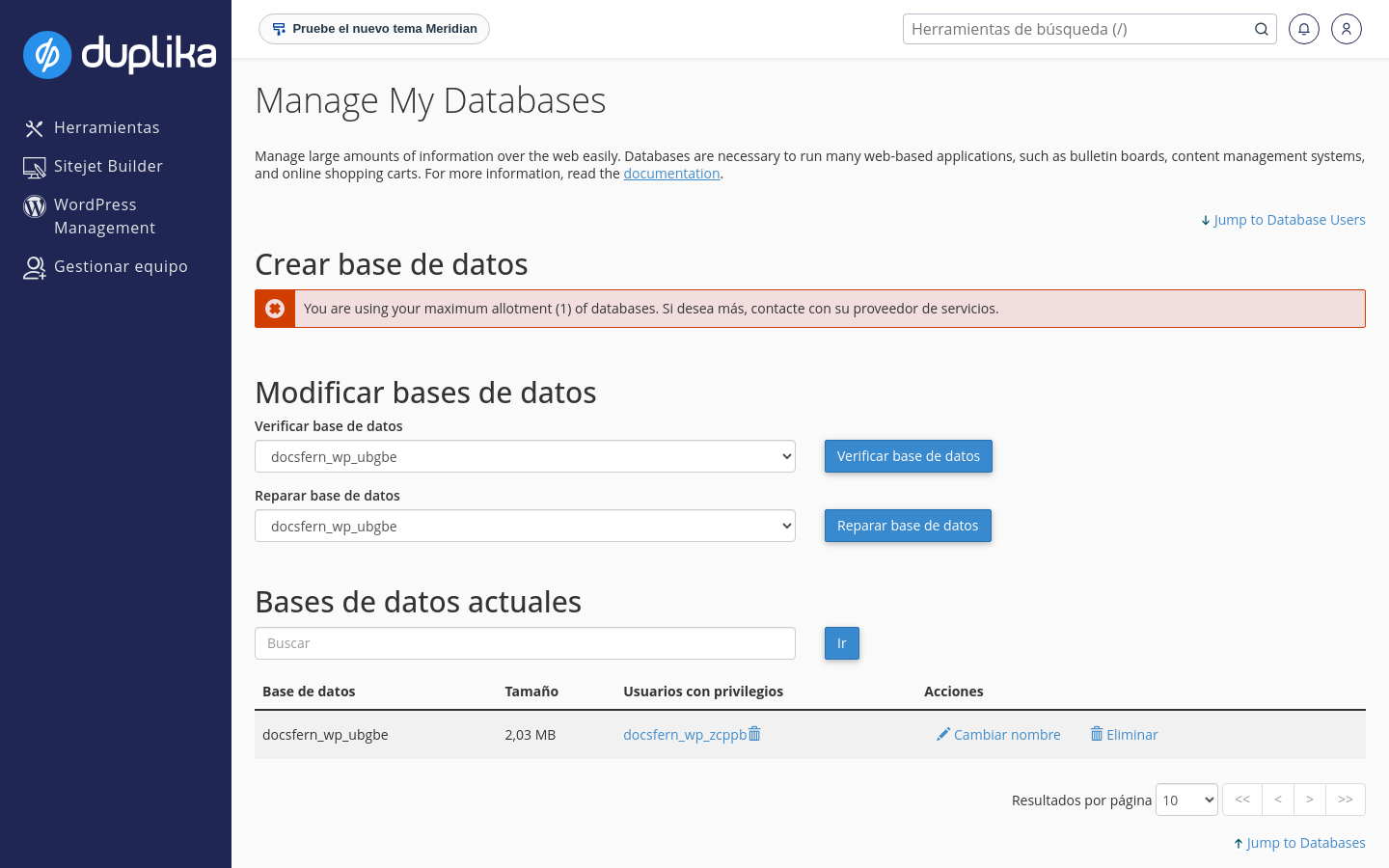
The MySQL Databases page (search for mysql in the search box) manages your account databases. Use the form to create a new database; the list of current databases shows their size, users with privileges, and options to rename or delete them. The maintenance section lets you check and repair a database.
Backups
cPanel offers two backup tools: Backup, which downloads or restores full backups, and the Backup Wizard, which guides you through the process step by step. Both are in the Files group.
The Backup Wizard has three steps:
Choose whether to create a backup or restore an existing one.
Choose between a full account backup or a partial one that includes only the home directory, databases, or email settings.
Generate the file and download it to your computer.
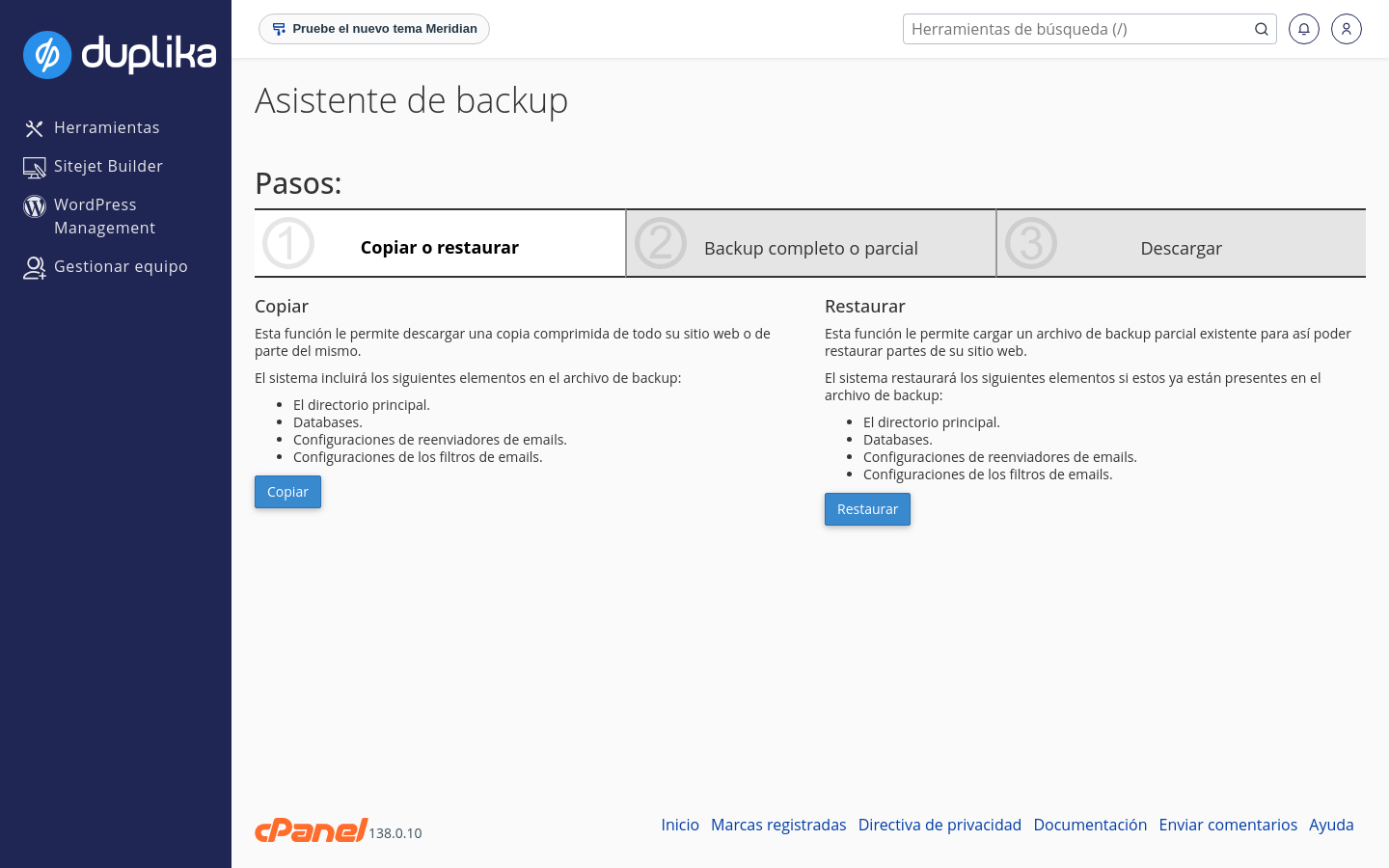
A full backup created with the Wizard includes the home directory, databases, and forwarder and email filter settings. In addition to these manual backups, Duplika automatically backs up your account daily. For details, see Automatic Backups and Restores.
Install applications with Softaculous
The Softaculous Apps Installer is included in the control panel: search for softaculous to open it. From there, you can install WordPress and dozens of applications with one click, and manage existing installations, pending updates, and application backups.
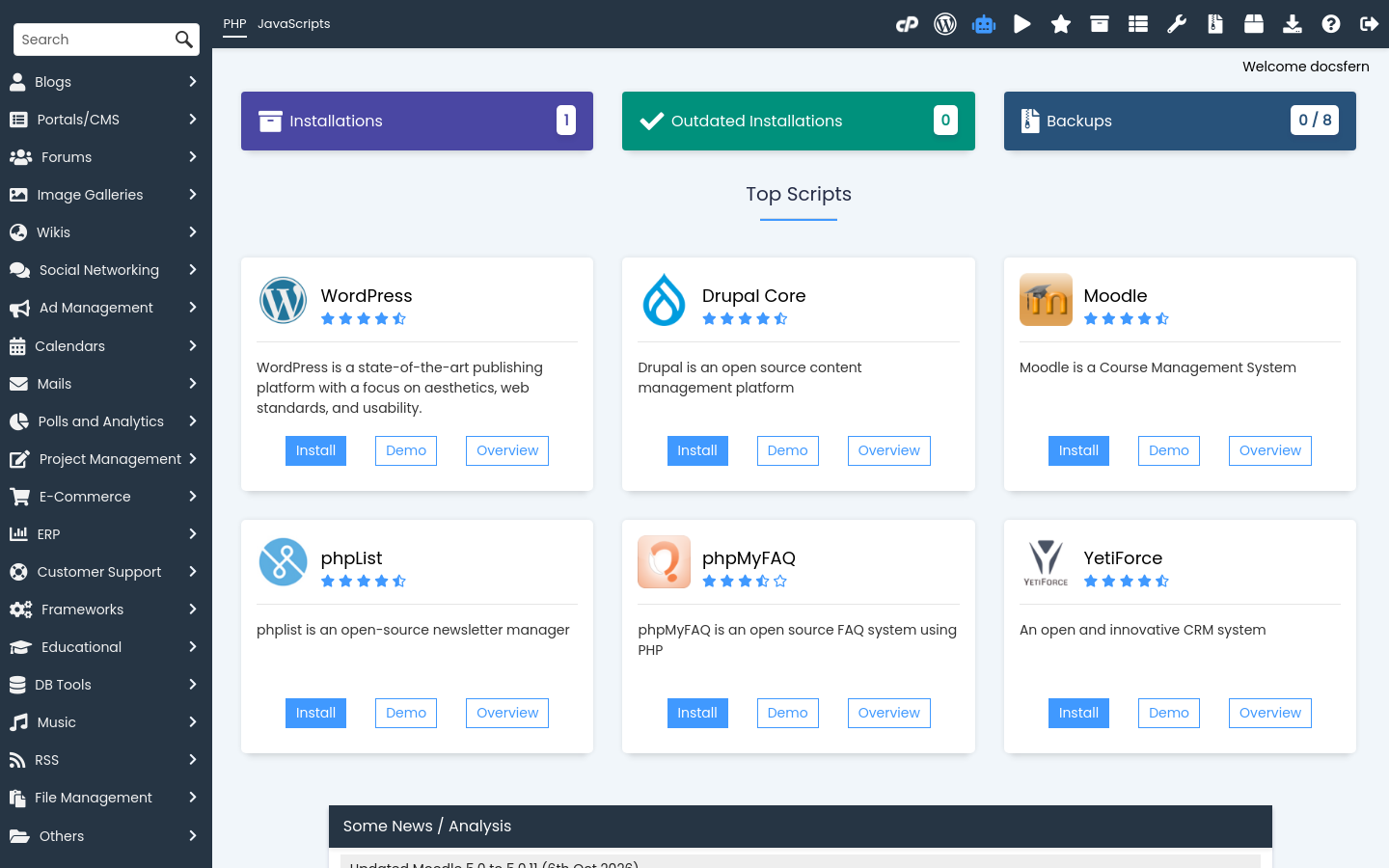
The Softaculous interface is in English. For WordPress specifically, see How to easily install WordPress and How to log in to WordPress from Softaculous.
WordPress Management (WP Toolkit)
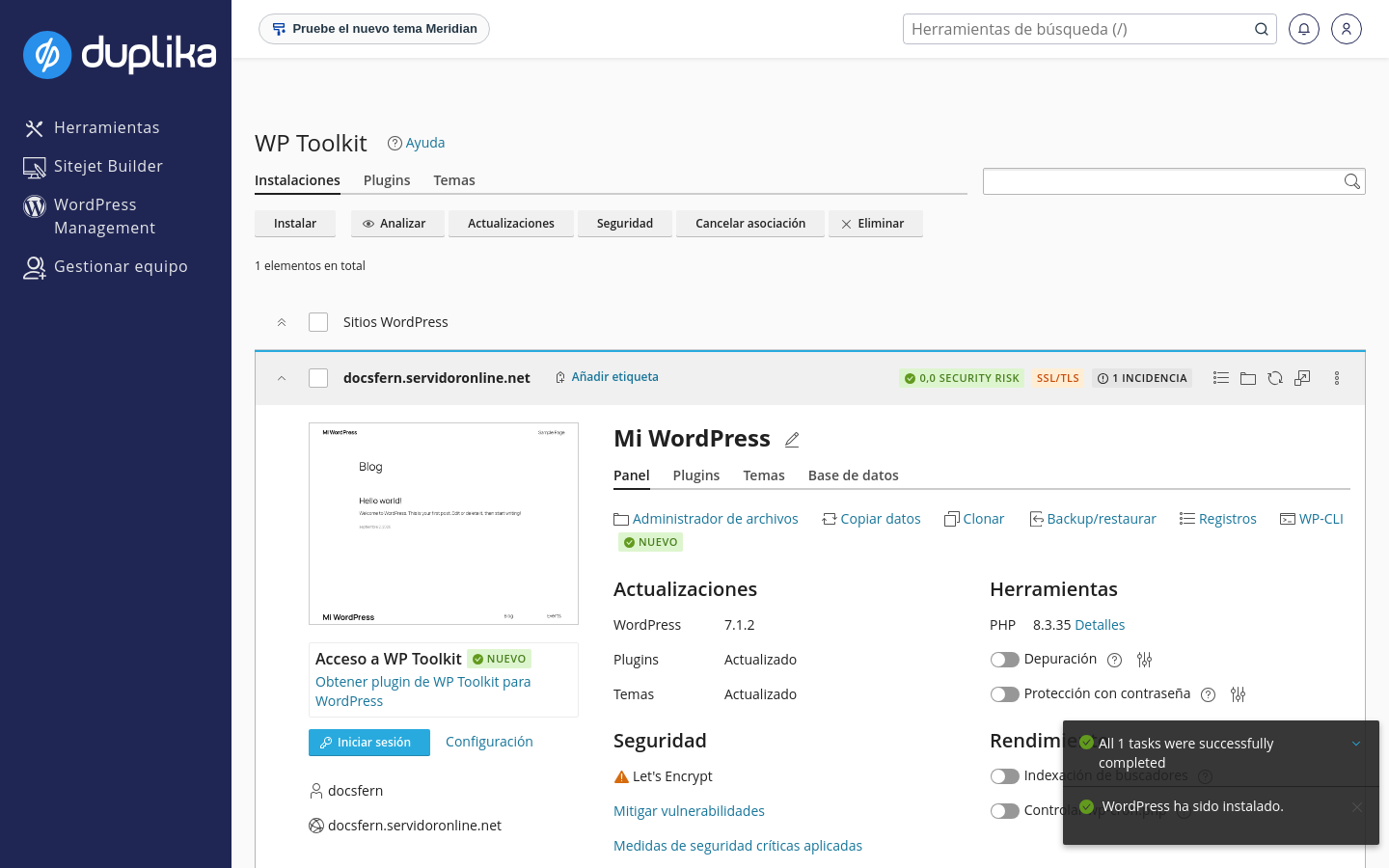
The WordPress Management shortcut in the sidebar opens WP Toolkit, the control panel's WordPress manager. It lists each installation with its version, security status, and updates, and lets you install WordPress, update the core, plugins, and themes, and adjust security from a single screen.
The new Meridian interface
Meridian is the new cPanel interface, available starting with version 138. On Duplika's cPanel plans, you can enable it from Jupiter using the Try the New Meridian Theme button at the top of the control panel, next to the logo.
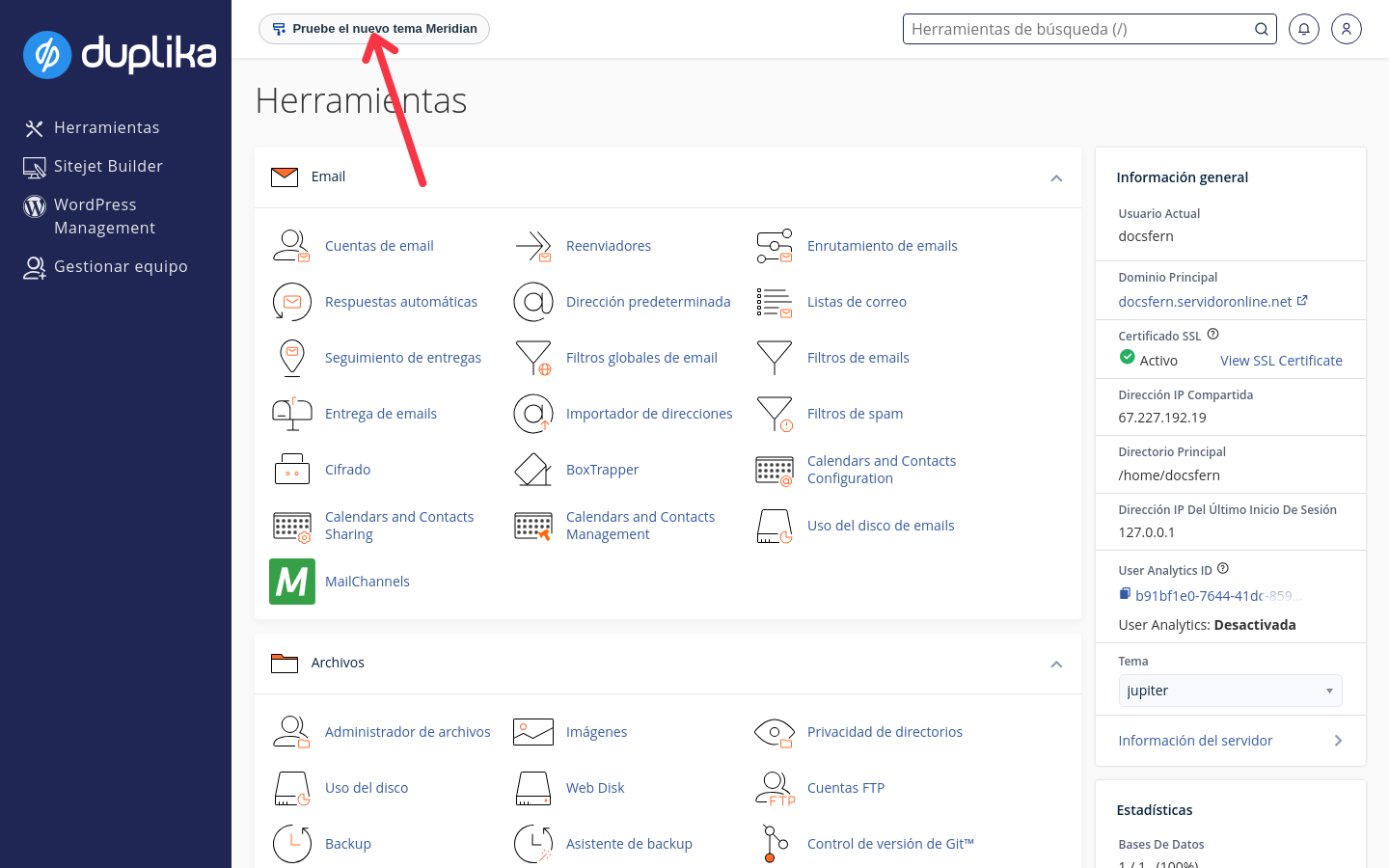
Trying Meridian only changes the appearance of the control panel: it does not affect your website, email, or databases, and you can switch back to Jupiter at any time.
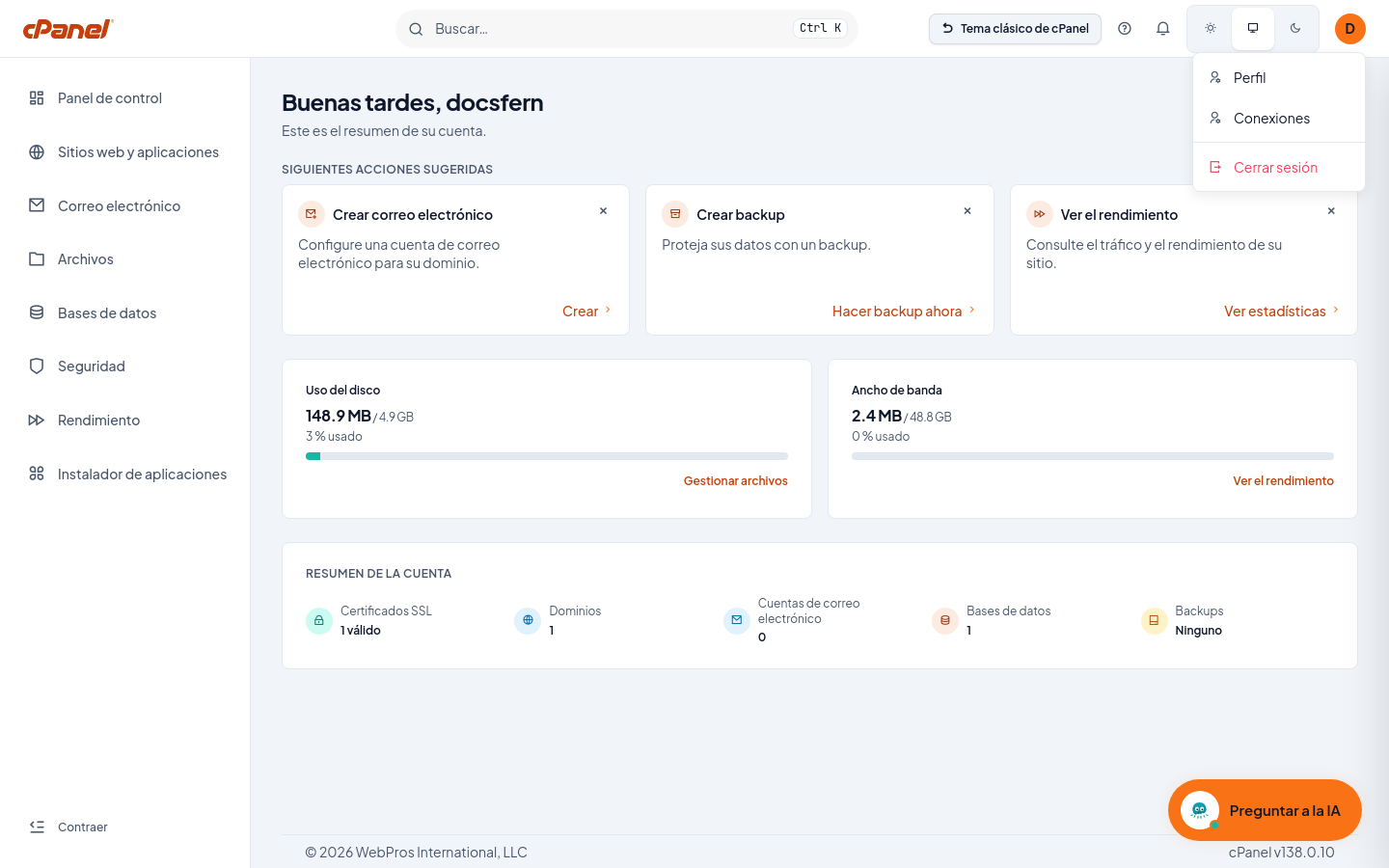
Meridian reorganizes the control panel around a home dashboard and a sidebar with the main sections: Dashboard, Websites & Applications, Email, Files, Databases, Security, and Application Installer.
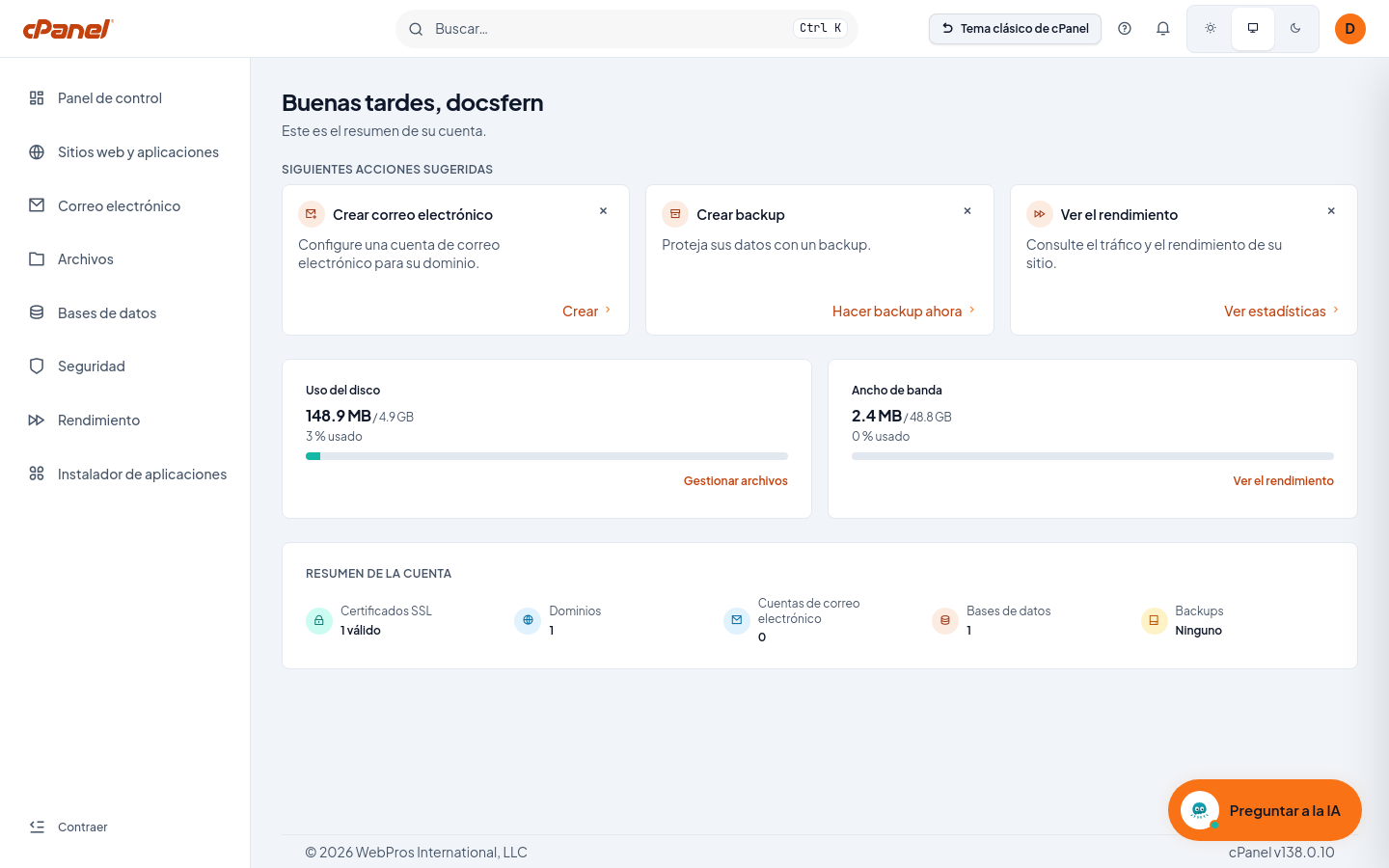
The home dashboard summarizes your account: suggested actions (create an email account, create a backup, view performance), the Disk Usage and Bandwidth bars, and the Account Summary with SSL certificates, domains, email accounts, databases, and backups.
Search with the Command Palette
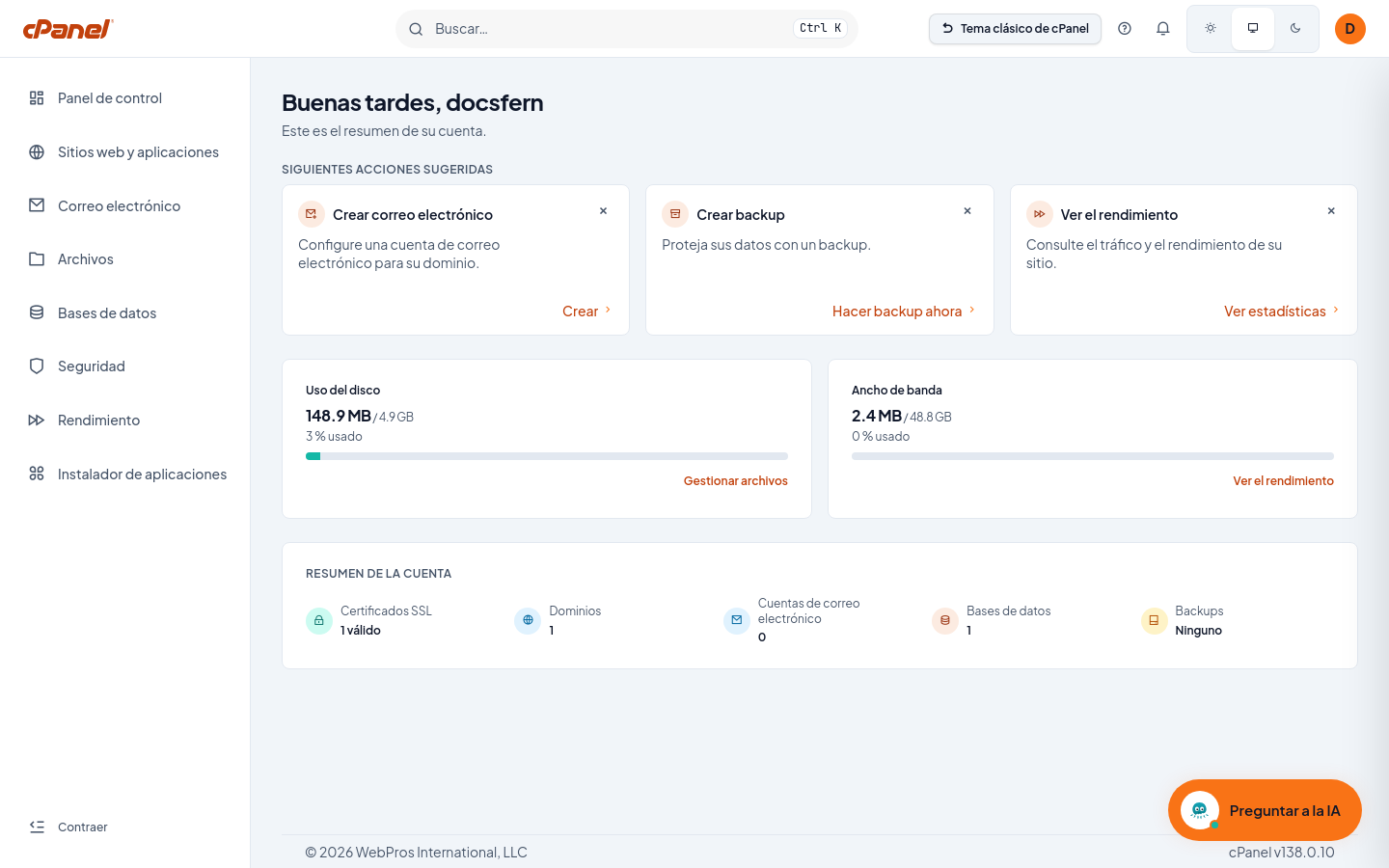
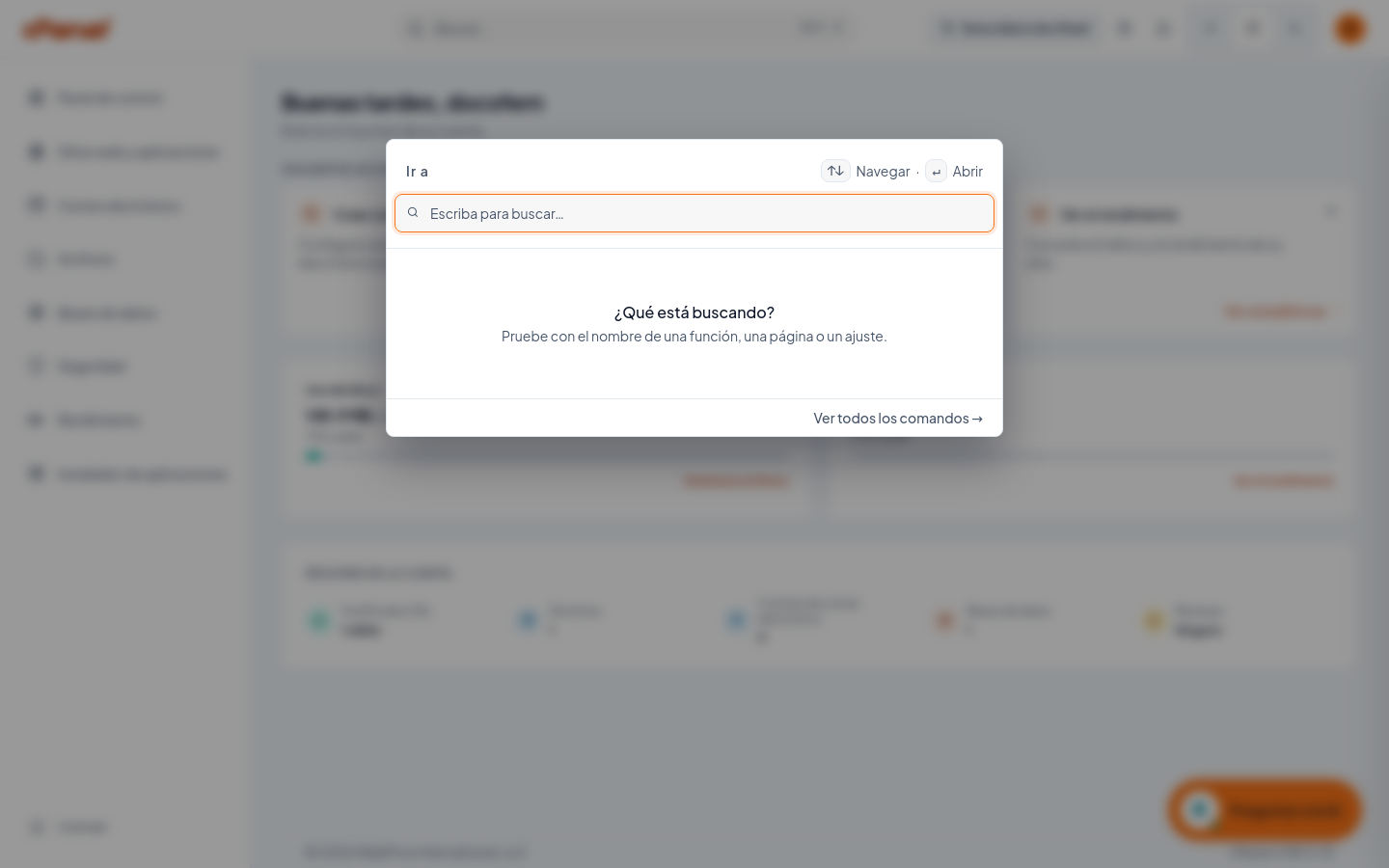
The Search box in the top bar opens the Command Palette, which finds features, pages, and settings throughout the control panel. You can also open it with Ctrl+K (Cmd+K on Mac) or by typing / on your keyboard.
The top bar also includes help, notifications, and display preferences, with light and dark modes. The user avatar menu contains Profile, Connections, and Log Out.
Switch back to Jupiter
To return to the classic interface, click cPanel Classic Theme in the Meridian top bar.
The provider sets the default theme. Existing accounts using Jupiter can switch between the two themes from their control panel; however, an account created directly in Meridian cannot switch back to Jupiter on its own.